Assignation priority
Assignation priority sets the order in which Service picks tables when it assigns a reservation automatically. Two cases trigger automatic assignment:
- Online bookings — on the widget, the guest does not pick a table, so Service assigns one using this priority. A booking request awaiting approval stays without a table until you approve it.
- Staff-created reservations, when assignment is set to Automatic — in the reservation form, assignment offers Automatic (Service picks the table using this priority) and Manual (you pick the table yourself and priority does not apply).
You configure priority in SettingsFloor plansAssignation priority.
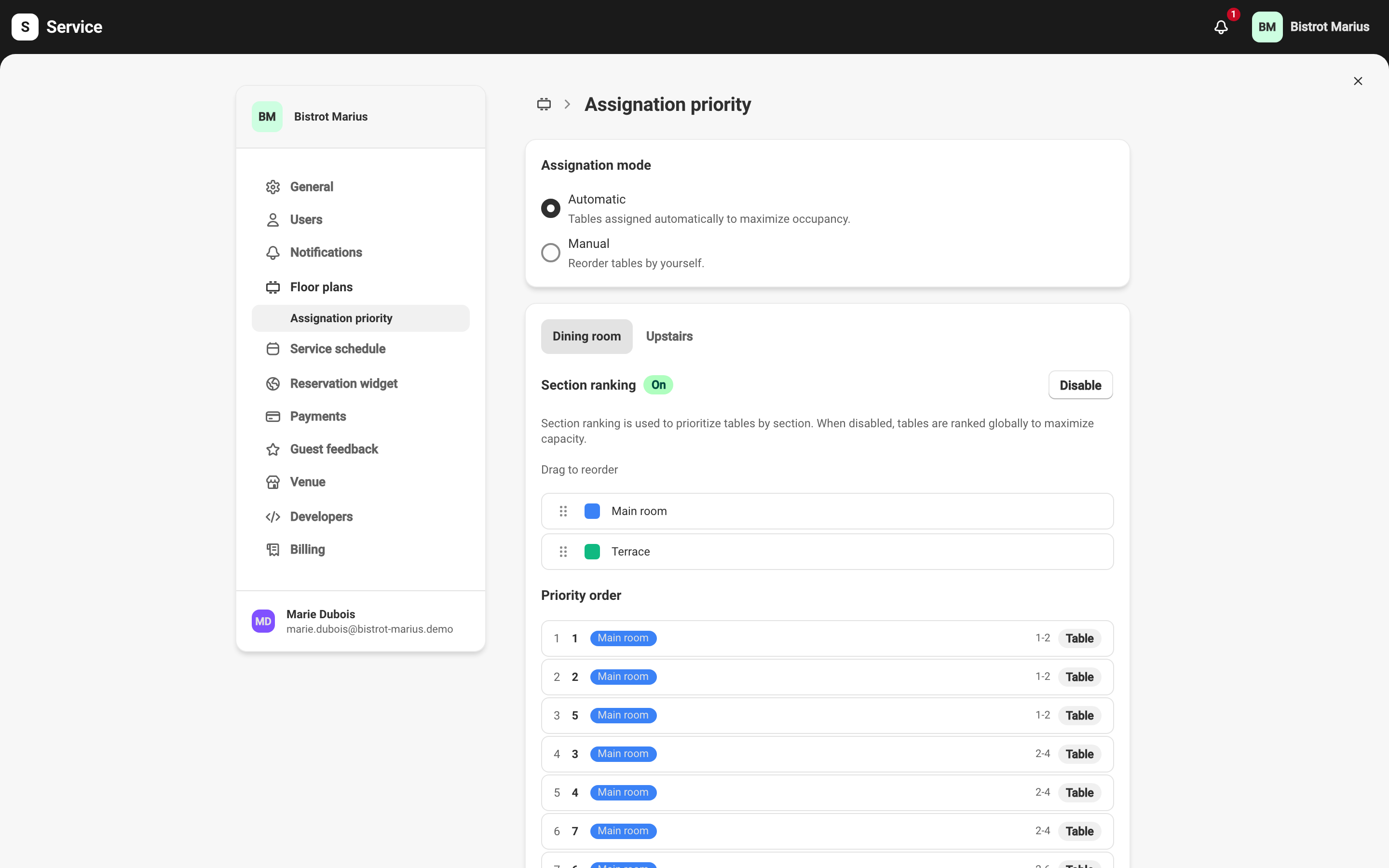
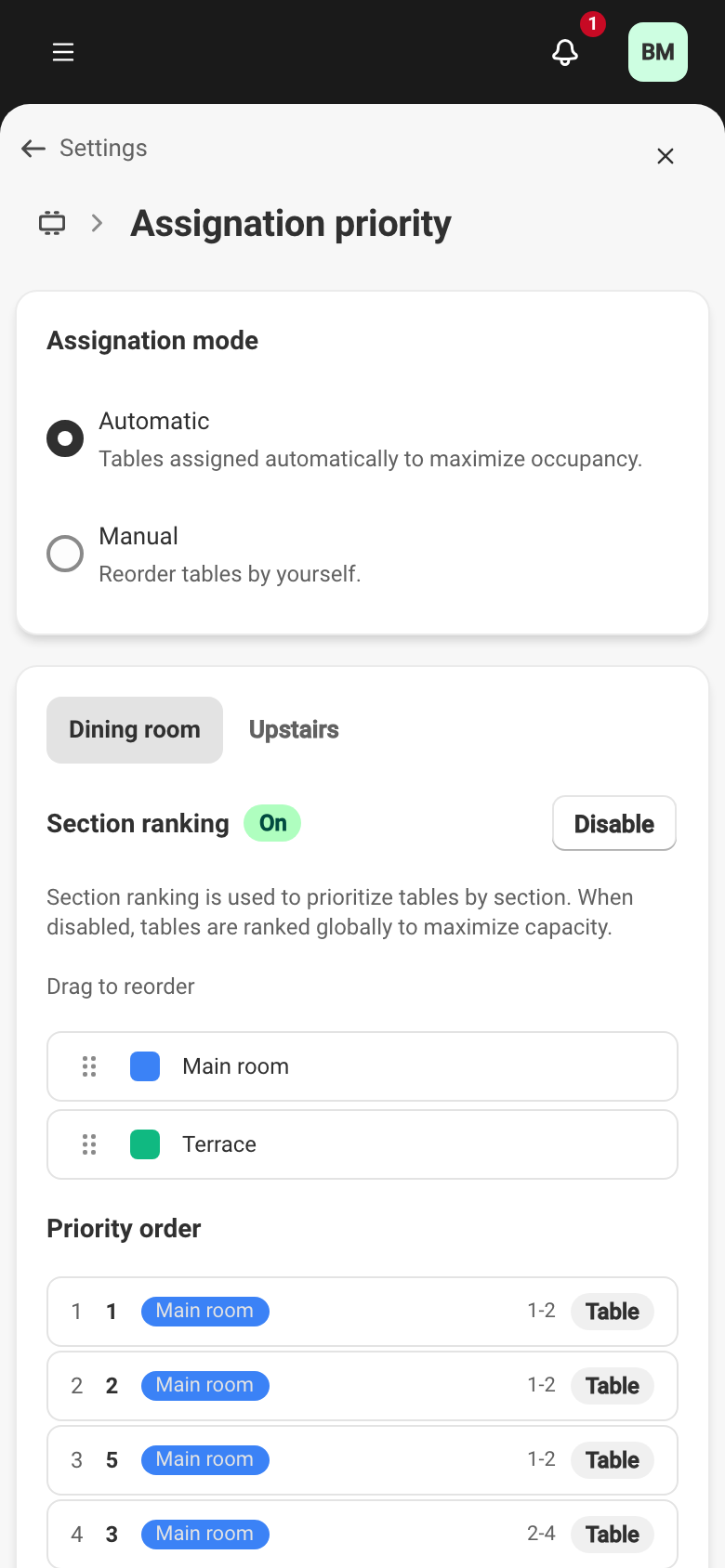
Assignation mode
Section titled “Assignation mode”The Assignation mode has two settings:
- Automatic — Service assigns tables itself to maximize occupancy. This is the recommended setting.
- Manual — you set the table order yourself, one by one, in the Priority order.
Section ranking
Section titled “Section ranking”In Automatic mode, Section ranking adds a level of control: instead of ranking every table together, Service prioritizes them section by section. Enable ranking, then drag the sections to set their order. You can fill the indoor room before the terrace this way.
When it is disabled, tables are ranked globally to maximize capacity, regardless of their section.
Section ranking only appears once you have two sections. It belongs to Automatic mode: in Manual mode, you order the tables directly.
Priority order
Section titled “Priority order”The Priority order lists your tables and combinations. In Manual mode, drag each row to set the exact order in which Service offers them. In Automatic mode, the list reflects the order Service computes and does not reorder by hand.
Multiple floor plans
Section titled “Multiple floor plans”If your venue has more than one floor plan, tabs at the top of the screen let you set priority per plan. Each service uses a single plan, so each plan keeps its own order.
A reordered priority takes effect only after you click Save in the bar at the top of the screen.