A guest didn't get their email
When a guest tells you they didn’t get their confirmation or reminder, the reservation’s History tab tells you exactly what happened. Open the reservation from Reservations, then the History tab: every email sent to the guest appears there with a status. How this tab works is described in A reservation’s history.
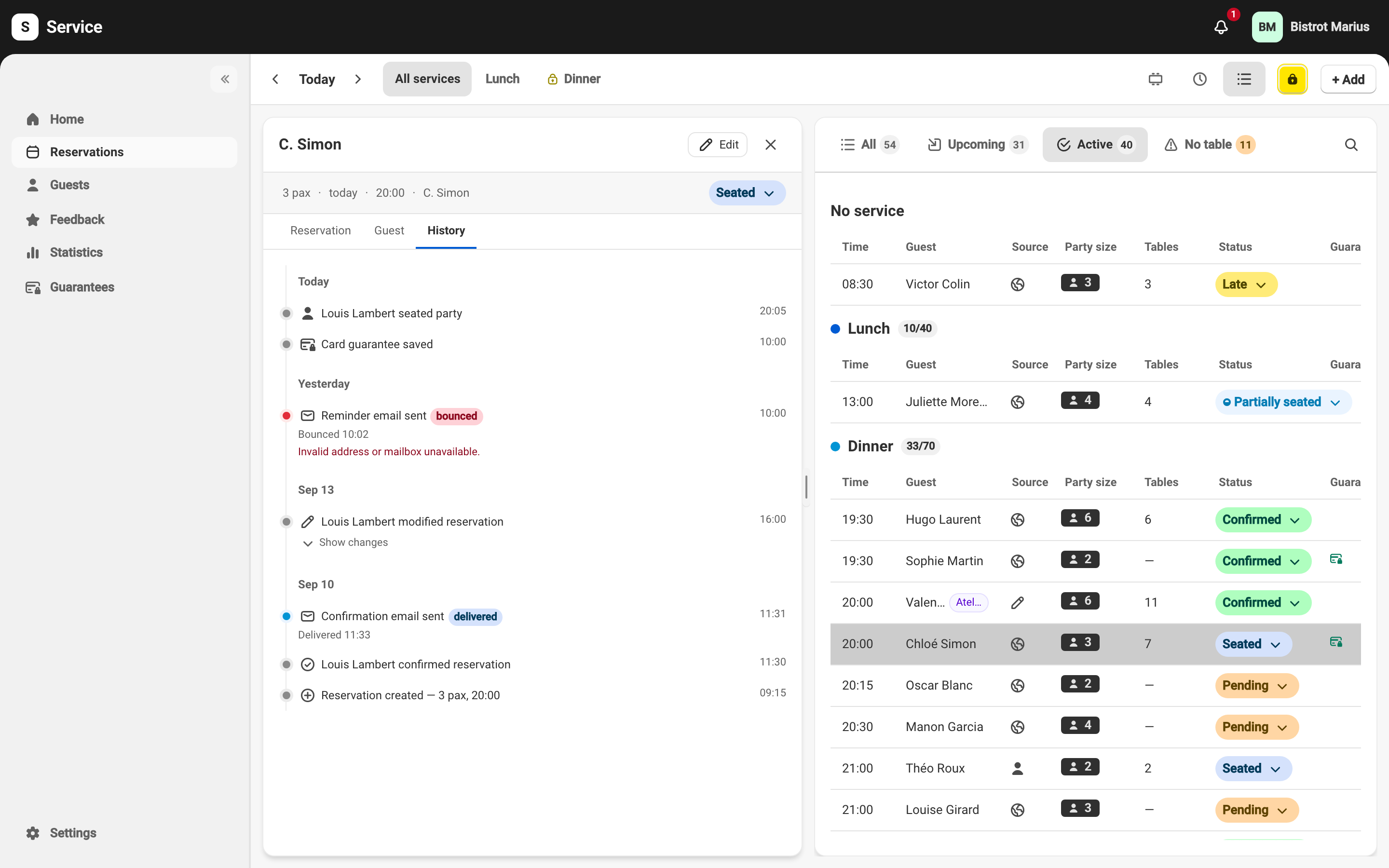
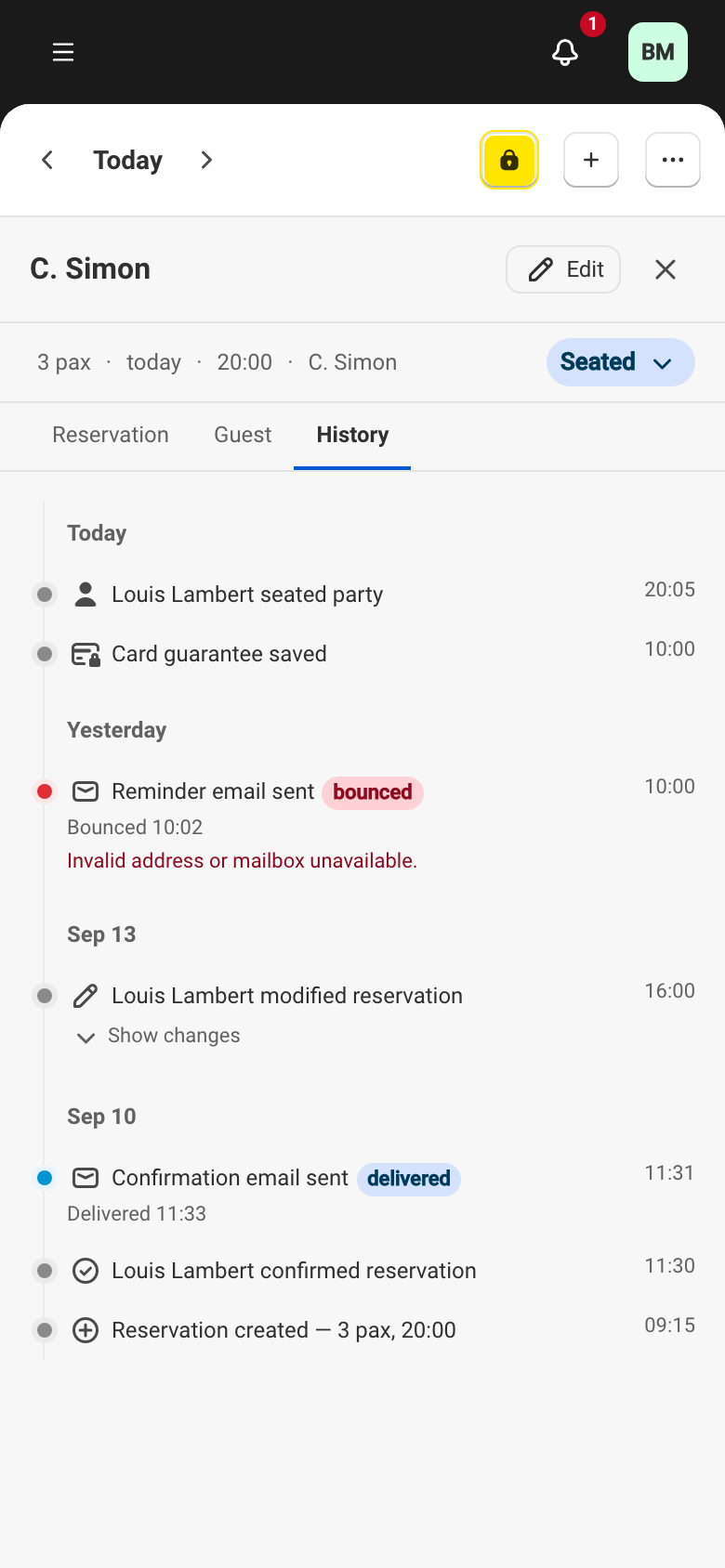
Reading an email’s status
Section titled “Reading an email’s status”Each email line carries a status badge, sometimes with a diagnostic line that names the cause. The full list of delivery statuses — for emails and for SMS alike — is in A reservation’s history. The sections below cover the statuses that call for an action on your part.
“bounced”: invalid address or mailbox unavailable
Section titled ““bounced”: invalid address or mailbox unavailable”The diagnostic “Invalid address or mailbox unavailable.” goes with this status. The address on file is wrong, or the guest’s mailbox is full or closed.
Correct the address on the guest profile. As soon as you change the email address, Service clears the block from the earlier bounce and sends later emails to the new address. The contact details required at booking are covered on the guest profile.
“failed”: no address, previously rejected address, or a send failure
Section titled ““failed”: no address, previously rejected address, or a send failure”Three diagnostics sit behind this status.
- “No email address on file.” — the reservation has no email address. No email can go out until you add one.
- “Address previously invalid — not sent.” — this address has already bounced, so Service doesn’t retry. Correct it on the guest profile to re-enable sending.
- “Provider delivery failure.” — a passing incident with the sending service. A later email may go out normally. If the failure repeats, contact Service support.
“spam”: marked as junk
Section titled ““spam”: marked as junk”The diagnostic “Marked as spam by the recipient.” means the guest, or their email provider, filed a previous email as junk. Later emails may no longer reach their inbox. The guest needs to find the email in their junk folder and mark it as legitimate to restore delivery.
“blocked”: tied to your subscription
Section titled ““blocked”: tied to your subscription”This status doesn’t come from the guest. Service suspended the send for a reason tied to your account’s state, named by the diagnostic:
- “Not sent — configuration mode.” — your account is still in configuration mode and guest emails don’t go out.
- “Not sent — subscription suspended.” — your subscription is suspended.
Settle your subscription state so emails go out again.
To choose which emails Service sends to guests and set how those messages look, see the notification settings.