Recognise a guest already signed in on your site
When your site already knows the guest — a members’ area, a hotel or group account — it can open your widget with their details already filled in: name, email and phone carried over from their account, with nothing to retype. A verification key authenticates those requests to Service.
This feature is for whoever builds your site. The prefill rests on a request signed with your key — see Integrate the widget with your website for the implementation.
The verification key
Section titled “The verification key”You manage your keys at SettingsDevelopers, under Identifying the guest. A key authenticates the identity your site asserts for a guest. Create verification key adds one; you give it a name you’ll recognise later.
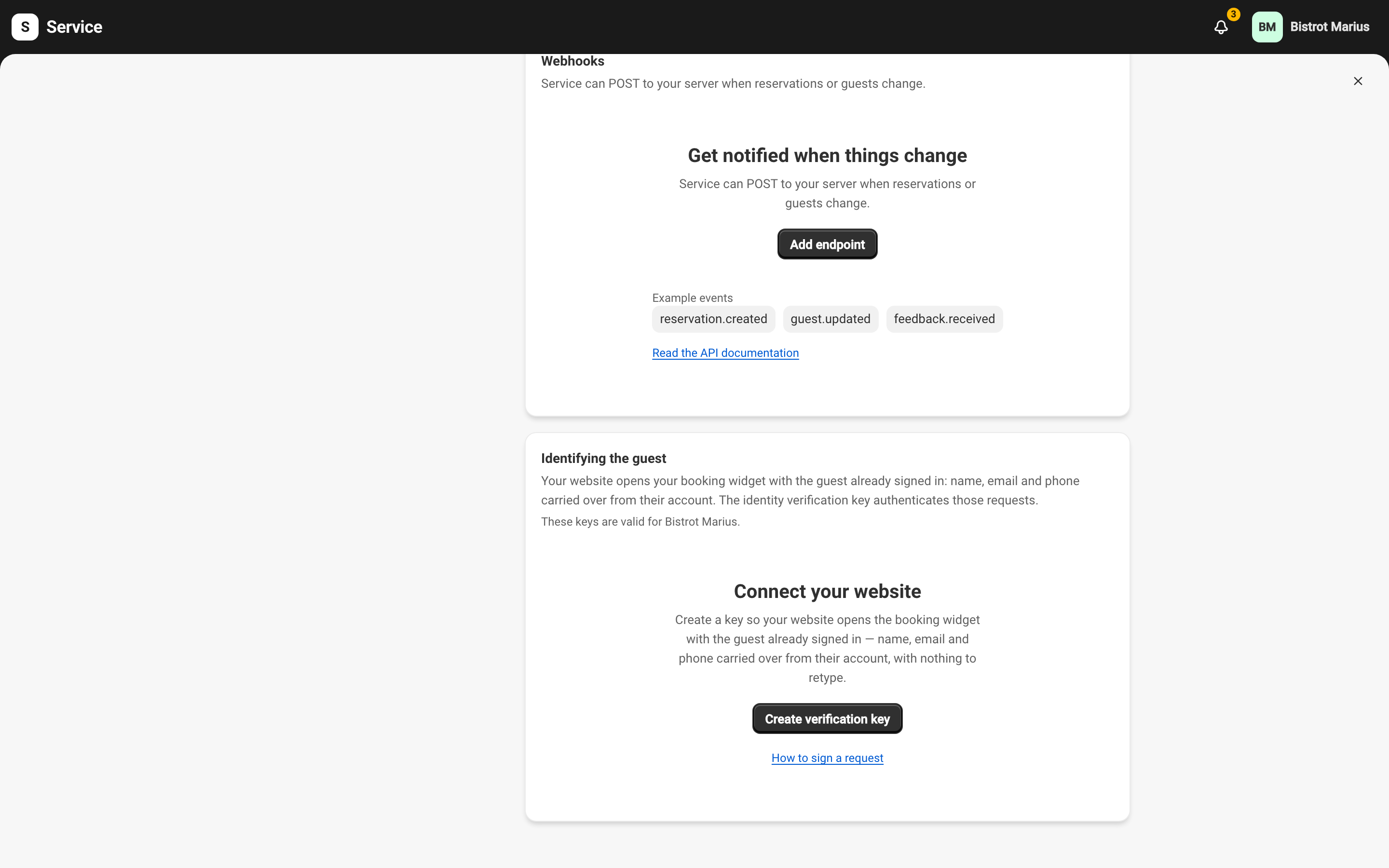
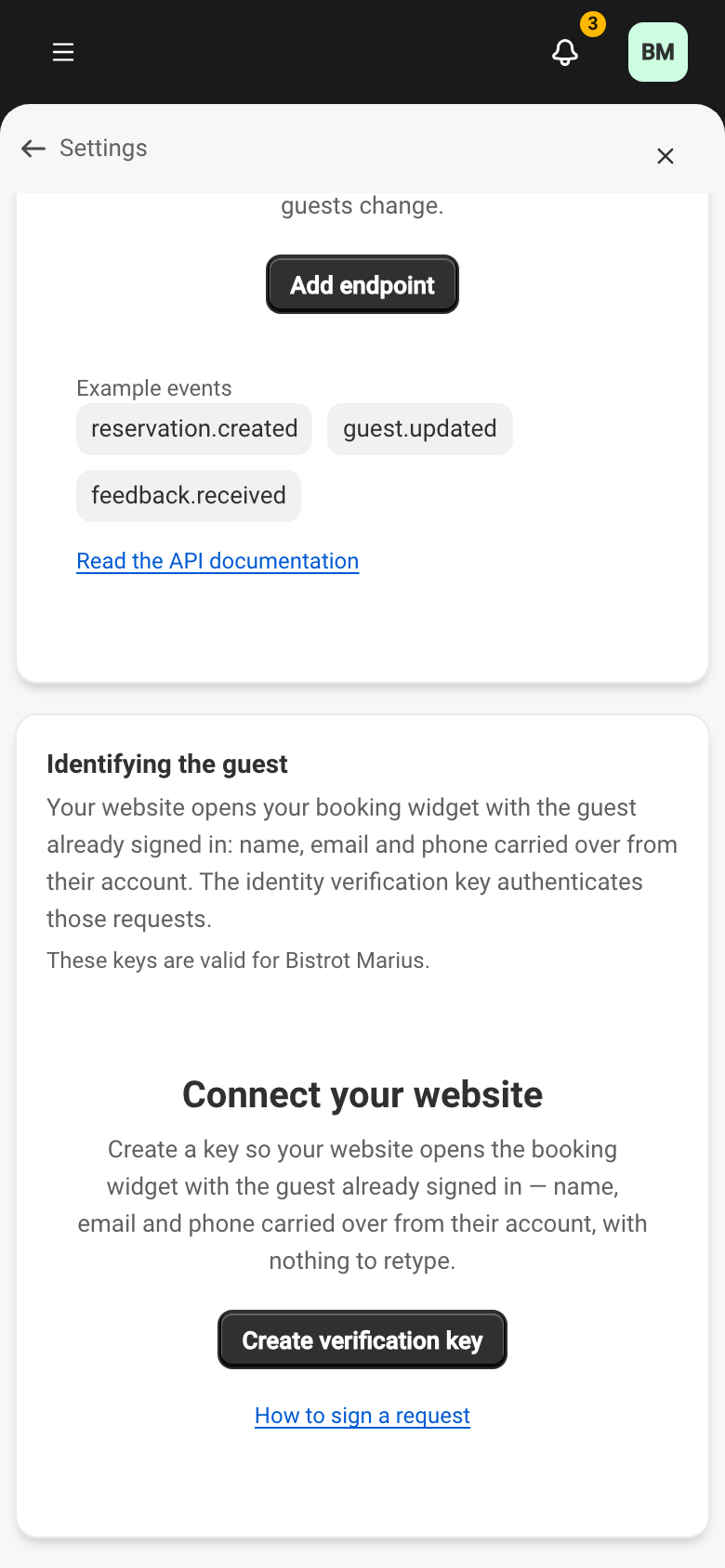
The key lets your site assert a guest’s identity without them retyping it: treat it like a password. Views of the key are logged.
Return domains
Section titled “Return domains”At creation, you can declare Return domains, which are optional. After booking, the guest can be sent back to one of these domains. This return to your site is described in Integrate the widget with your website. You can change the list at any time.
What the guest sees
Section titled “What the guest sees”When the widget opens with a recognised identity, it says Your details are already filled in and shows a reservation in their name. Each carried-over field carries a Prefilled mark. If the guest changes one, it turns to Edited, and the widget notes that details they changed won’t be linked to the profile that was shared.
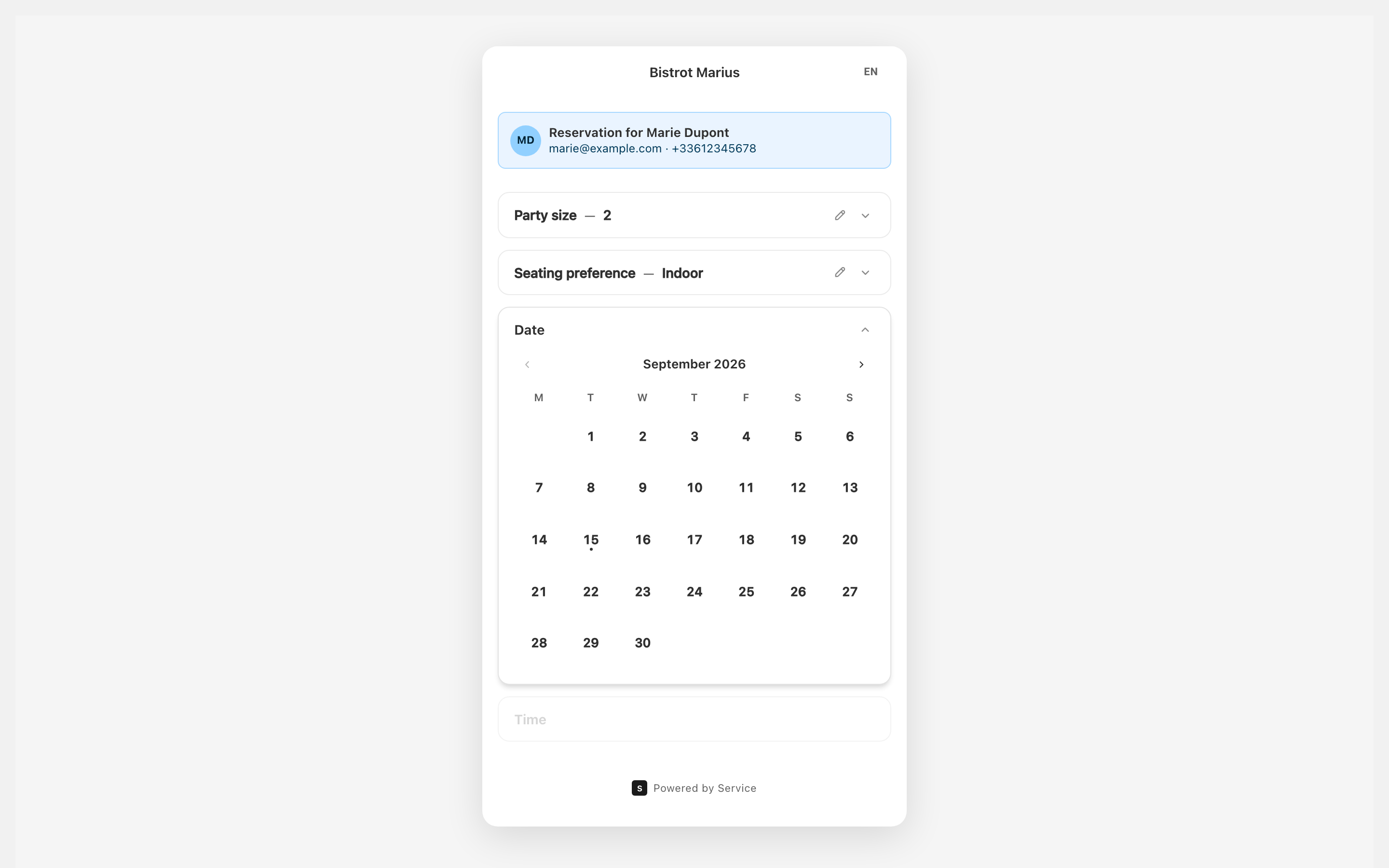
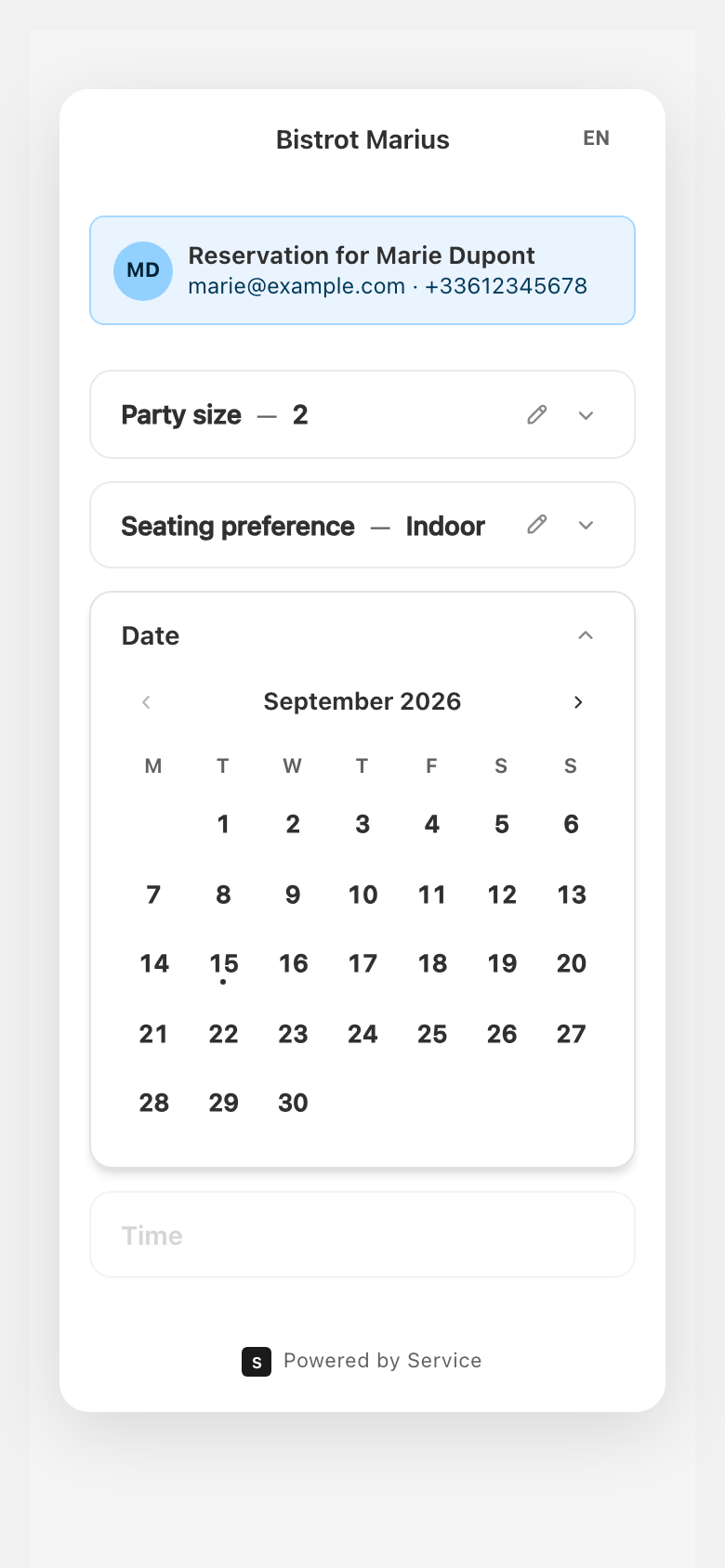
If the session has expired in the meantime, the widget says so and invites the guest to carry on and enter their details themselves.
Renewing or revoking a key
Section titled “Renewing or revoking a key”Each key carries a Status, Active or Revoked. Revoke stops your site from opening the widget with a guest already signed in; guests will then have to retype their details. Reservations already recorded are unaffected.
To change keys without downtime, create the new one, switch your site over to it, then revoke the old one. You can have a limited number of active keys at a time.