What your guests see
This page describes the journey your guest follows in the booking widget, from the first screen to the confirmation. The widget is a public page, with no access to the back office, so it has no path in Settings.
Opening
Section titled “Opening”The widget opens on your welcome message, if you have set one. When you offer several languages, a Change language button lets the guest switch; otherwise the widget starts in your venue’s primary language.
Choosing the slot
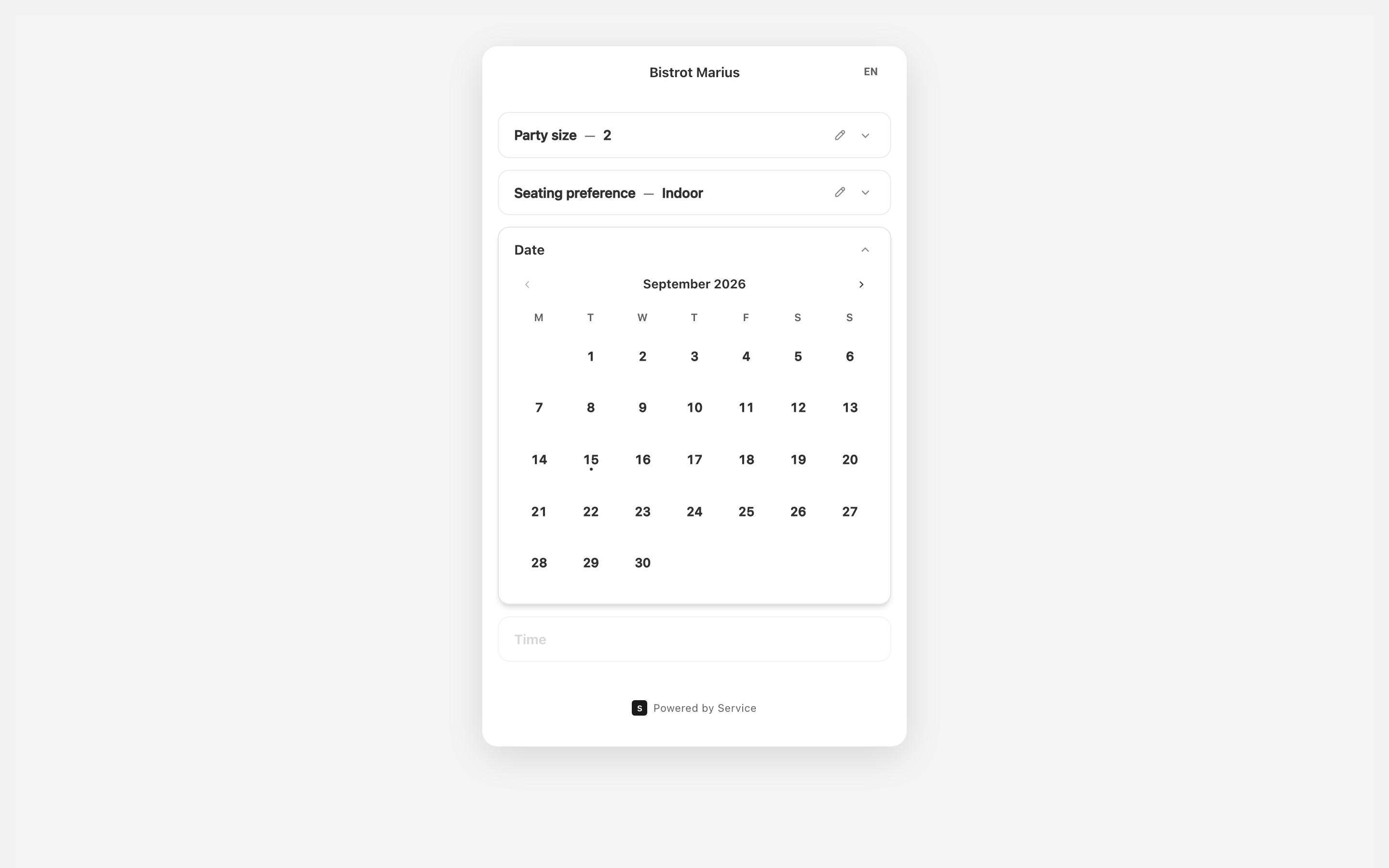
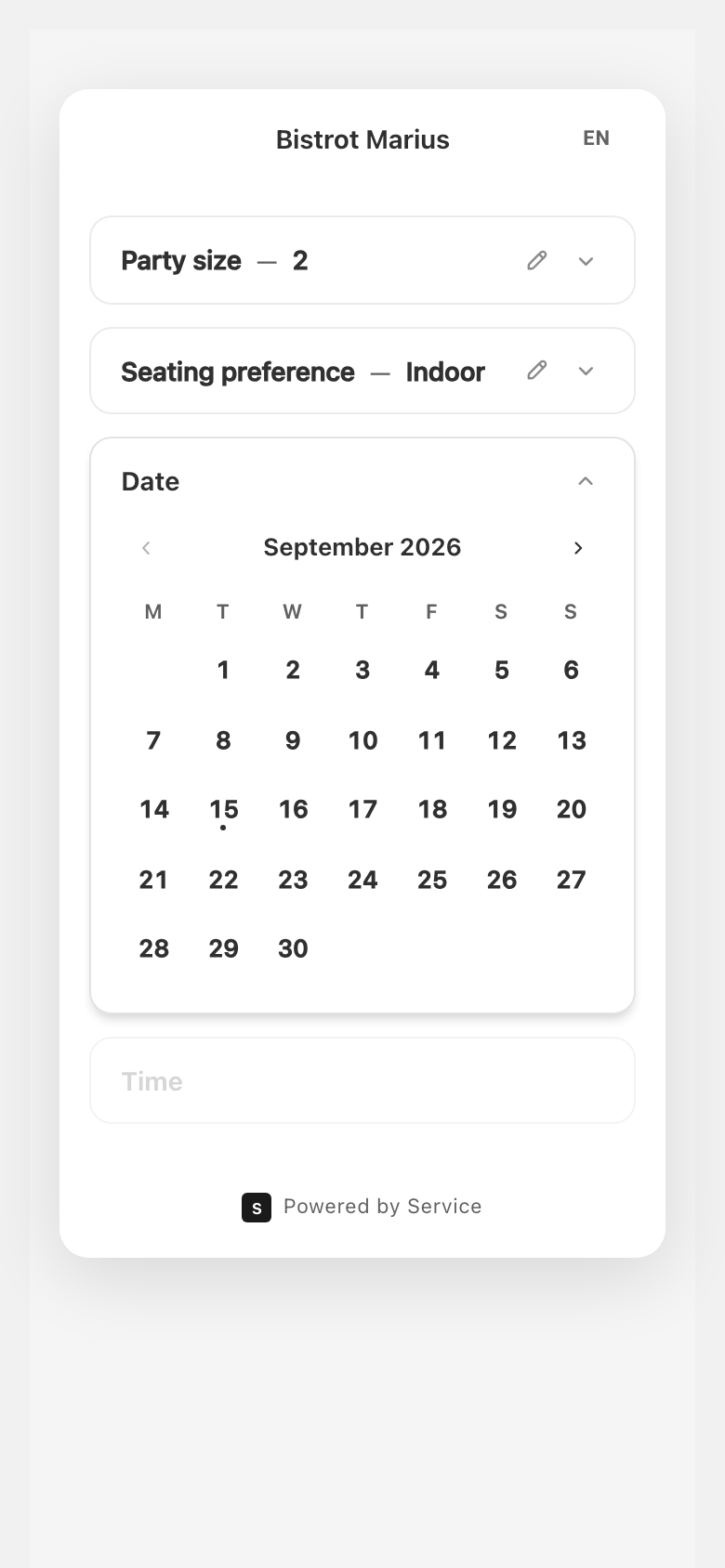
Section titled “Choosing the slot”The guest enters their reservation in a four-part accordion:
- Party size — the party, within the limits you have set.
- Seating preference — the area they want, with an Any option. This part only appears if you have enabled the seating area preference.
- Date — a monthly calendar. Days with no availability can’t be selected and say why: Fully booked for 4 guests (or Fully booked while no party size is chosen), Closed or Not yet open for booking. When the guest has picked a section, a day that is full there names the sections that still have room: “Available: Dining room and Bar”.
- Time — the slots available for the chosen date. A service that has already passed is not offered.
At the bottom of the widget, Powered by Service is always visible.
If the slot they want is booked while the guest fills in the form, the widget tells them and invites them to pick another time.
Entering contact details
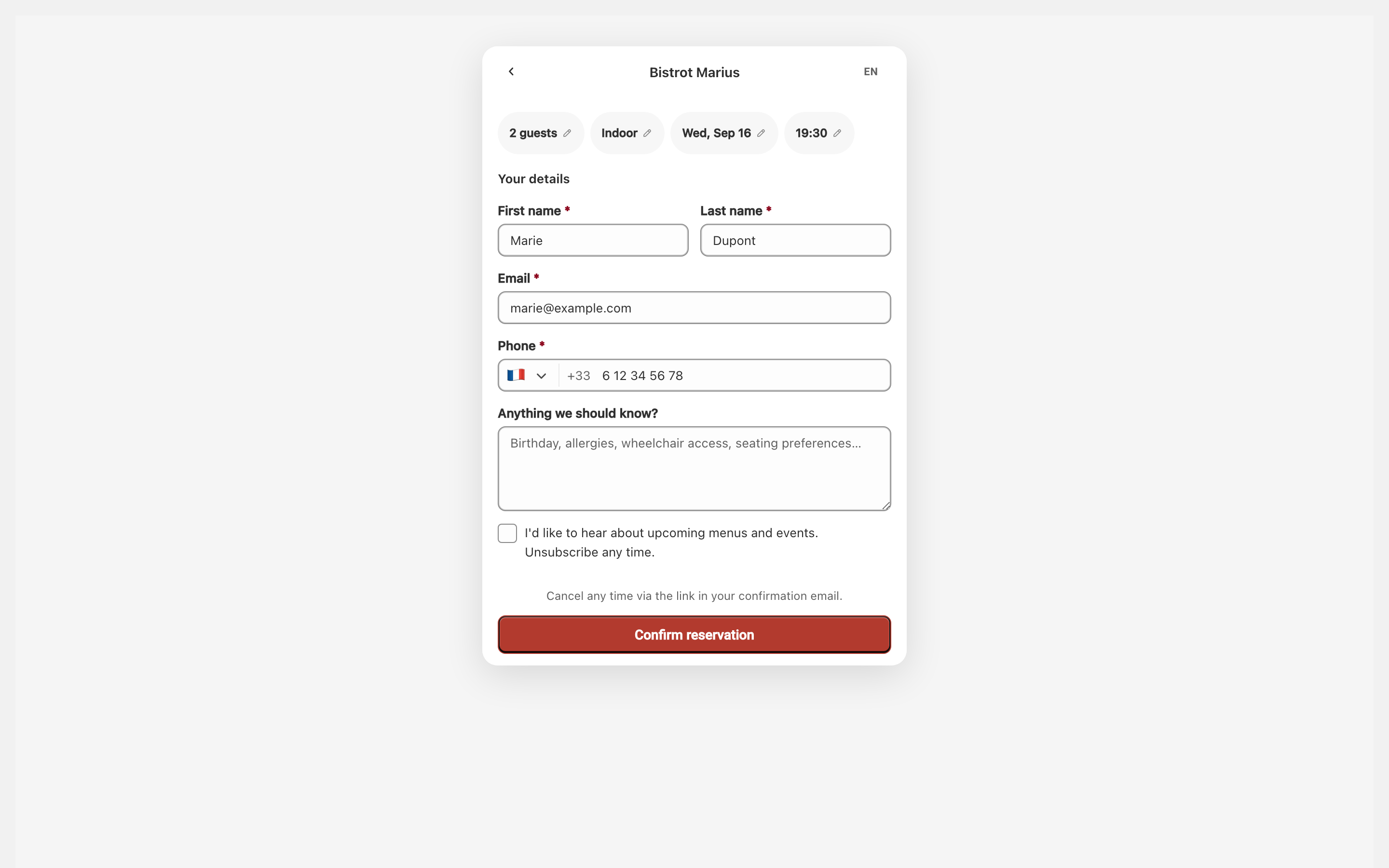
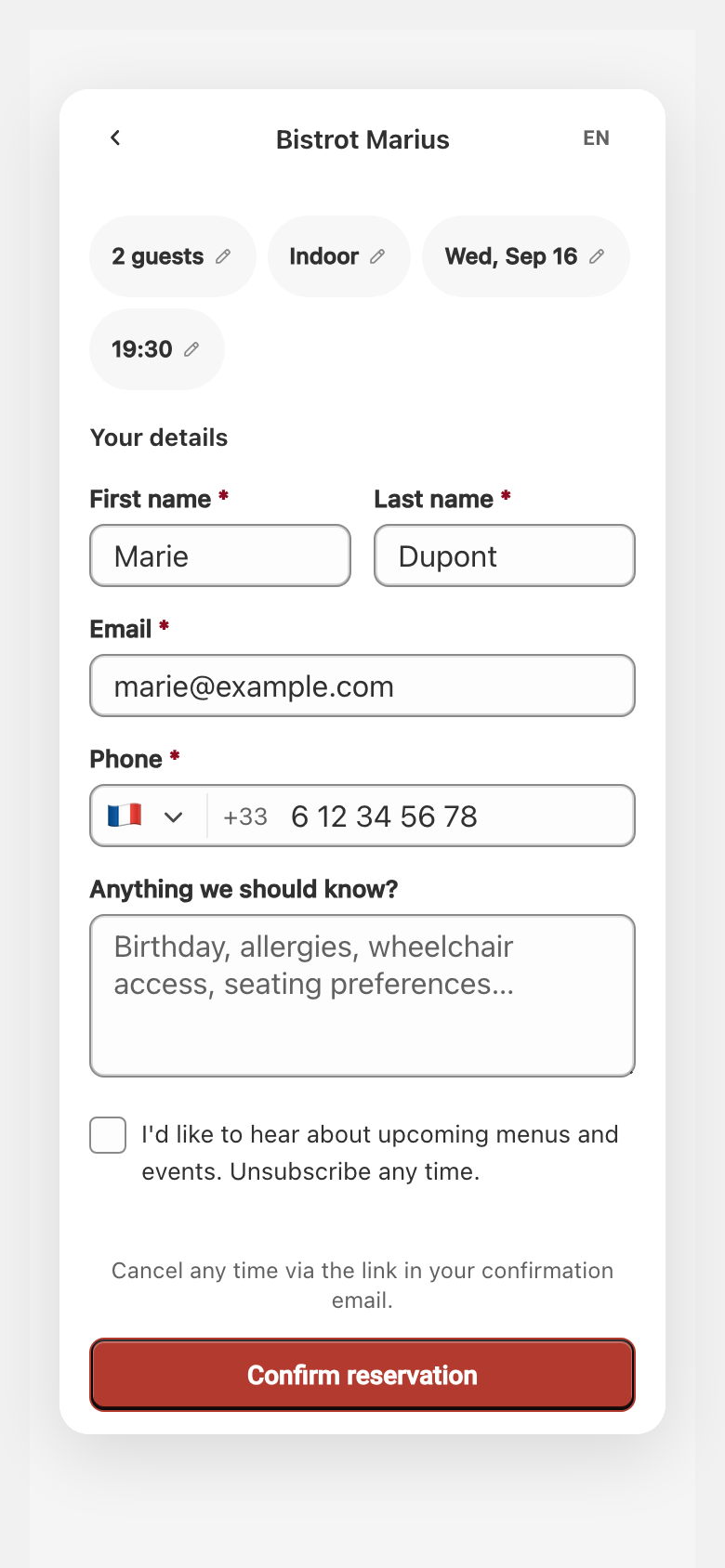
Section titled “Entering contact details”The Your details screen gathers First name, Last name, Email and Phone. Which fields are required depends on your booking form; the name is always asked for. A free field, Anything we should know?, collects the guest’s notes — birthday, allergies, access. A checkbox offers to receive your news, unticked by default.
The submit button depends on your configuration:
- Confirm reservation when confirmation is immediate.
- Request reservation when you approve reservations by hand. The guest then reads that the venue reviews reservations and that they’ll get an email once it’s confirmed.
The confirmation
Section titled “The confirmation”Once the reservation is sent, the guest sees one of two screens:
- Reservation confirmed when it is validated immediately.
- Booking request sent when it awaits your approval.
The screen recalls the email address the confirmation was sent to, and offers Add to calendar as well as Modify or cancel, which leads to the self-service page — see Guest modifications and cancellations.
When a card guarantee is asked for
Section titled “When a card guarantee is asked for”If the reservation requires a card guarantee, a card-entry step slots in between the contact details and the confirmation. The guest saves their card there, with no amount charged at that point. This step and what the guest sees are described in What the guest sees.