Opening a service to online reservations
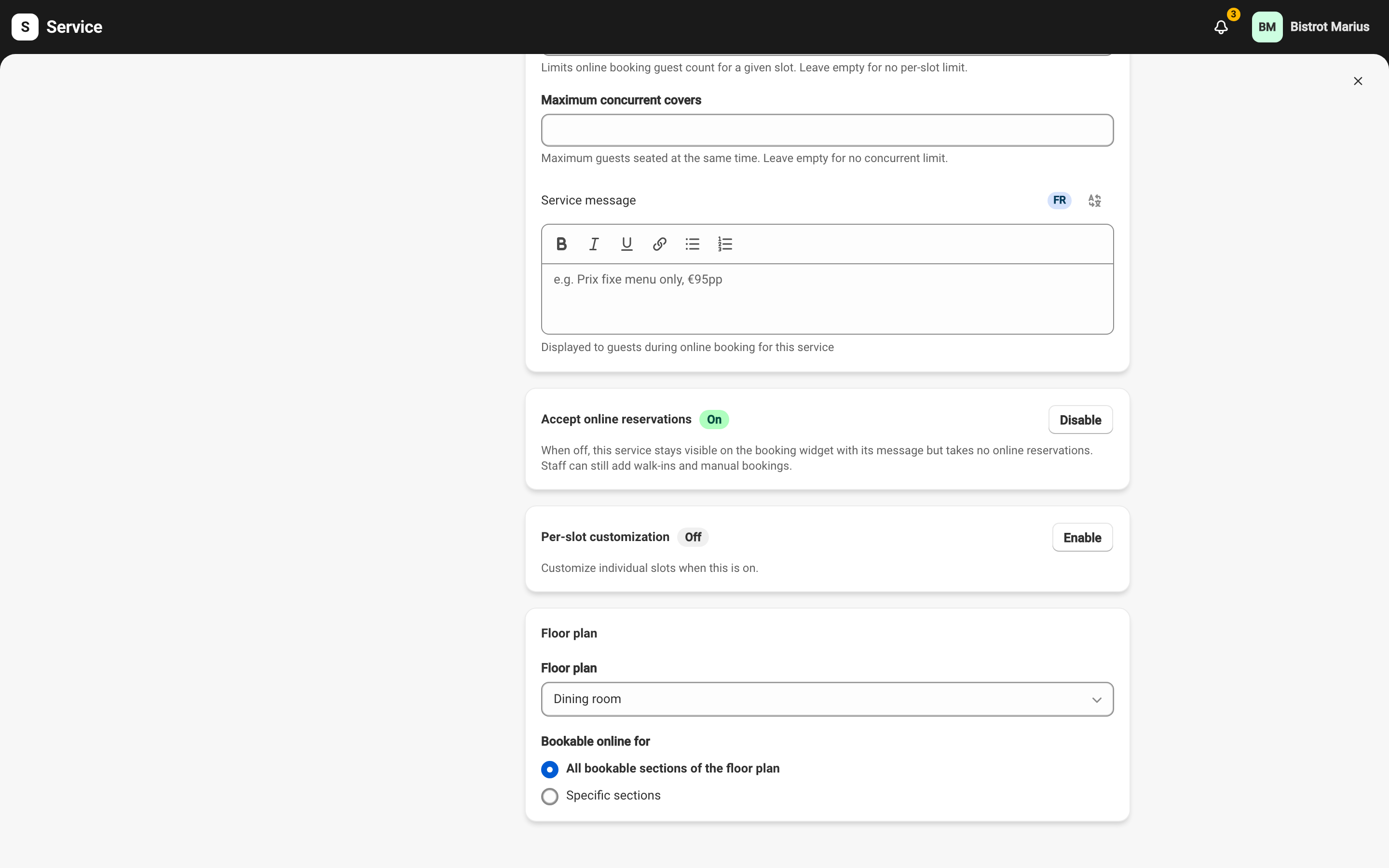
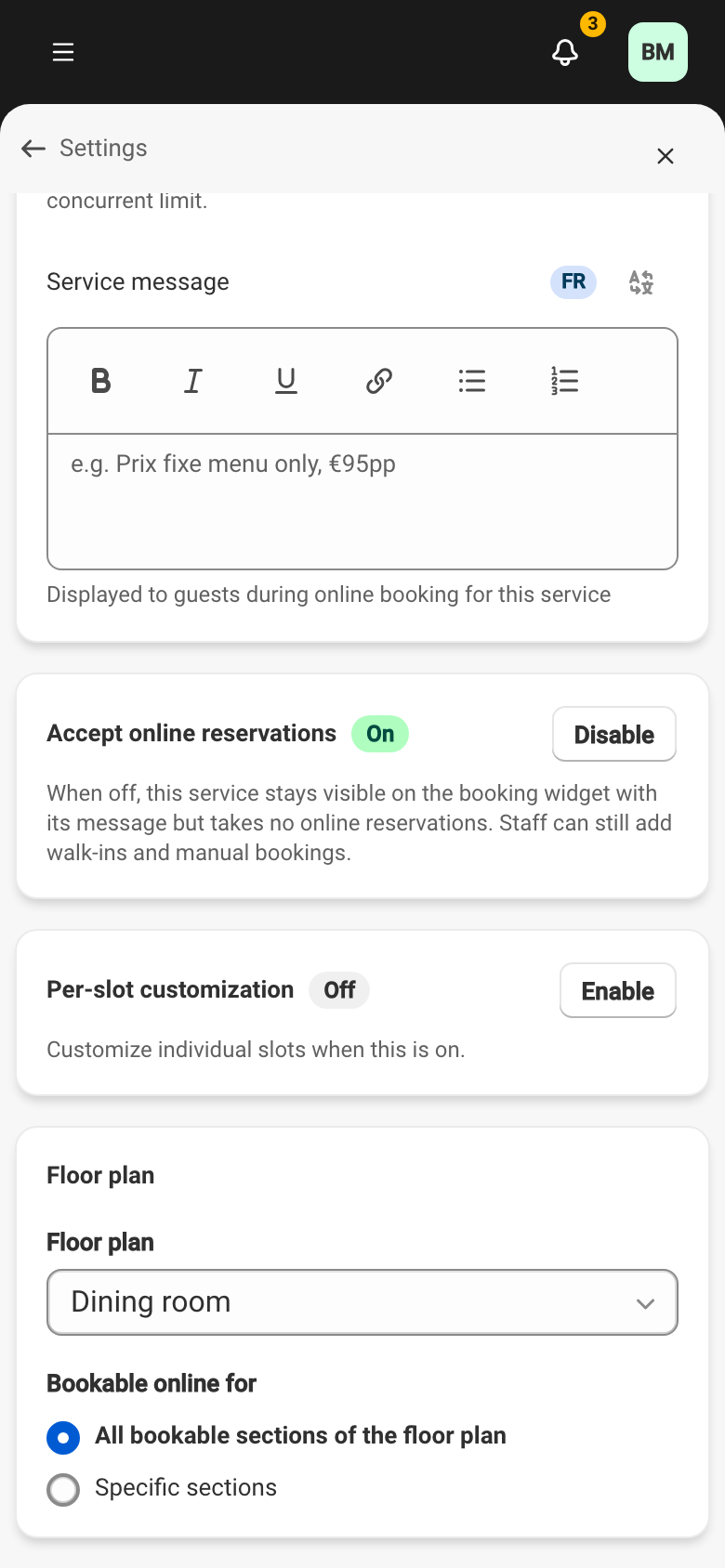
Each service decides whether it accepts online reservations. The setting lives on the service form, in the Accept online reservations block, with a badge showing whether it is on. See Services for the whole form.
Accepting online reservations or not
Section titled “Accepting online reservations or not”The Disable button switches the service to display-only. In this mode, the service stays visible on the booking widget with its message, but takes no online reservations. Your team can still add walk-ins and manual bookings. The Enable button reopens the service to online reservations.
On a display-only service, the choice of which sections are bookable online does not apply and stays disabled, since no online reservation is taken.
What guests see
Section titled “What guests see”A display-only service appears on the widget for information. A guest who tries to book such a service sees a message telling them the service takes no online reservations, and inviting them to pick another time or contact the venue.
Setting up the booking widget itself is covered separately.
Opening or closing for a specific date
Section titled “Opening or closing for a specific date”A service’s setting applies to all its dates. To open or close online booking for certain dates only, there are two routes:
- An override can set, for specific dates, Inherit from the service, Accept online reservations, or Display only — see Date overrides.
- To close a service, a slot, a section, or a table to online booking on a single date without changing the schedule, use service availability from the Reservations page — see Block a service, slot, or table.