The home screen
Home is the first page when you open the back office. It sums up the day: its services, the covers booked, and the requests to handle.
Choose the day
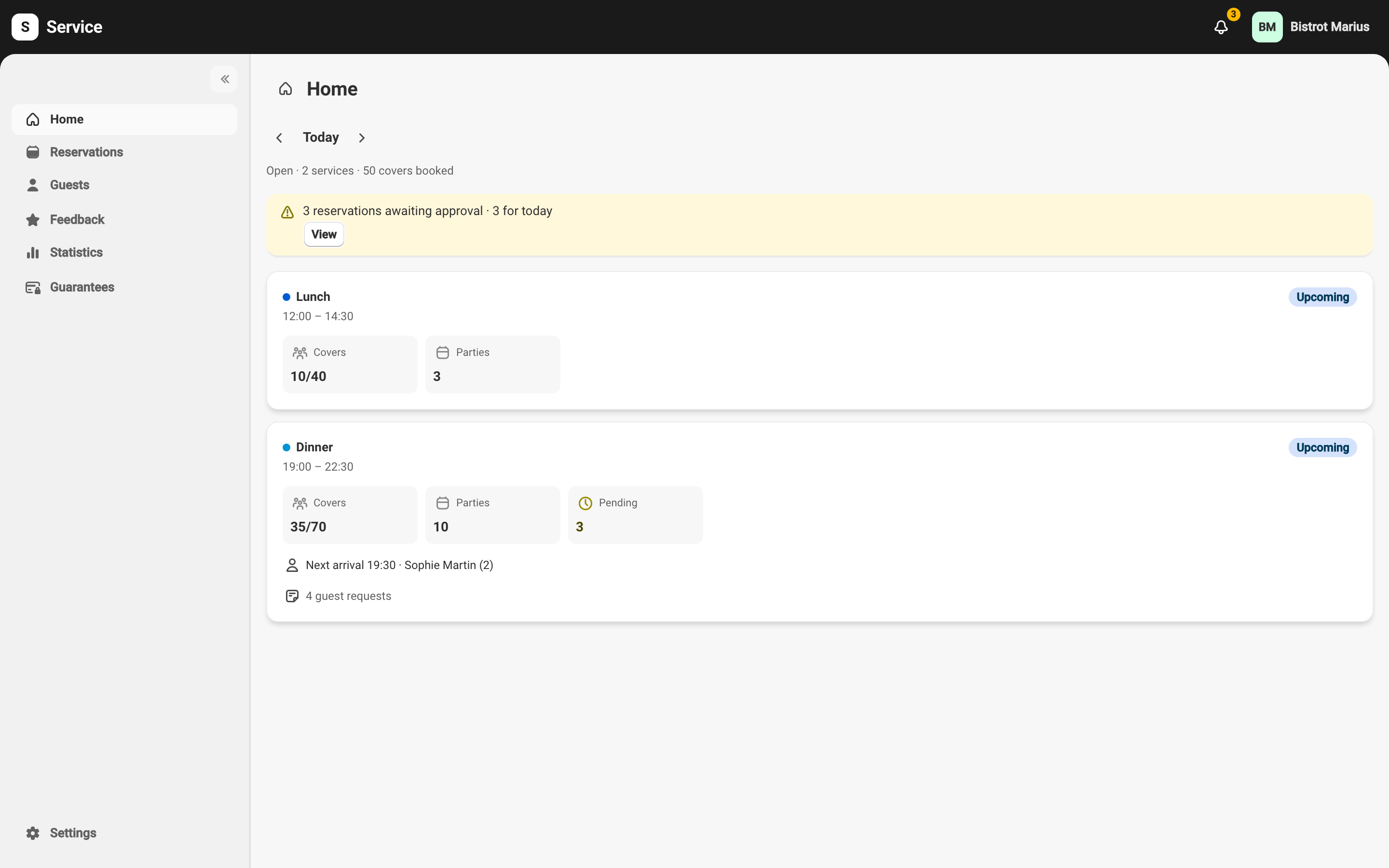
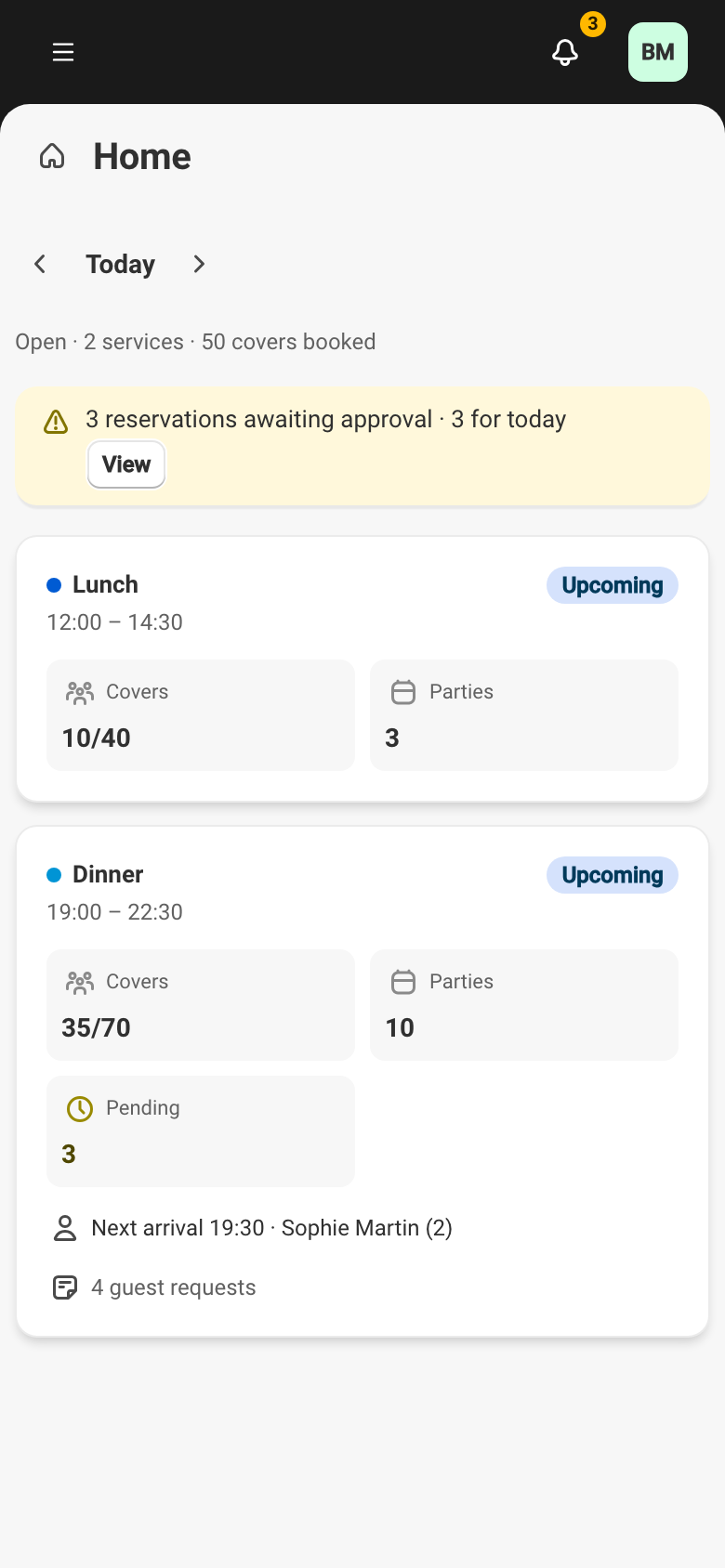
Section titled “Choose the day”At the top, the date selector shows the current day. The arrows move to the previous or next day, and the date opens a calendar to jump to another day. Today returns to the current date.
The day summary
Section titled “The day summary”Below the date, one line recaps the day: its state — Open, or Special schedule on an exception day — the number of services and the covers booked. A day with no service shows Closed or Closed (no service).
Reservations awaiting approval
Section titled “Reservations awaiting approval”When online reservations are waiting for your approval, a banner counts them and shows how many are for today. View opens the request queue. The approval process is described in Approving online reservations.
The day’s services
Section titled “The day’s services”Each of the day’s services has its own card. It carries a color dot, the service name, its hours, and a status — Now, Upcoming, or Finished.
The key figures appear as tiles:
- Covers — the covers booked, out of the service’s capacity.
- Parties — the number of reservations.
- Pending — the reservations awaiting your approval, when there are any.
- Walk-ins — the walk-in guests who arrived without a reservation, once the service is under way or finished.
A Next arrival line announces the next expected guest, with the time and the party size. The card also flags large parties and guest requests. Clicking a card opens the Reservations page on that service.
A Sold out or Display only badge shows the service’s online-booking state, and a Special or Modified badge marks a date exception. On a special day, a Special day banner shows the message meant for your guests.