The reservation form
The reservation form creates or edits a reservation. You open it with + Add then New reservation on the Reservations page, or by editing an existing reservation.
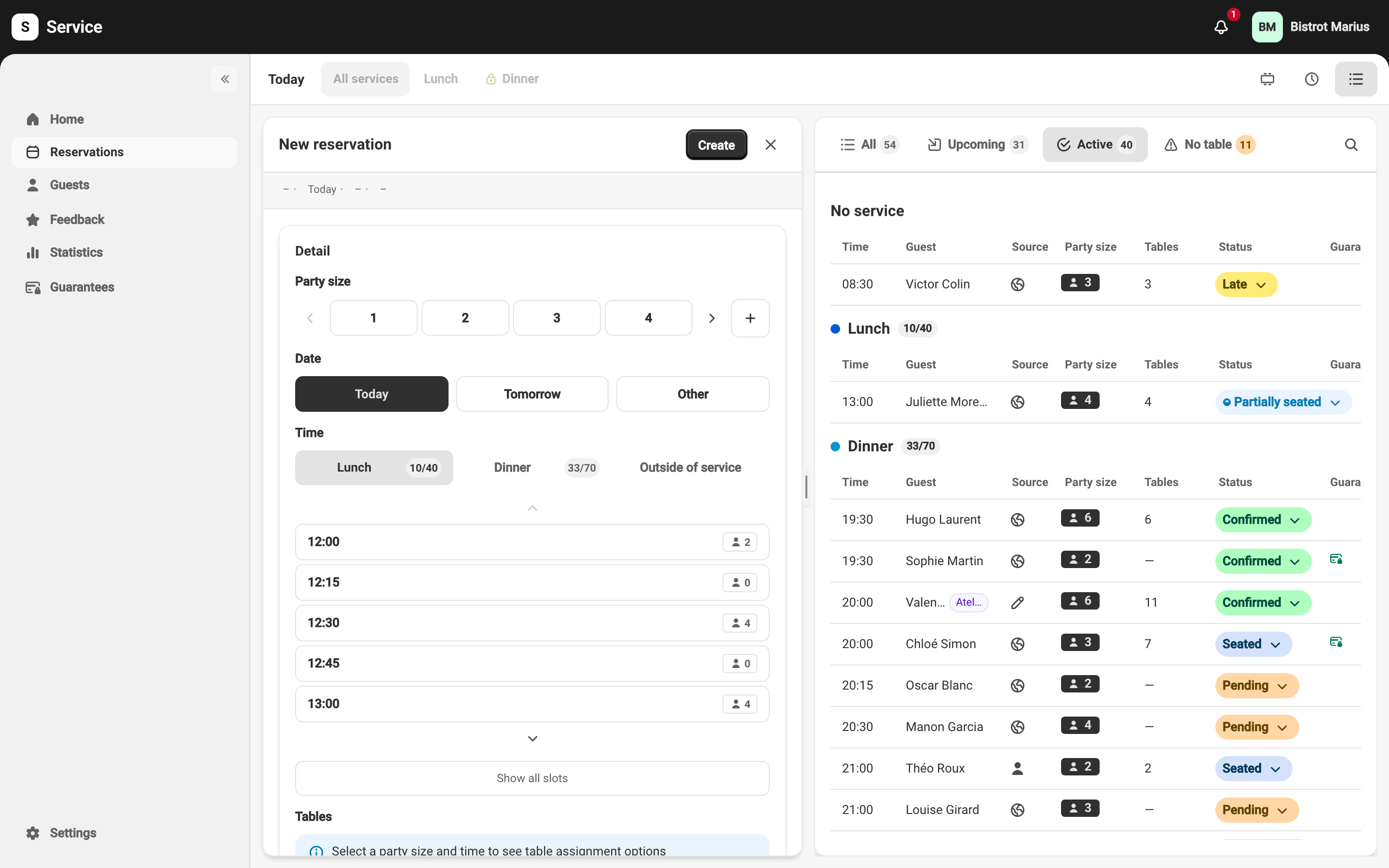
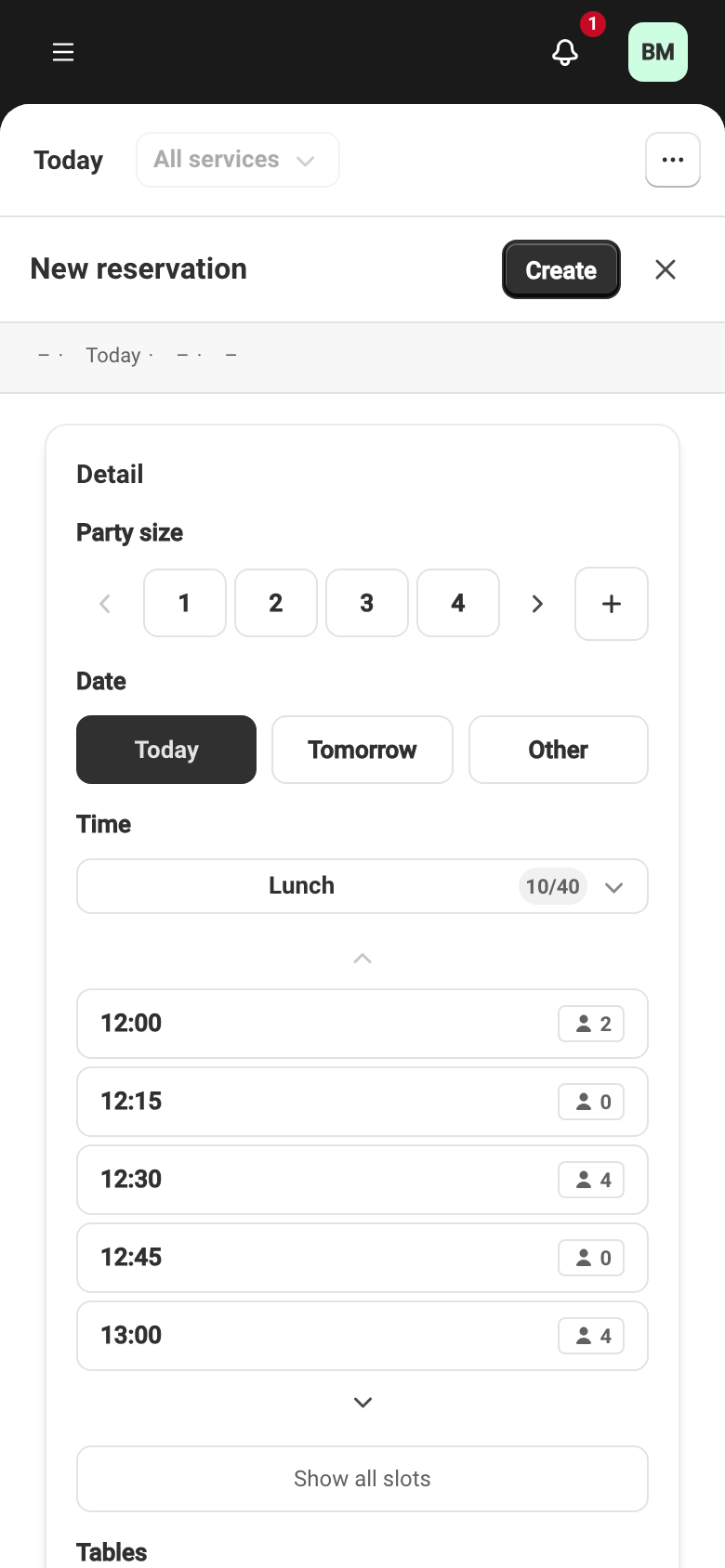
The sections fill in from top to bottom. Party size, date and time drive the slots offered and the automatic table assignment, so set them first. A summary bar at the top follows your entry.
Party size
Section titled “Party size”Party size is required: at least one guest. In edit mode, raising or lowering the party size can re-run automatic table assignment; a message tells you when it does.
Date and time
Section titled “Date and time”Date and Time are required. Slot selection offers the chosen service’s slots and shows how full each one is. On create, slots already in the past are hidden — you only see slots that are still bookable. A slot closed to online booking is marked Online booking disabled for this slot; it stays open to walk-ins and manual reservations.
When the service’s or time slot’s limits leave no room for the party, the form says so — “This service’s limits leave no room for 4 guests” — and lets you book anyway or offer the waitlist. If the waitlist is not switched on, only the first option is offered.
Table assignment
Section titled “Table assignment”Two modes: Automatic, where Service picks suitable tables, and Manual, where you select them on the plan. You can set a preferred Section; this field is optional. The details — modes, occupied tables, a reservation with no table — are covered in Table assignment.
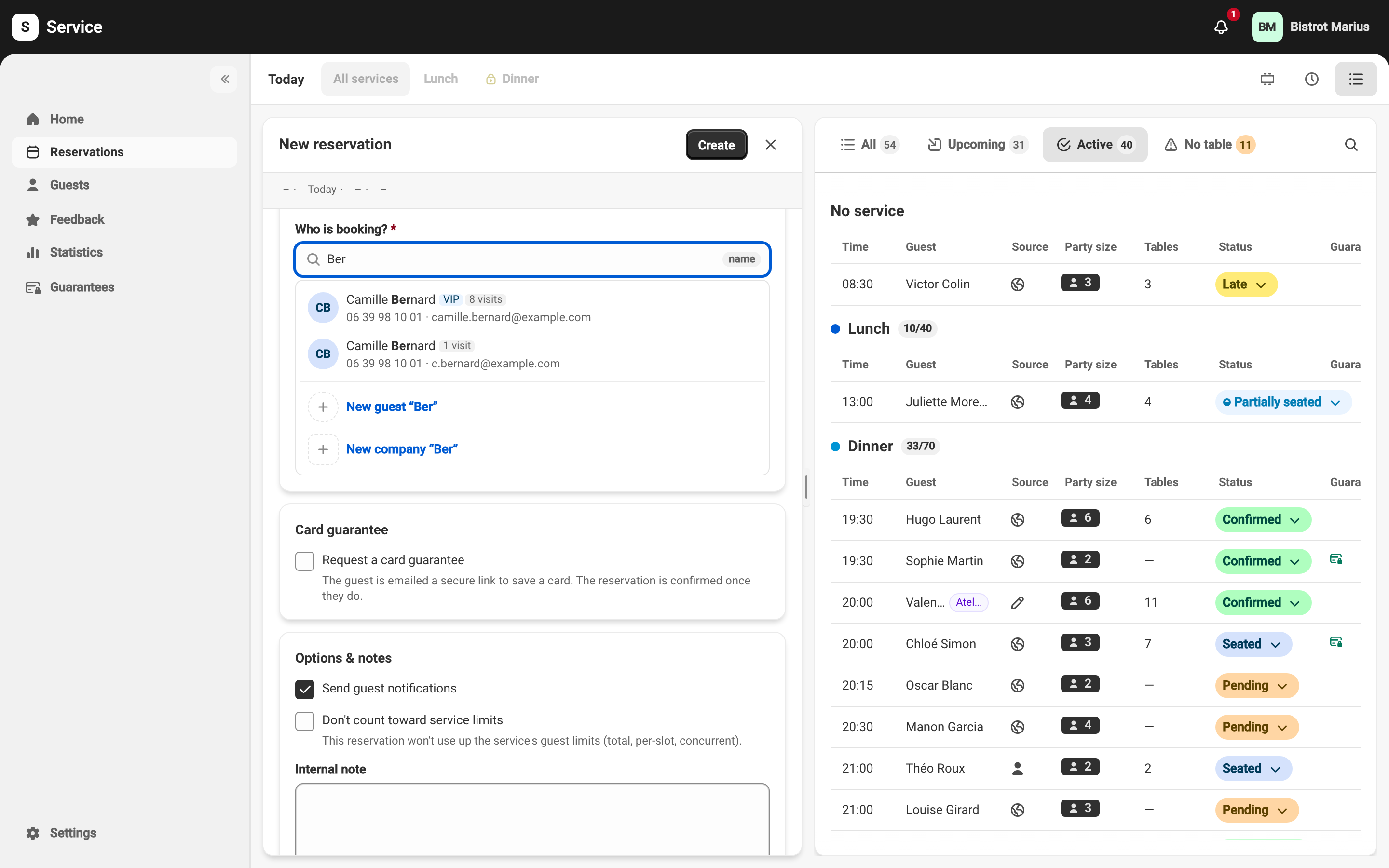
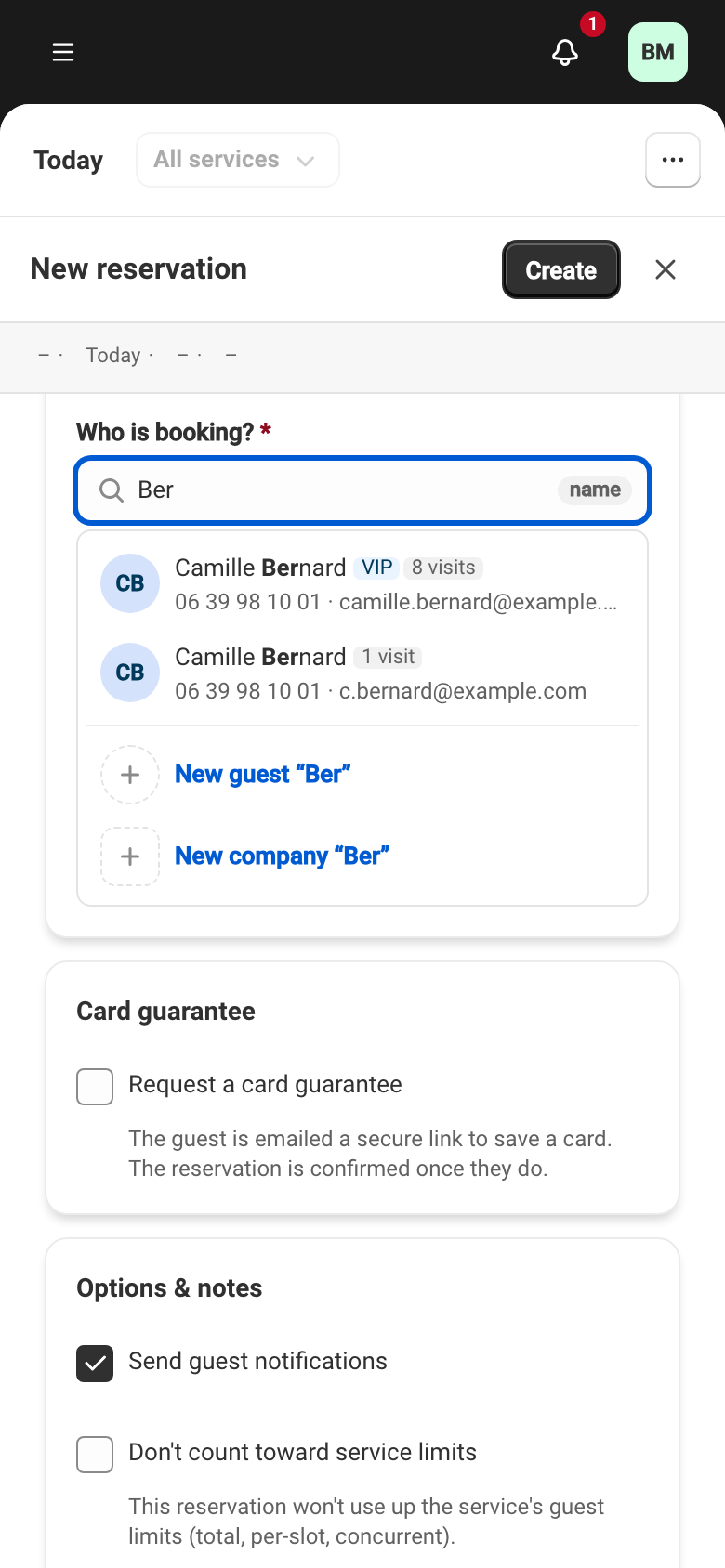
This section attaches the reservation to a guest. It is a single search field, which lets you attach the booking either to an existing guest or to a new one.
If you are taking the booking for a guest already in your address book, they appear in the list under the field as you fill it in with the details they give you: last name, first name, email, phone number. You can enter these in any order.
If the guest is not known yet, create a new entry by clicking New guest.
When you create a new guest, some contact details are required; they are configured in Required contact details.
Card guarantee
Section titled “Card guarantee”When the venue accepts card guarantees, the Card guarantee section lets you request one: turn on Request a card guarantee. The guest is then sent a secure link to save a card, and the reservation is confirmed once they do.
- Guarantee amount — leave empty to use the venue’s default amount for the slot.
- Payment deadline, in hours — how long the guest has to save a card.
- Auto-cancel if unpaid — without a saved card by the deadline, the reservation is cancelled automatically.
A guarantee can only be requested on an upcoming reservation, and an email is needed to send the link — an email or a phone number is enough when the link can also go by SMS. It requires an active payment account: see Set up payments and Request a card from a guest.
Options & notes
Section titled “Options & notes”- Internal note — visible to your team, never to the guest.
- Guest request — the guest’s specific request for the reservation.
- Send guest notifications — turns the automatic notifications (email and SMS) on or off for this reservation.