Users and roles
The Users screen manages who has access to your venue and with which role. The role determines what a person can see and do.
SettingsUsers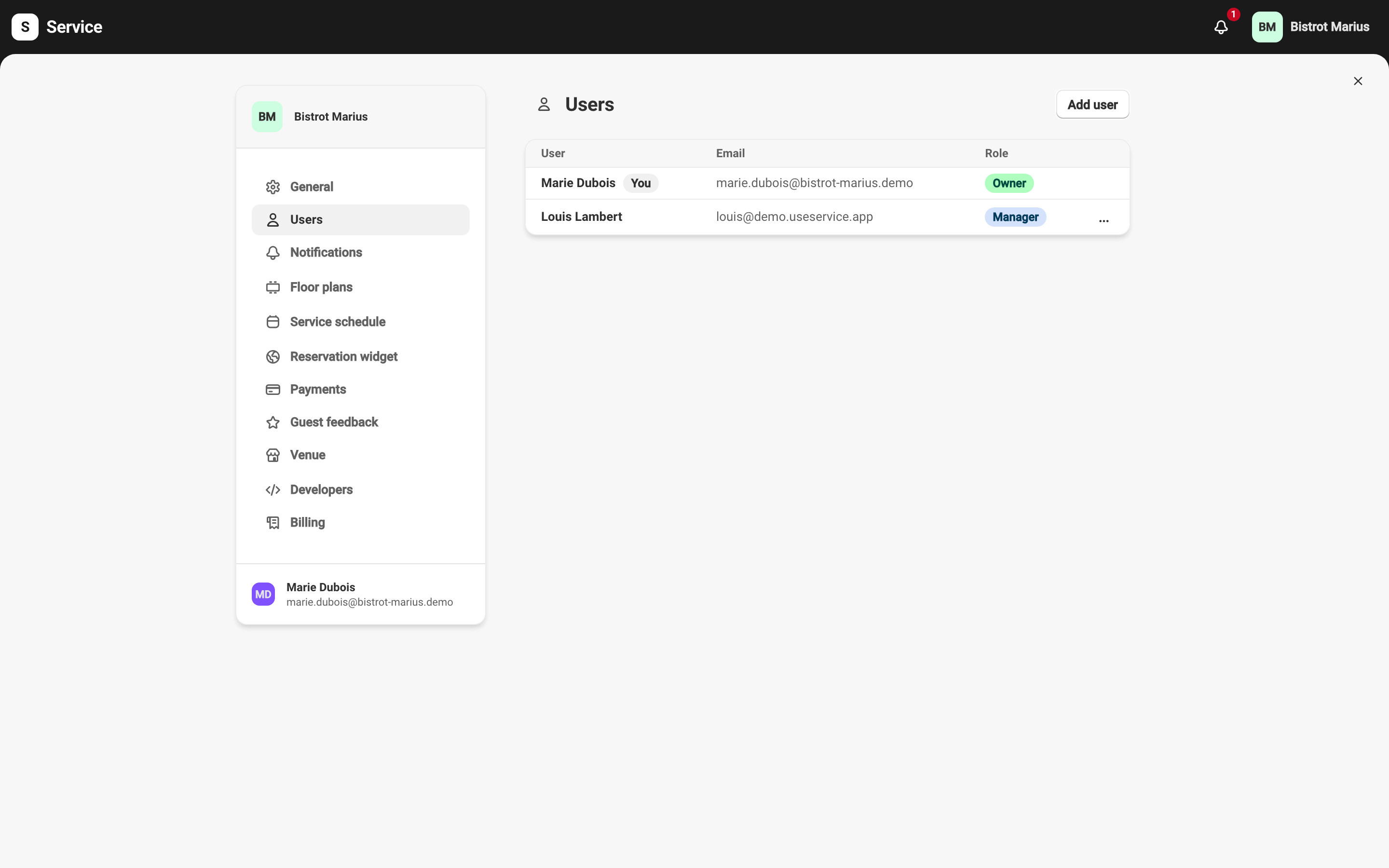
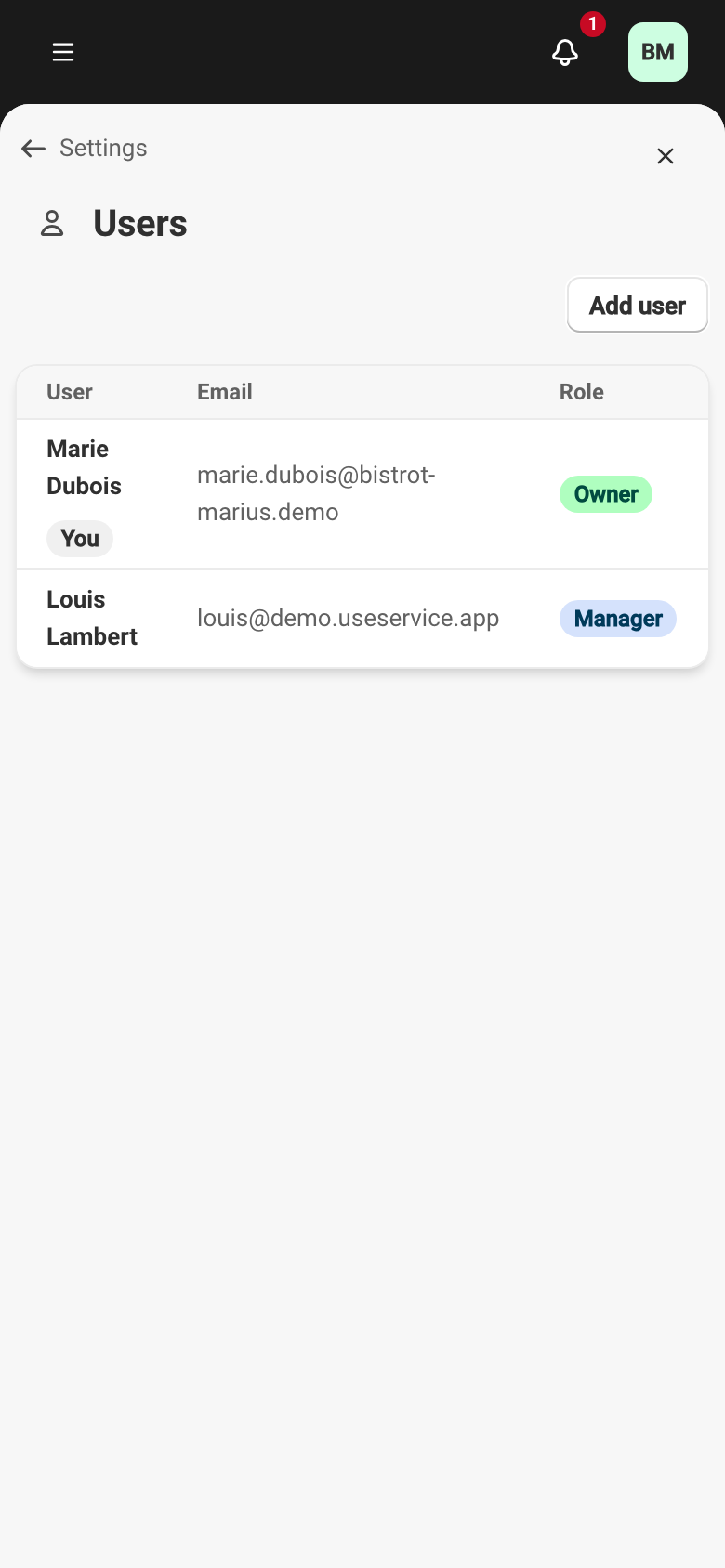
The roles
Section titled “The roles”A venue has four roles. They are hierarchical: each role includes what the role below it allows, plus its own rights.
| Role | What it allows |
|---|---|
| Owner | Full access, including billing, settings, team and co-owners. |
| Manager | Manage settings, schedule, team and reservations — everything except billing. |
| Staff | Manage reservations and guests. |
| Viewer | View reservations and guests, without making changes. |
What each role can do
Section titled “What each role can do”The table details the rights, as they are defined on the server.
| Action | Owner | Manager | Staff | Viewer |
|---|---|---|---|---|
| View reservations and guests | Yes | Yes | Yes | Yes |
| Create and edit reservations | Yes | Yes | Yes | — |
| Create and edit guest profiles | Yes | Yes | Yes | — |
| Merge guest profiles | Yes | Yes | — | — |
| View statistics | Yes | Yes | — | — |
| Request a card guarantee | Yes | Yes | Yes | — |
| Charge or refund a guarantee | Yes | Yes | — | — |
| Manage settings, schedule and widget | Yes | Yes | — | — |
| Manage users and roles | Yes | Yes | — | — |
| Access Developers (API keys, webhooks) | Yes | — | — | — |
| Manage billing | Yes | — | — | — |
Billing and the Developers area are reserved for the Owner. Everything else in settings is open to the Manager.
Co-ownership
Section titled “Co-ownership”There is no separate “co-owner” role: a co-owner is simply a second user with the Owner role. Owners are administrators with equal rights and can manage one another.
Adding a user
Section titled “Adding a user”The Add user button opens a dialog with:
- Email address — required.
- First name and Last name — optional.
- Role — the list offers only the roles you can assign, that is, those at your level or below.
On confirmation, Service sends an email invitation to that address: a link to create the password if the person has no account yet, or an added notification if they already have one.
A venue accepts up to 25 users. Once the limit is reached, the User limit reached message appears; remove a user before adding a new one.
Changing a role or removing a user
Section titled “Changing a role or removing a user”The actions menu at the end of each row offers Change role and Remove. Removing a user asks for confirmation.
You only see these actions on users whose role is below yours — an owner can manage another owner, but a manager cannot manage an owner.
A few guardrails protect access to the venue:
- You cannot change your own role.
- You cannot remove yourself from the venue.
- The last owner can be neither demoted nor removed. The Cannot change the role of the last owner of a venue or Cannot remove the last owner of a venue message appears then: name another owner first.
Removing a user sends them an email letting them know they no longer have access to the venue.