Table combinations
A combination groups several tables in the same section to seat a party too large for one table. Without a combination, Service cannot seat a party larger than your biggest table.
Open a section’s combinations
Section titled “Open a section’s combinations”Combinations are managed section by section. From SettingsFloor plans, open a section’s actions menu (the … button) and choose Edit combinations.
Create a combination
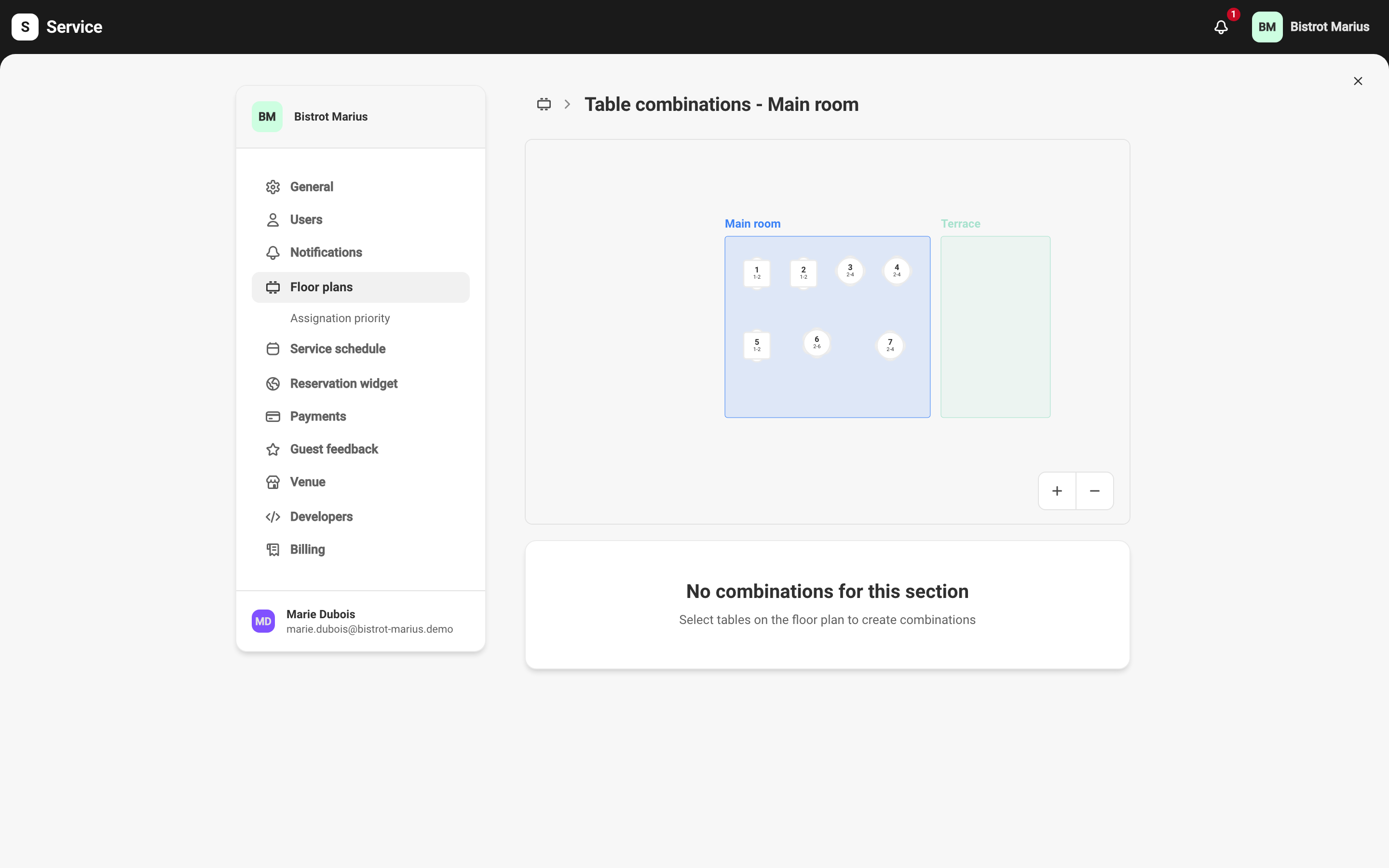
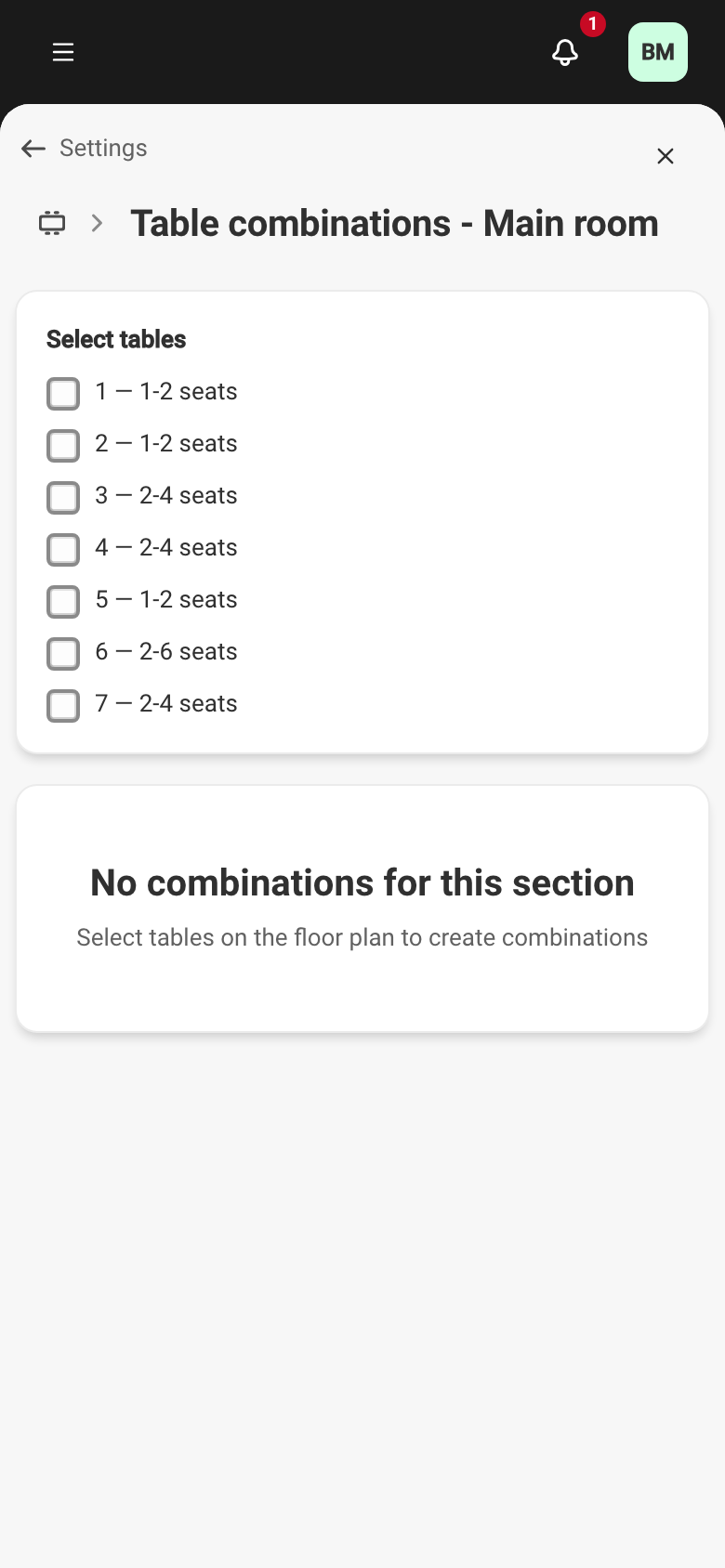
Section titled “Create a combination”Select the tables to group directly on the section’s floor plan — on mobile,
tick them in the table list. As soon as you hold at least two tables with no
existing combination, Service offers Create combination and pre-fills the
name with the table names (for example T1-T2). Adjust the name, then confirm.
Minimum and maximum seats
Section titled “Minimum and maximum seats”Each combination carries a Min seats and a Maximum seats value: the range of covers it seats. The maximum must be greater than or equal to the minimum. Service uses this range to decide which combination to offer a given party.
Edit or delete
Section titled “Edit or delete”The list shows your combinations with their table count and seat range. The edit icon opens a combination’s detail, where you change its name and capacities.
A section accepts up to 300 combinations. A combination you add or edit exists only after you click Save in the bar at the top of the screen.