The floor-plan view
The Floor plan view is the default view of the reservations page (Reservations): the day’s plan, with each reservation placed on its table.
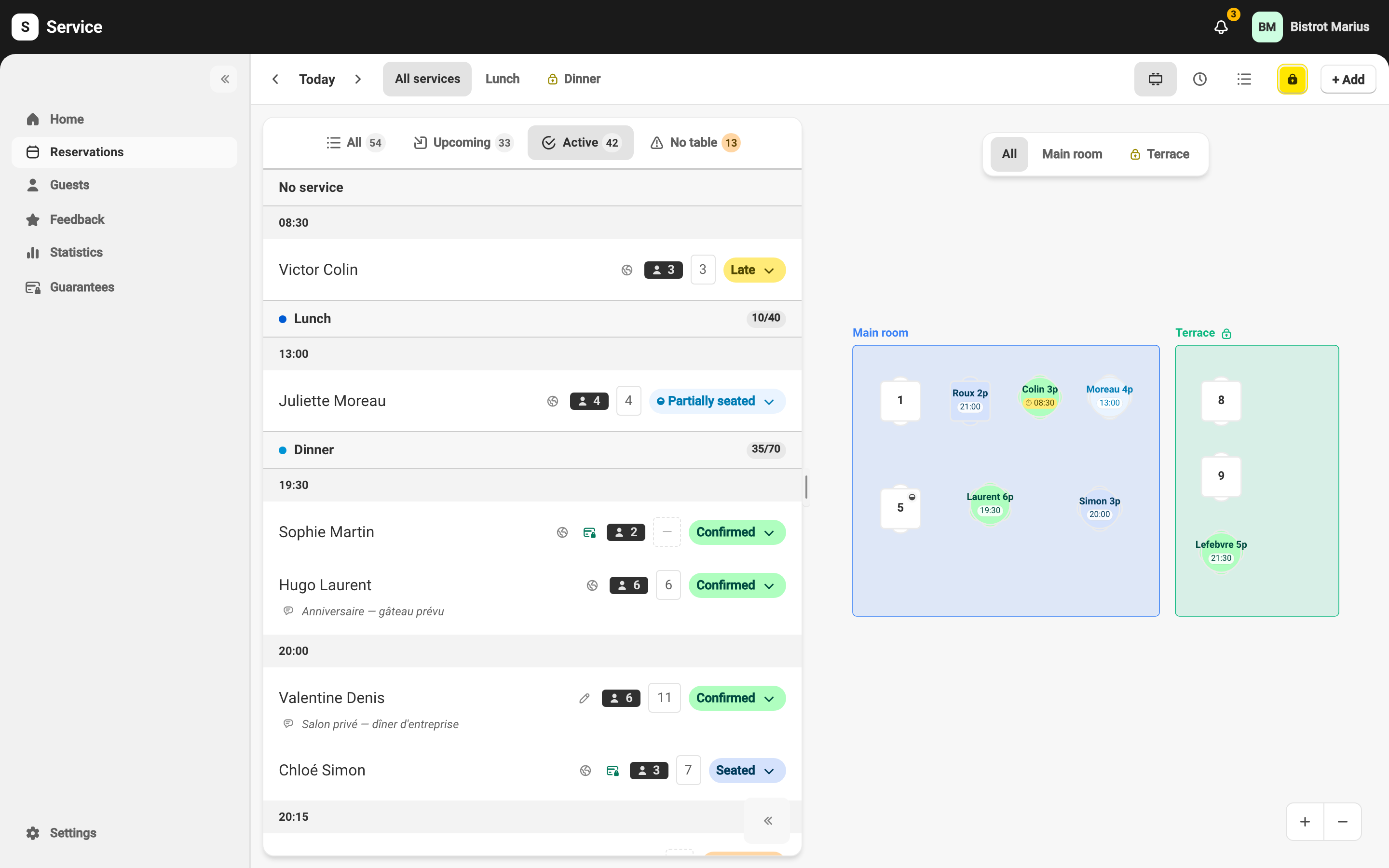
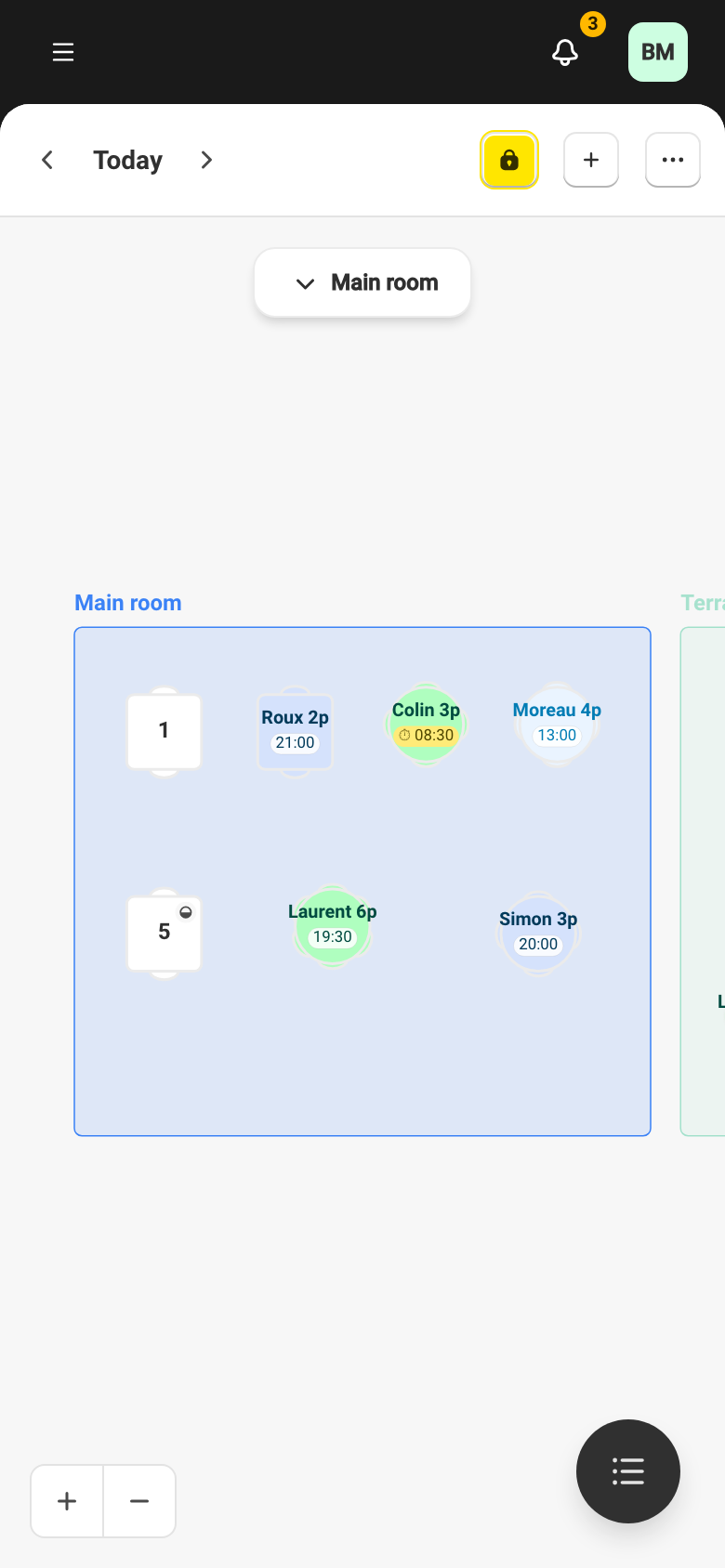
Show the whole plan or one section
Section titled “Show the whole plan or one section”The picker at the top of the plan shows the All tab — the whole plan — or one section. When the day uses more than one floor plan, a dropdown switches plans. That choice holds for the day on screen: move to another day and you get the plan that day runs on. On a narrow screen the picker collapses into a breadcrumb: tap it to choose a plan, then a section.
A section marked as blocked for a service carries a lock. Blocking is set from service availability — see Block a service, a slot or a table.
Pan and zoom the plan
Section titled “Pan and zoom the plan”The plan pans with two fingers on a trackpad or by touch, and zooms by pinching. In single-section view, panning past the edge of the section switches to the neighbouring section.
A table’s card
Section titled “A table’s card”Tap a table to open its card: the number of seats, the table’s state — Free, Seated since a time, or an Upcoming reservation — and the Add walk-in and Create reservation actions. To assign a reservation’s tables, see Table assignment.