Date overrides
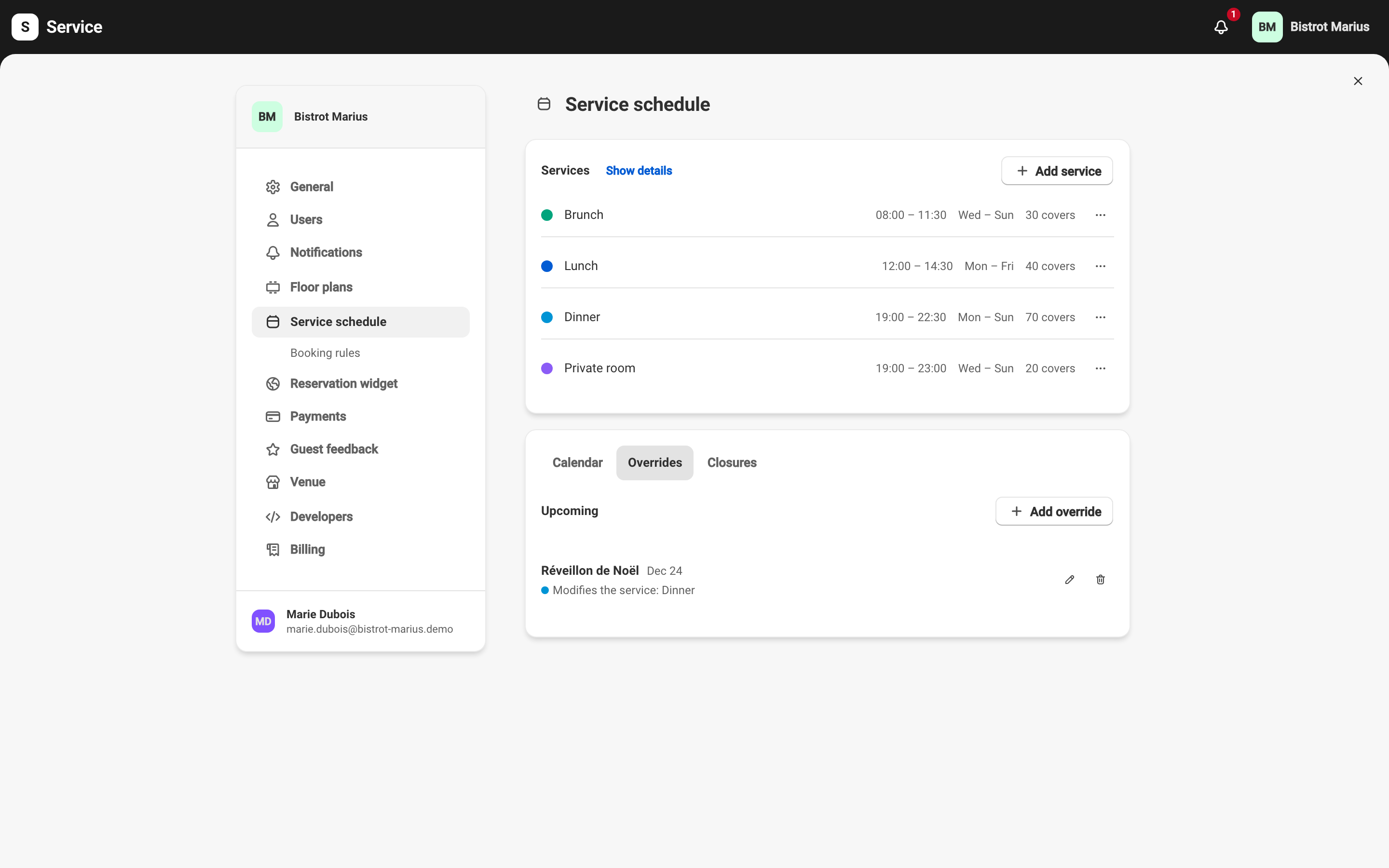
An override changes your schedule for specific dates, without touching the recurring services. Valentine’s Day opens a special menu, a public holiday closes lunch, an evening adds a one-off service: each of these is an override.
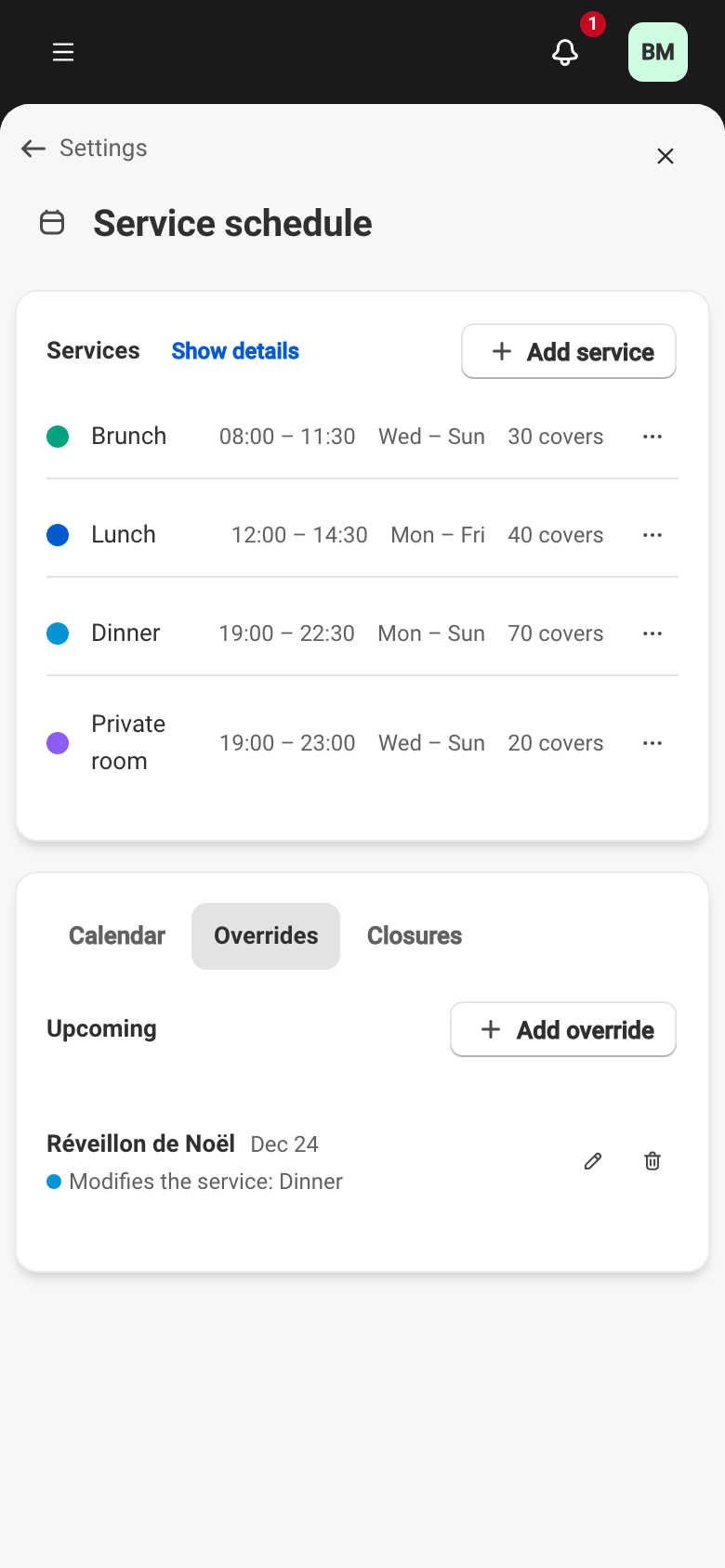
Overrides live in the Overrides tab of the schedule page. Add override opens the form. The tab separates Upcoming overrides from Past ones.
The three override types
Section titled “The three override types”You start by naming the override and choosing its dates, then answer What do you want to do?:
- Modify — change a service’s settings for these dates (times, capacity, message, booking rules…).
- Remove — take a service out for these dates.
- Add — add a temporary service for these dates.
The Override name is for internal use only; guests never see it. You choose a Single day or a Date range; over a range, a filter applies the override to All days in range or to Specific days only. The Day message shows to guests at the top of the day on the reservation widget.
Modifying or adding a service
Section titled “Modifying or adding a service”For Modify, first pick the service under Which service?. The form then carries over the service’s settings, group by group. Each group inherits from the service until you turn it on; once on, you enter the value for these dates, and the field keeps the service’s original value for reference.
You can override most of the service’s settings for these dates: the times, the capacity, the name, the guest message, and the online-booking mode (Inherit from the service, Accept online reservations, or Display only — no online reservations). The override also carries its own booking rules (duration, window, approval, and guarantee) and its per-slot settings. Anything you don’t turn on stays inherited from the service.
An Add override builds a temporary service from scratch: you give it a name, a color, times, and a capacity, then set the same booking rules, online-booking mode, and per-slot settings as on a regular service.
See Booking rules, Opening a service to online reservations, and Per-slot settings.
When a service changes its dates
Section titled “When a service changes its dates”An override is attached to a service and to dates. If you later change the service so its dates no longer match the override’s, Service flags it on save.
- Some overrides no longer apply. Saving the service is blocked by the Delete overrides that no longer apply? dialog, which lists the affected overrides. Confirming saves the service and deletes those overrides; cancelling saves nothing.
- The floor plan changed. If an override inherited the service’s sections, its section selection is cleared automatically. An after-save banner — Service saved — overrides updated automatically — details what was adjusted.
The calendar on the schedule page marks every day that carries an override, with the name of the person who created or changed it.