Joining the waitlist
This page describes what your guest sees and does in the online booking widget, from their side of the screen: how they spot that a service is full, how they join, and how they come back to their request afterwards. None of it happens in the back office.
This flow only appears on a service with the waitlist on — see the waitlist. The rest of the booking flow is unchanged: see what your guests see.
A full day
Section titled “A full day”In the calendar, a full day carries the Fully booked — join the waitlist tooltip, and a day with tables left but none for the party size asked for carries No table for 6 — join the waitlist.
Under the times, the guest finds the Can’t find your time? Join the waitlist link. The join page opens by restating the party size asked for — Fully booked for 6 guests. — then Join the waitlist and we will contact you if a table frees up. With no party size, it simply reads This service is fully booked.
The arrival window
Section titled “The arrival window”The guest does not pick a time: they give a window, with Arrive after and and before. A table that frees up outside that window is not theirs.
If bookable times exist inside the chosen window, the Continue — join the waitlist button is disabled and a banner names those times: nobody waits for a table they can book right now. The guest widens their window or takes one of the times offered.

Changing or withdrawing a request
Section titled “Changing or withdrawing a request”Once they have joined, the guest receives a confirmation email. That email leads to a page where they change their request — the party size and the arrival window — or withdraw it.
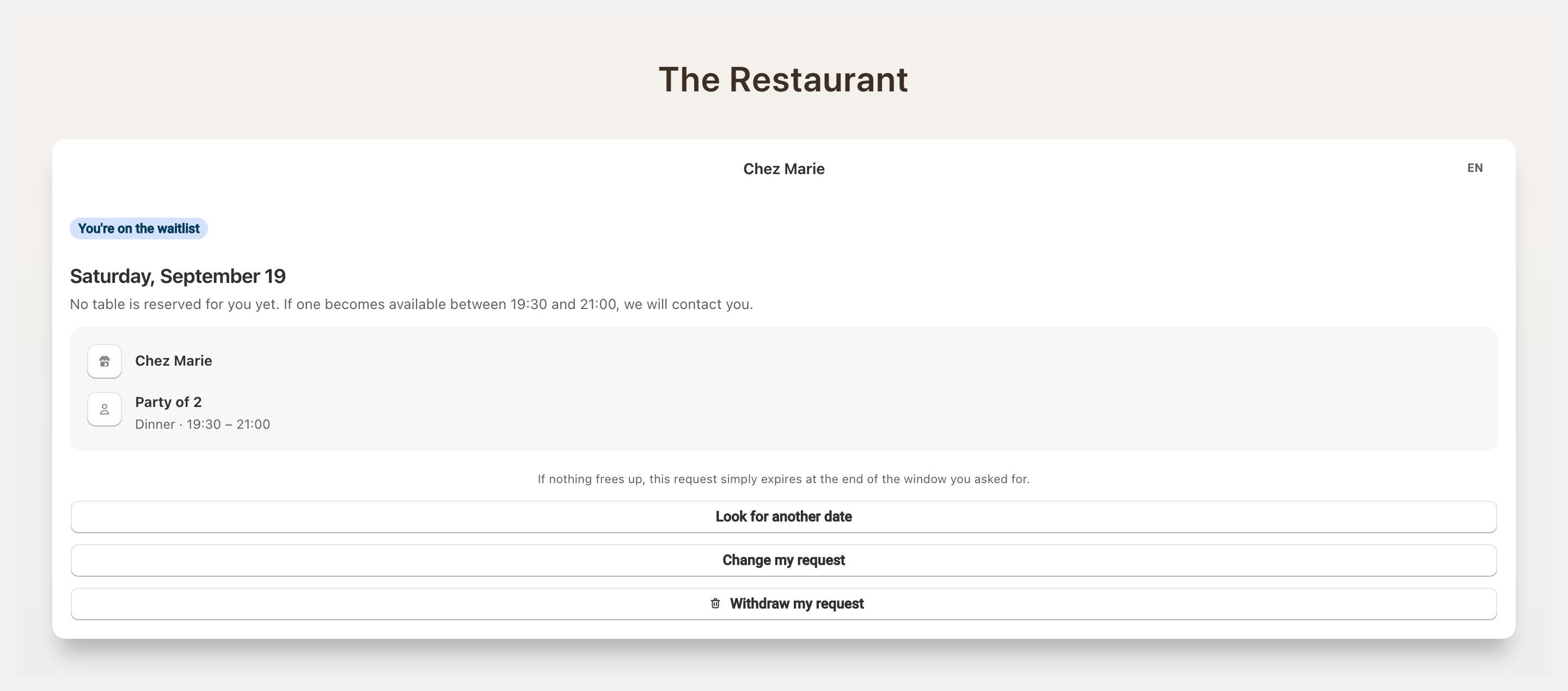
It is also the page where they confirm or decline a table offered to them, on a service that asks the guest to confirm: see the table offer and how a guest confirms it. While a table is offered to them, they can no longer change their request.