The waitlist
The waitlist collects your guests’ requests on a full service: their name, their party size and the arrival window that suits them. Nothing is held for them at that point. A request becomes a reservation when a table frees up, or when you promote it yourself from the queue.
Where to turn it on
Section titled “Where to turn it on”You turn the waitlist on service by service, in the Waitlist section of the booking rules, under SettingsService scheduleBooking rules.
| Option | What happens when a table frees up |
|---|---|
| Waitlist off | Nobody joins this service’s queue, not your guests and not you. |
| Manual promotion approval | The best match is staged for you. Nothing is confirmed until you say so. |
| Automatic promotion approval | The next request is promoted without waiting for you. |
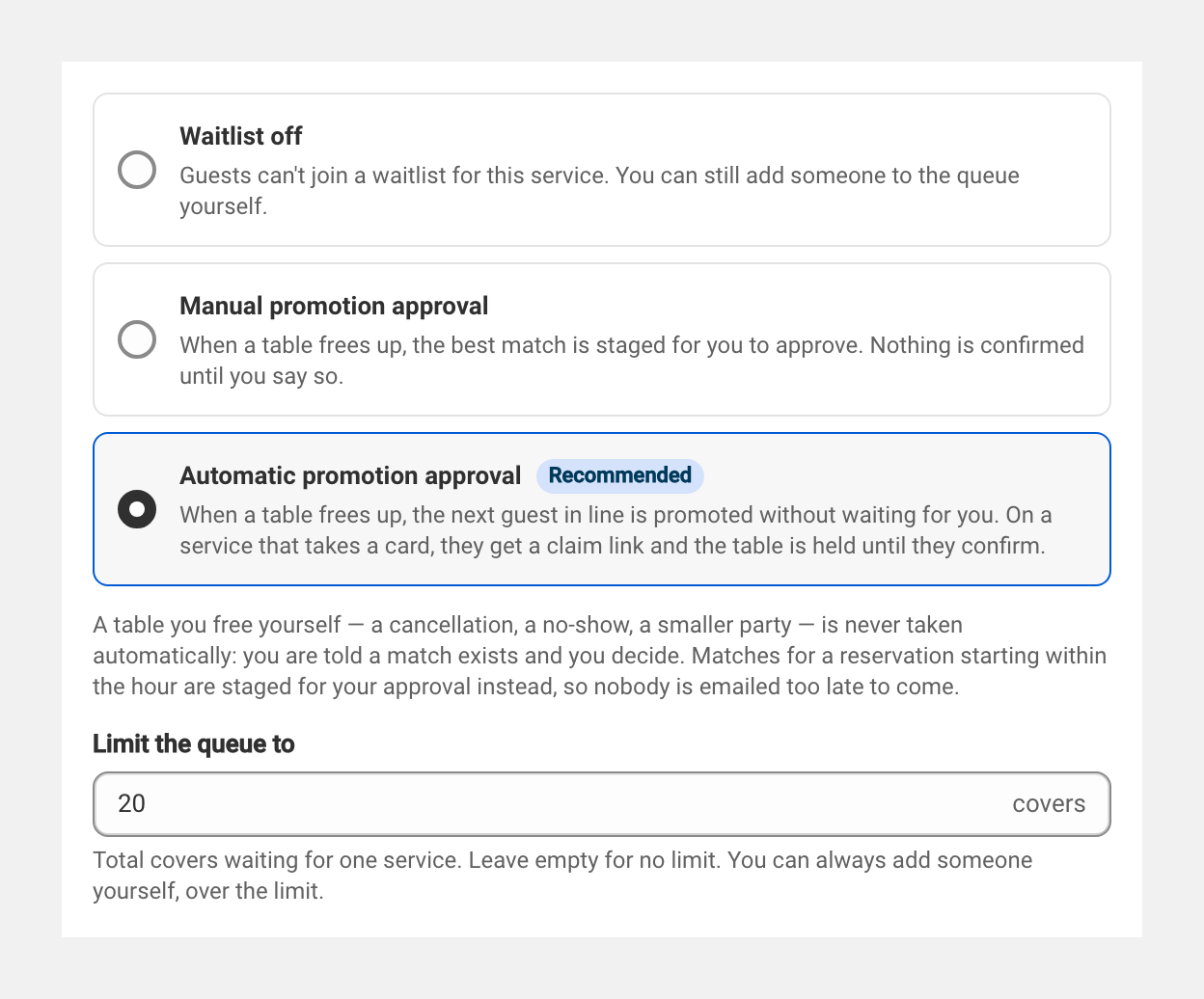
Even on Automatic promotion approval, two cases need your approval: a table you free yourself — a cancellation, a no-show, a smaller party — is never promoted automatically, and a table that frees up less than an hour before the slot is staged for you instead of being promoted. Both cases hold when you ask the guest to confirm too: within the hour before the slot the match comes back to you and nothing goes out to the guest.
When the queue closes
Section titled “When the queue closes”A guest can join the queue until one hour before the service starts. If the service stops taking reservations earlier than that — your lead time before the service in the booking rules — that is the time that applies: the queue closes at whichever comes first.
The reason is simple: inside the last hour a table that frees up is no longer promoted automatically, it is flagged for you to phone the guest. A request left at that point could no longer get them anything. You can still add someone yourself, at any time.
Capping the queue
Section titled “Capping the queue”The Limit the queue to field caps the total covers in the queue for one service, and only appears while the waitlist is on. Leave it empty and the queue is No limit. You can always add someone yourself, over the limit.
Ask the guest to confirm
Section titled “Ask the guest to confirm”Ticked, an automatic promotion no longer confirms the reservation: the guest gets a link and the table is held for them until the deadline. If they decline or do not answer, the next guest in line is contacted. What they receive and what they see are covered in the table offer and how a guest confirms it.
A guest who joined without an email address gets no offer: the match is flagged to you in the queue, the request keeps its place and no table is held for them.
Under Confirmation deadline, two choices:
| Choice | What it does |
|---|---|
| Automatic (recommended) | The deadline follows how much time is left before the service: short for a table that frees up the same evening, longer when it frees up days ahead. |
| Fixed deadline | The same deadline for every promotion, between 45 and 1440 minutes. |
How the automatic deadline is worked out, and the bounds that apply to both, are covered in the table offer and how a guest confirms it.
If the service asks for a card imprint, this setting behaves differently:
- Imprint asked of every guest — the box does not appear on that service. The imprint is the confirmation: the guest holds the table by saving a card.
- Imprint asked from a given party size upwards — the box stays available, and covers only the tables below that threshold, the ones no card is asked for.
On the requests the imprint does cover, the Promote… window offers Ask for a card imprint instead, ticked. The guest then receives a link to save their card and the table is held for them until the deadline; untick it to confirm the booking without a card — for a regular, or a guest who cannot save a card over the phone. The two boxes can never appear together: when a card is asked for, it is the card that confirms.
If your payment account cannot take a card, the box appears greyed out with the reason, and the booking is confirmed without one. It stays visible on purpose: the service asks for an imprint, and you need to know it could not be asked for.
Where requests in the queue appear
Section titled “Where requests in the queue appear”The queue is read service by service, in Reservations. Under each service name, a Waitlist (3 requests, 12 covers) link opens that service’s queue — see the statuses of a waitlist request.
The link only appears if the service has at least one request on that date.
To add a request to the waitlist, two entry points lead there: the + Add button, at the top right of the reservations list, which offers Add to the waitlist; and the Add button, at the top of each queue panel.
The reservation form leads there too. When you create a reservation on a service whose limits are reached, the Offer the waitlist button adds the request to the queue instead of creating the reservation.