Turn on online reservations
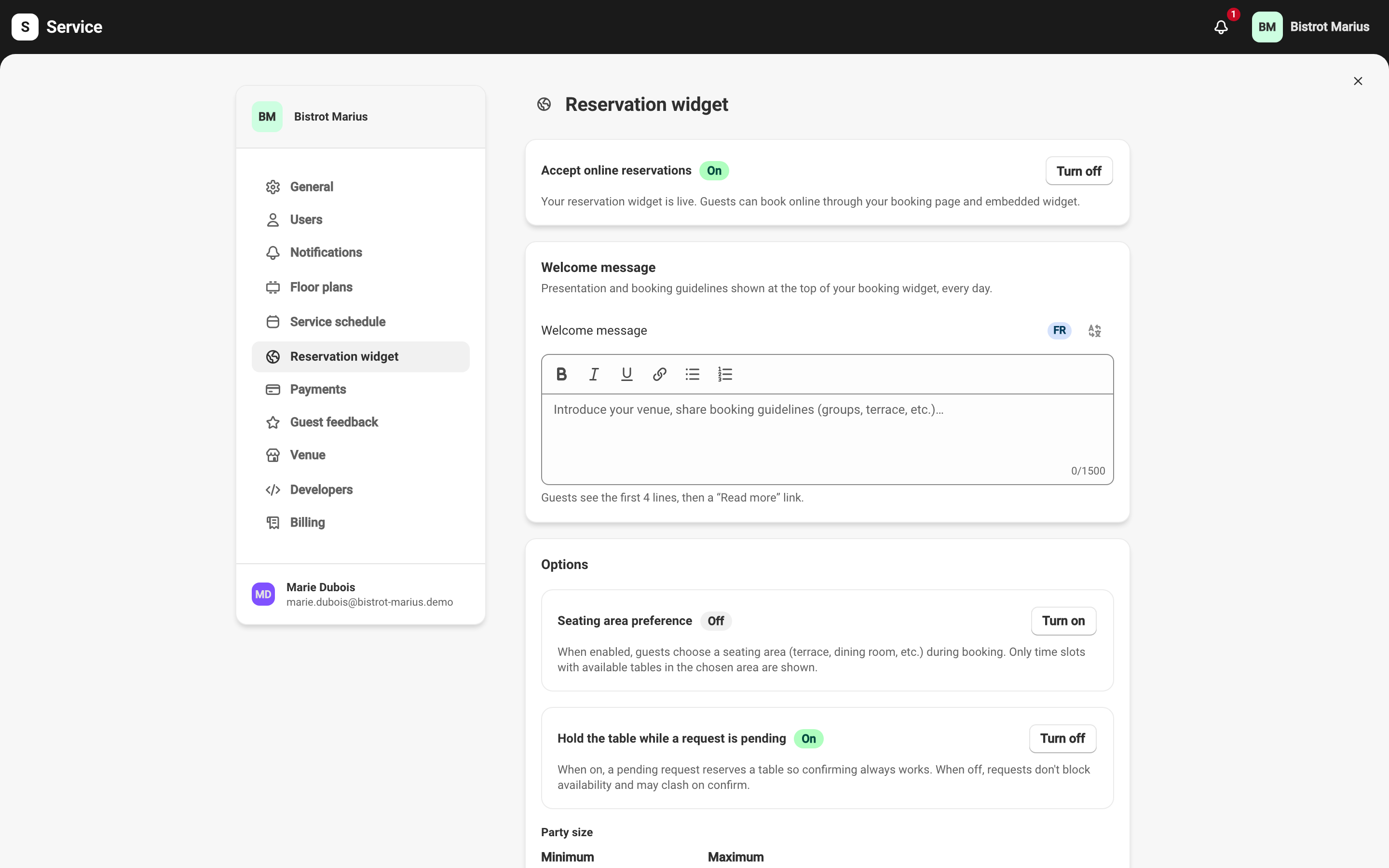
You set up online booking at SettingsReservation widget. This page describes every setting on that screen. The welcome message and the embed code, which live on the same screen, have their own pages: The widget welcome message and Install the widget on your website.
Accept online reservations
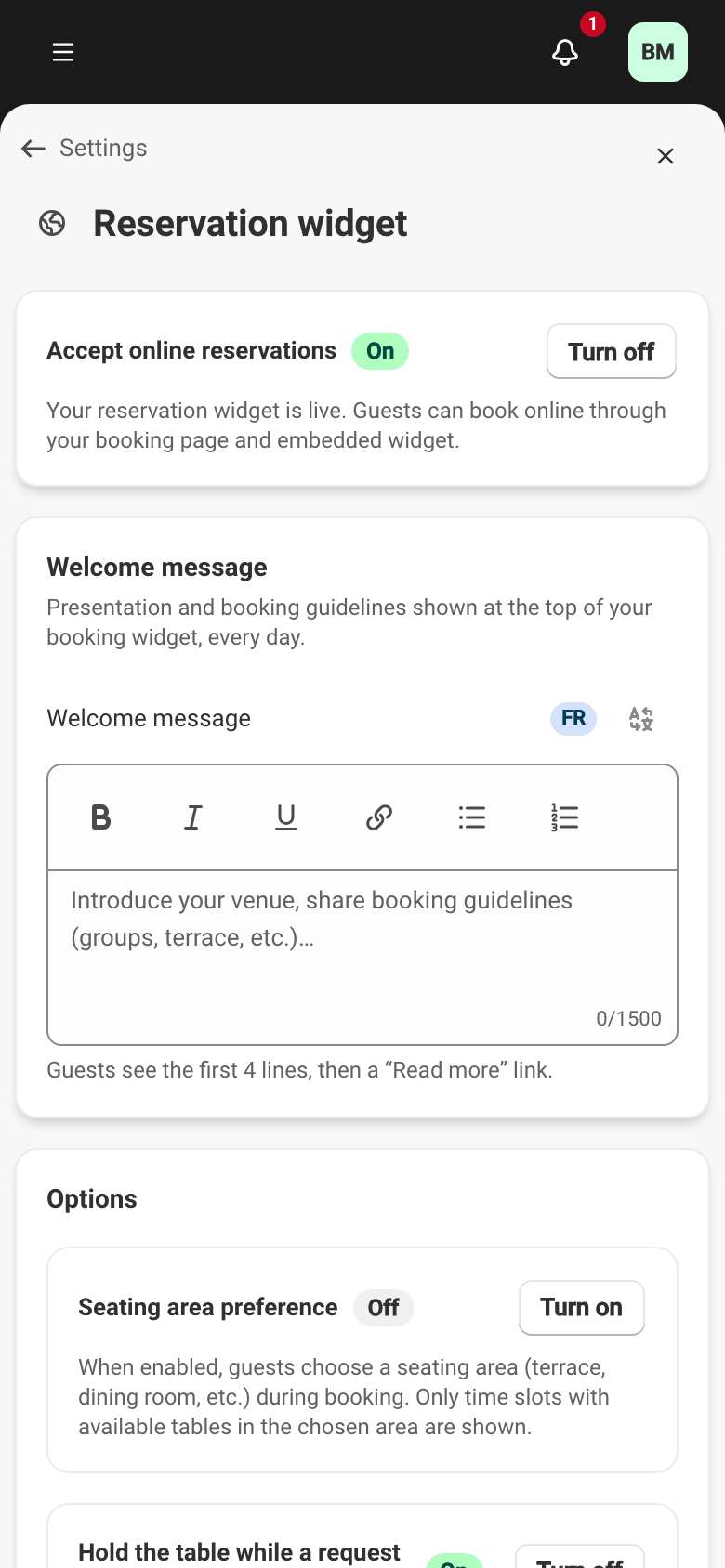
Section titled “Accept online reservations”The first setting, Accept online reservations, is the main switch. On, your widget is live: guests book from your booking page and the widget embedded on your site. Off, online bookings are paused and reservations already recorded stay valid.
Pausing online booking removes nothing. A guest who opens your page sees a Bookings are paused message asking them to call you. You turn it back on whenever you want.
Options
Section titled “Options”Seating area preference
Section titled “Seating area preference”Seating area preference offers the guest a seating area — terrace, dining room — when booking. Only time slots with an available table in the chosen area are shown. Off, the guest books without choosing an area and Service places the reservation.
The areas on offer come from your sections. See the floor plan for creating sections.
Hold the table while a request is pending
Section titled “Hold the table while a request is pending”This setting matters when you approve reservations by hand. On, a pending request reserves a table, so confirming always works. Off, pending requests don’t block availability and two requests may target the same table, which clashes at confirm.
Manual approval itself is set service by service in the booking rules — see Approve reservations.
Party size
Section titled “Party size”Minimum and Maximum set the party sizes an online reservation can carry. The limit applies online only: your staff can enter any party size in the back office. A guest whose party exceeds the maximum can’t book online and has to call you.
Booking form
Section titled “Booking form”Booking form chooses which contact details a guest must provide to book online. Name is always required. For email and phone, you choose Required or Optional.
Making either optional has a consequence, recalled under the setting. Confirmations and reminders are notifications, which Service sends by email or SMS:
- Without an email, a guest receives no email confirmation or reminder — and nothing at all if you have not turned on SMS.
The detail of this choice and its effect on duplicates is covered on the required contact details page.
Saving
Section titled “Saving”Your changes appear in the save bar at the top of the screen. Nothing applies until you save.
To see the journey as the guest experiences it once these settings are in place, see What your guests see.