Day views
The Reservations page shows one day at a time, in three views of the same reservations. You reach it from Reservations. All three views share the displayed date and the service filter.
Choose a view
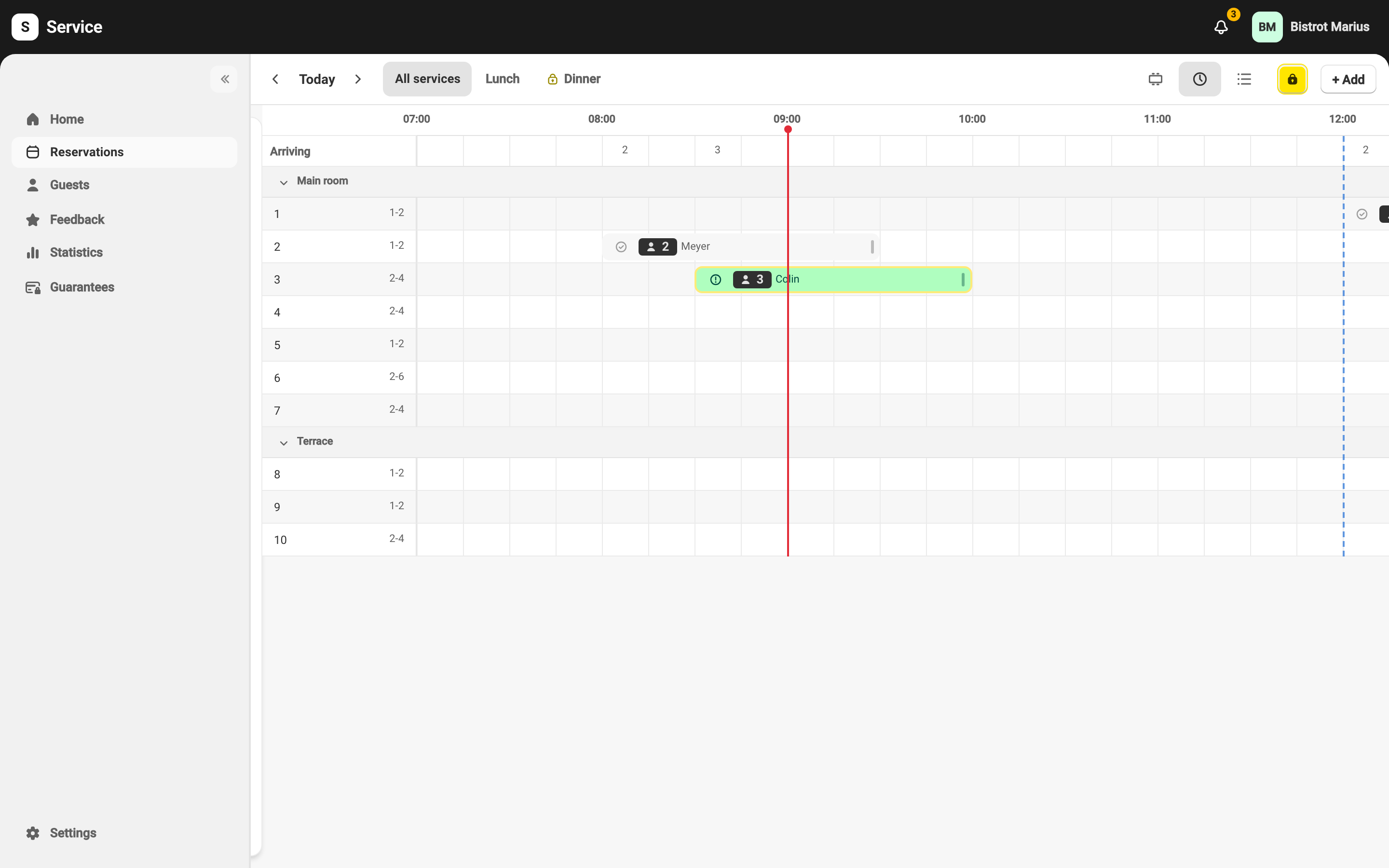
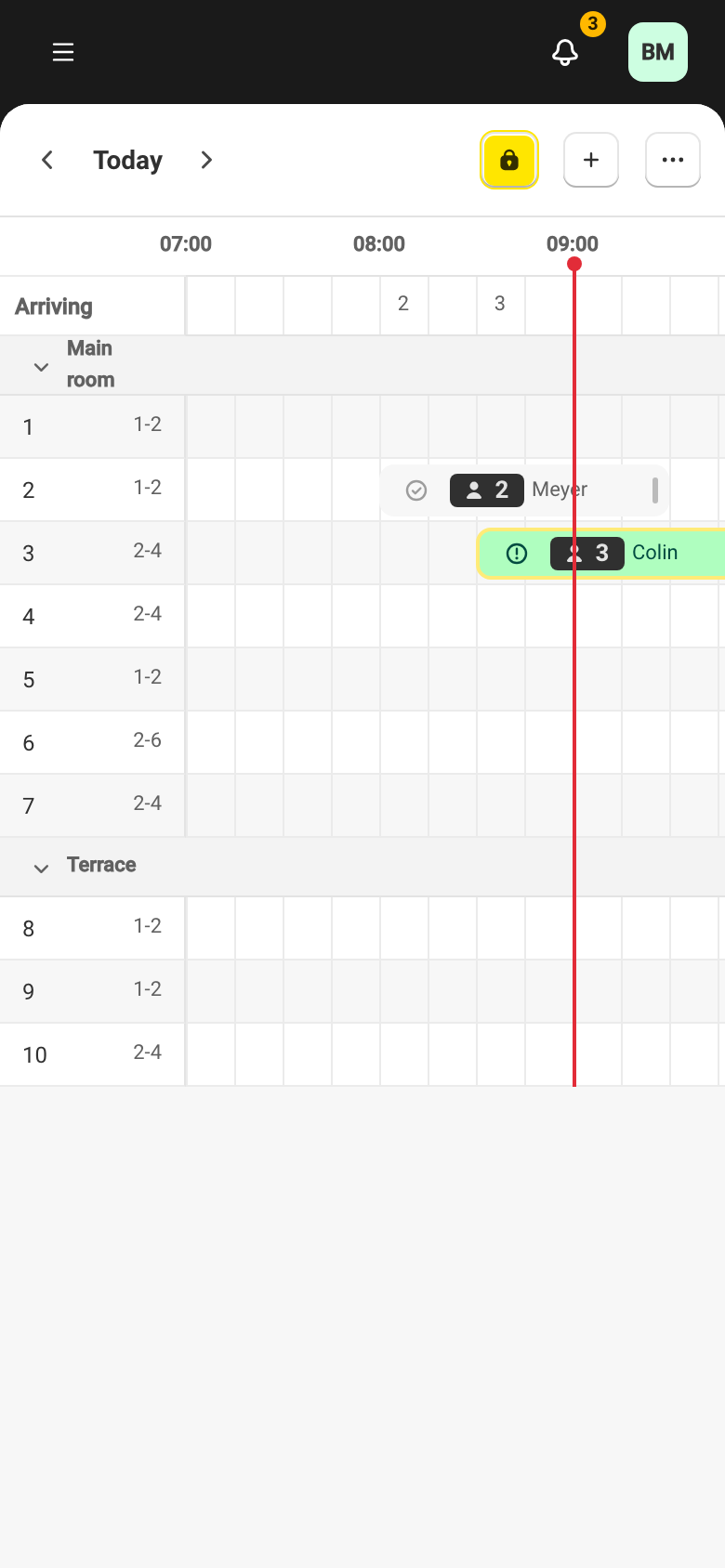
Section titled “Choose a view”The view switcher at the top of the page moves between three displays of a single day. Use the tabs below to compare the three views (and how each looks on desktop or mobile):
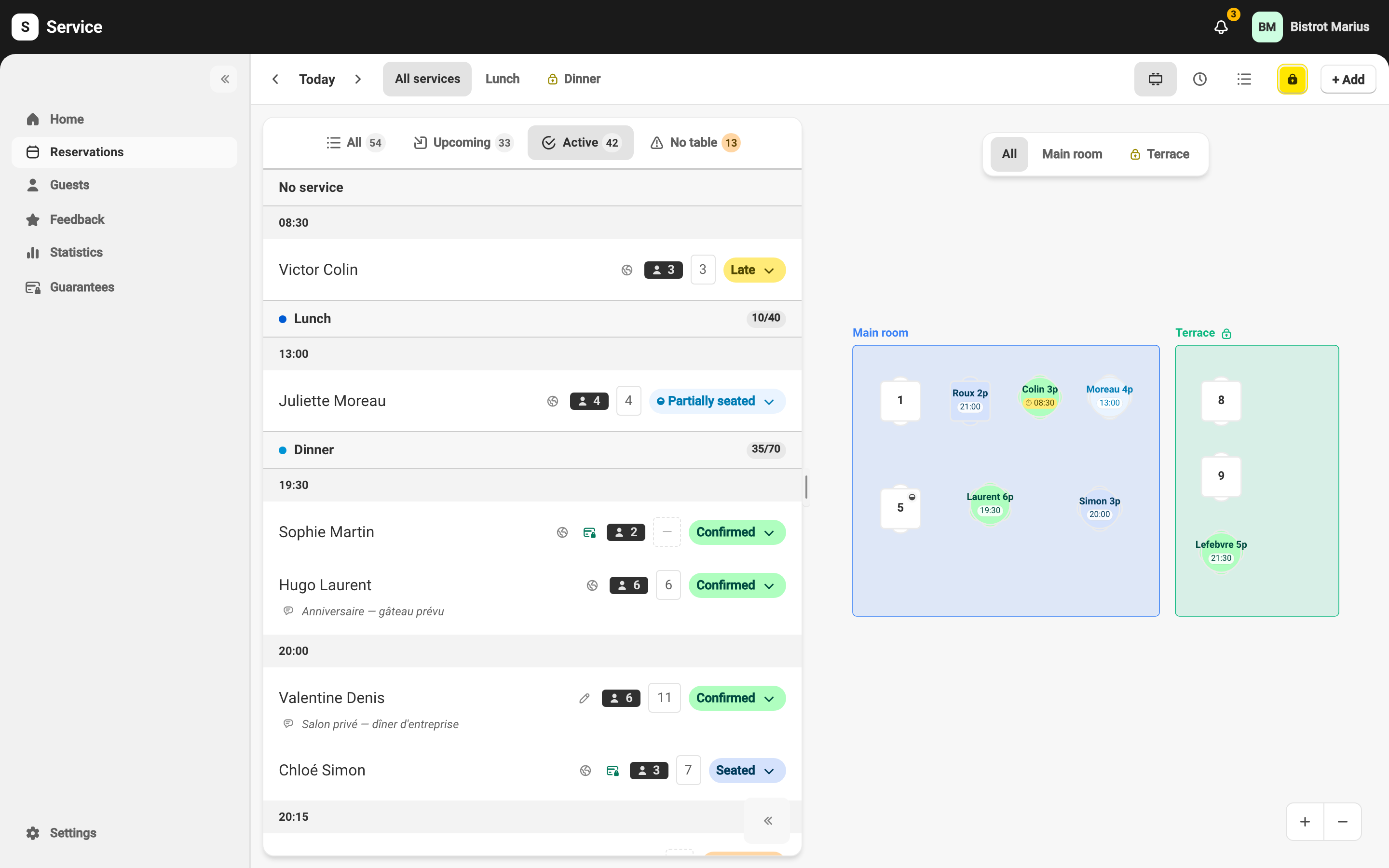
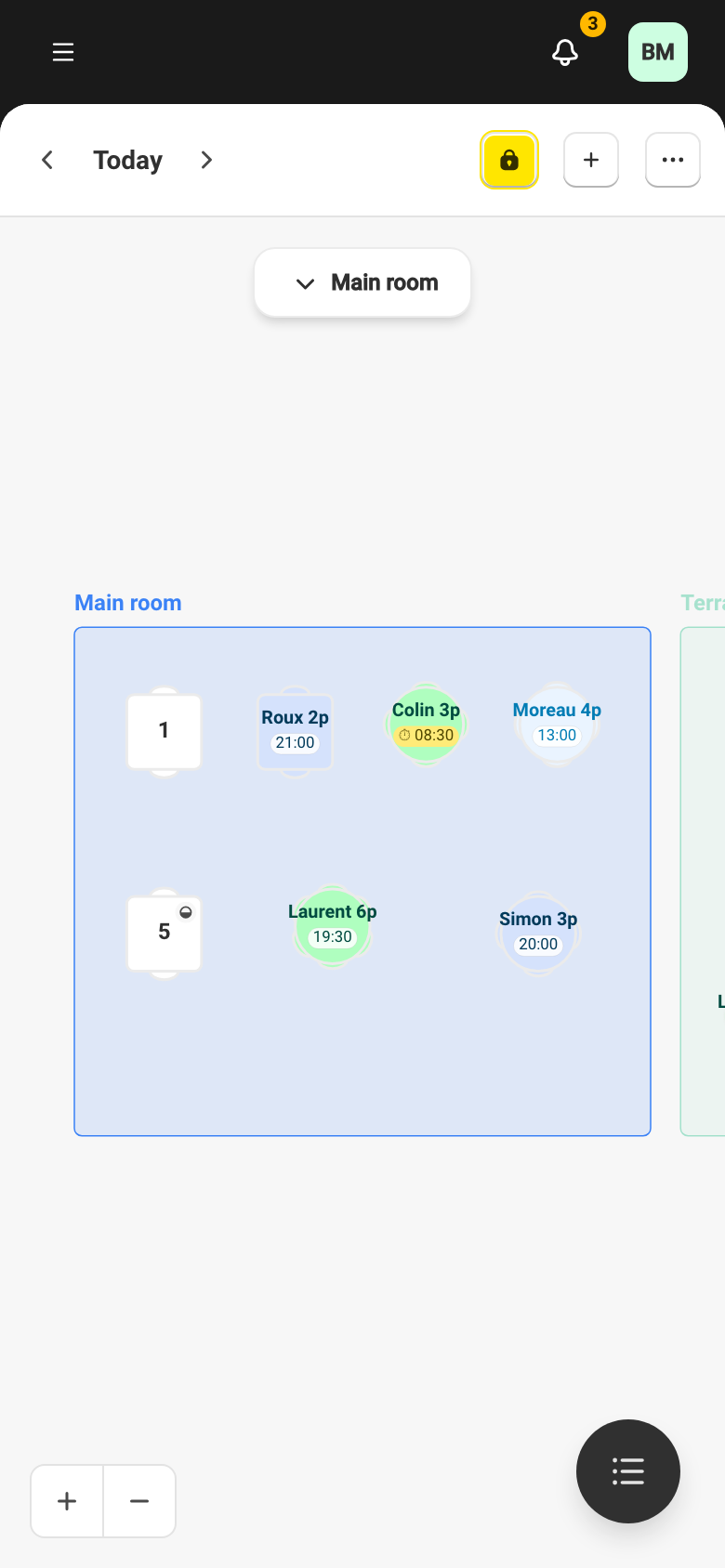
- Floor plan — the reservations placed on the tables of the plan, the default view. See The floor-plan view.
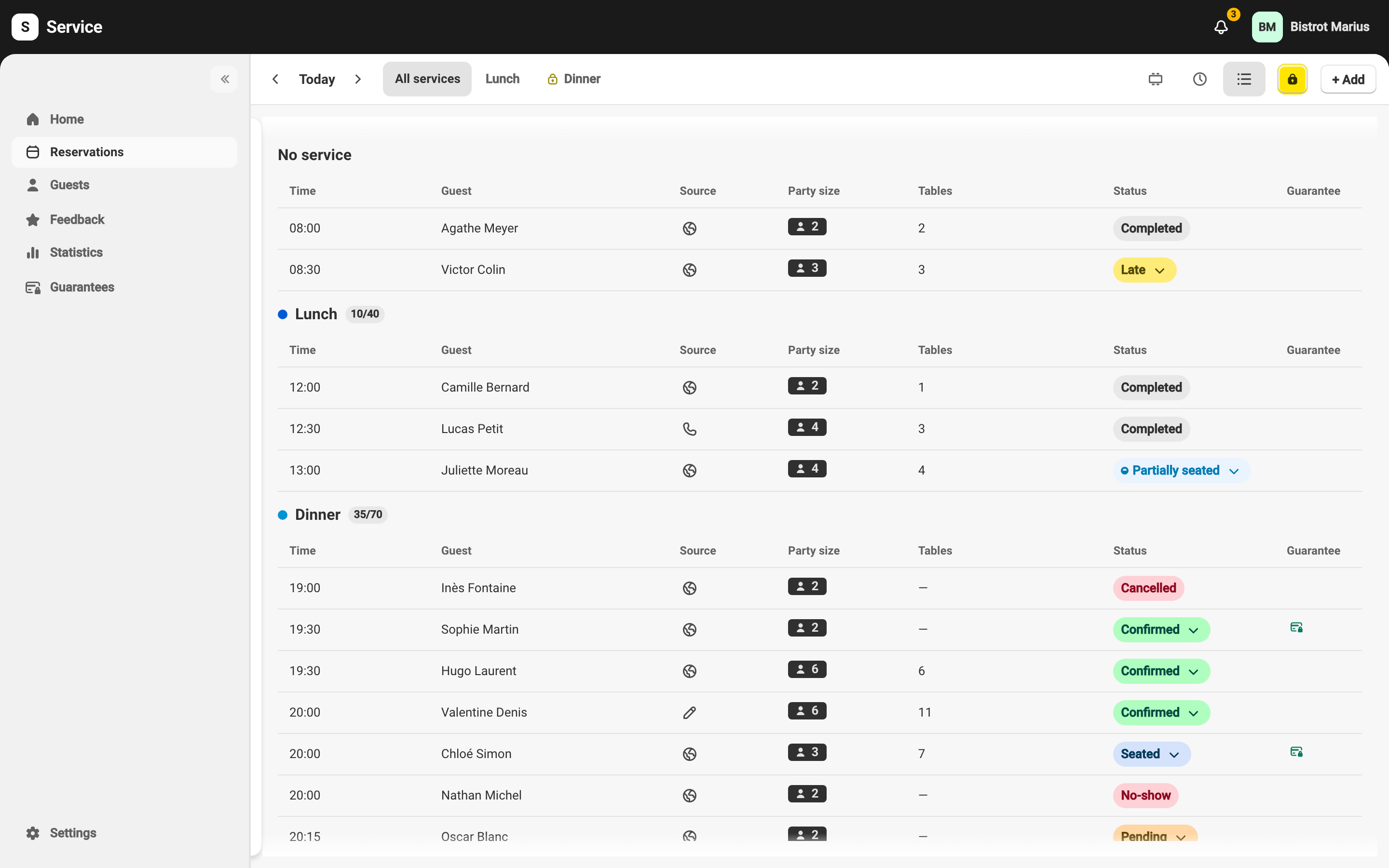
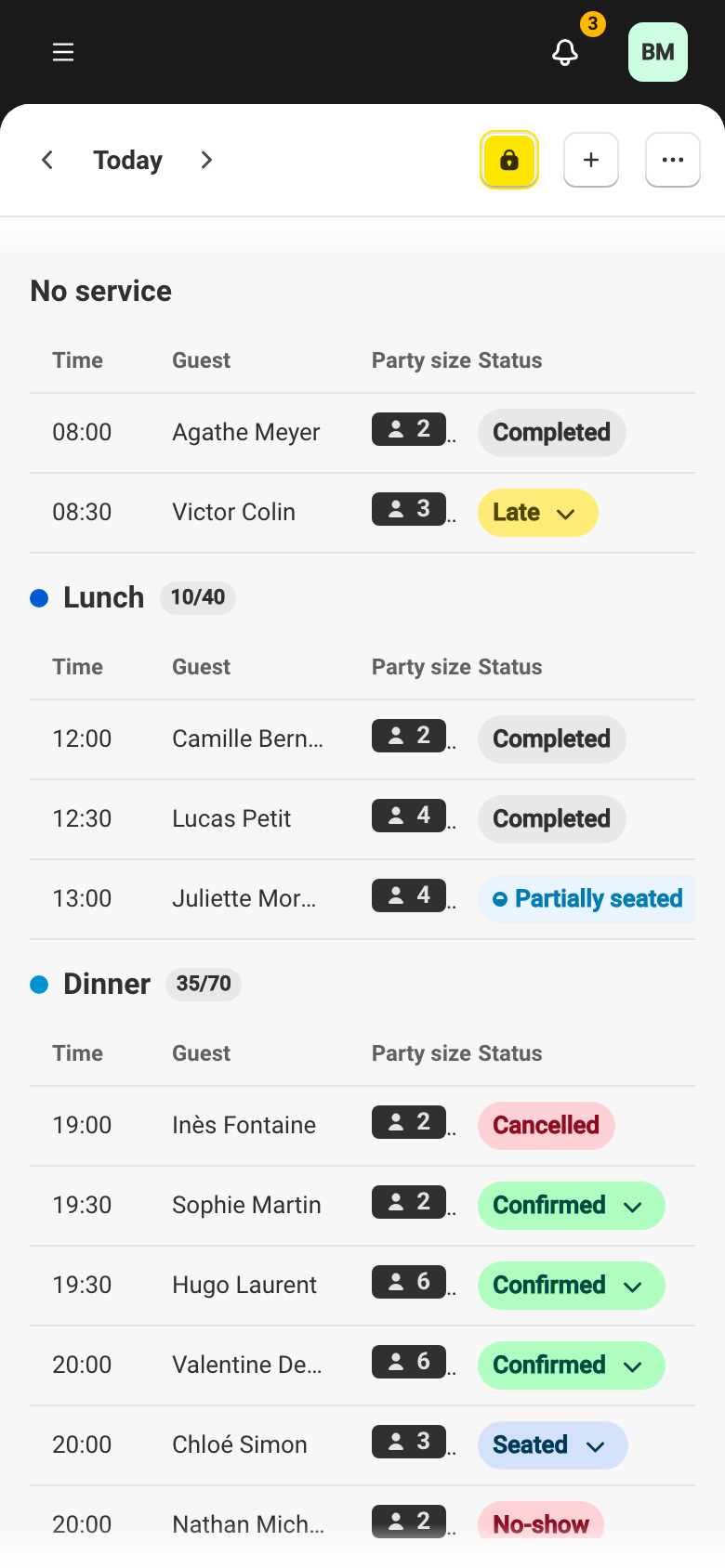
- List — a table of reservations, with the Time, Guest, Source, Party size, Tables, Status and Guarantee columns.
- Chronological — a time grid, one block per reservation. See The chronological view.
Move through the day
Section titled “Move through the day”The date bar changes the day, with Previous day, Next day and Today to return to the current date. The service filter shows All services or one service, and applies to all three views. The + Add button opens the create menu: New reservation or Walk-in, plus Add to the waitlist if the waitlist is on for one of the day’s services.
The workspace
Section titled “The workspace”The page is a workspace: a main view and a side pane. The pane shows, depending on what you open, a reservation’s detail, the reservation form (create or edit), or table assignment. It stays in place when you switch views.
On desktop the pane sits beside the view; you can Collapse, Expand or resize it. On mobile the view and the pane take the screen in turn, and a button toggles between them.
Clicking a table on the plan opens its card, with the table’s reservations for the day.