Promote a guest from the waitlist
A request in the queue only becomes a reservation if someone promotes it, you or the app. The setting that decides which of the two is covered in the waitlist. This page covers the promotion you do yourself, which stays available whatever that setting says.
Promoting
Section titled “Promoting”-
In the reservations list, open the queue for the service concerned: the Waitlist link under its name. A request with a matching table carries the Table available badge; the others carry On waitlist.
-
Click the badge and choose Promote…. On a request that has a match, it is the first item in the menu.
-
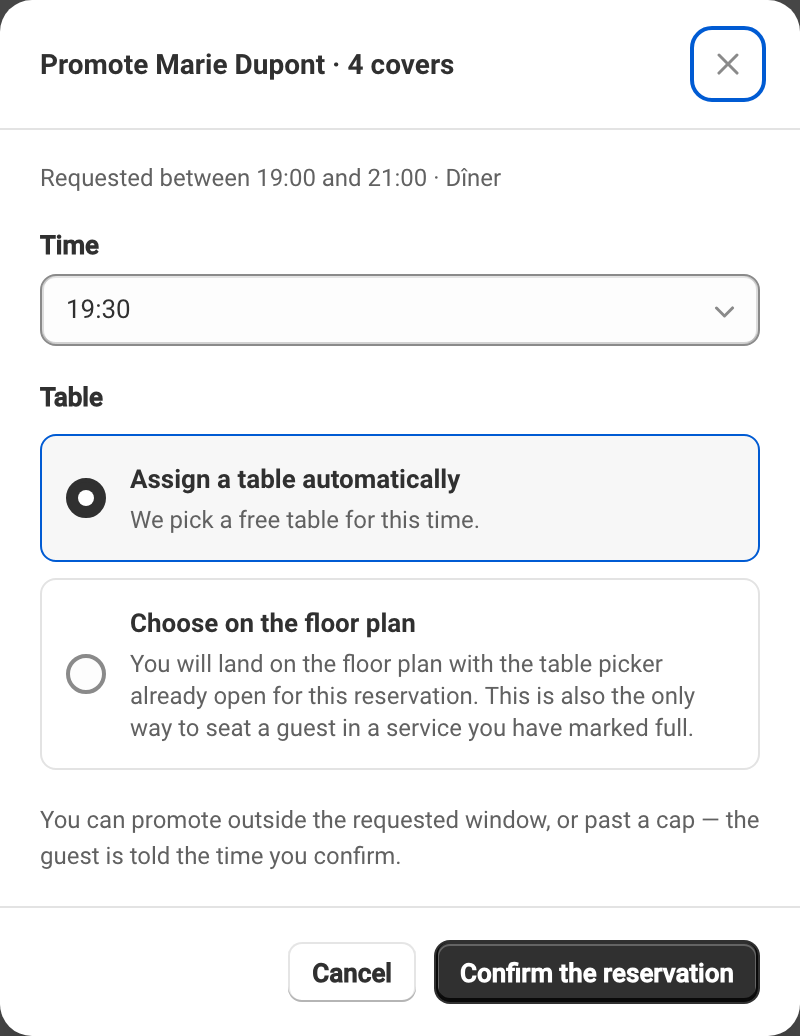
Pick the Time. The original request is recalled at the top of the window, as Requested between 19:00 and 21:00 · Dinner.
-
Pick the Table, then confirm.
The reservation is created and the guest is emailed the time you confirm. They also get a text message if you have turned that channel on for promotions. The message The reservation is confirmed and the guest has been told. appears.
Two of the service’s settings change this step, and never both at once:
| The service… | What step 4 does |
|---|---|
| asks the guest to confirm | offers the table instead of booking it — see the next section |
| asks for a card imprint on this request | creates the booking and asks for the card: the guest gets a link, the table is held for them until the deadline, and they are not told the booking is confirmed — the only message they receive is the one asking for the card |
In the second case, Ask for a card imprint is ticked by default in the Promote… window. Untick it to confirm the table without a card: the booking is then created as above, with the usual confirmation email.
Ask the guest to confirm
Section titled “Ask the guest to confirm”On a service where guest confirmation is on, the window shows Ask the guest to confirm, ticked by default. The table is then offered rather than booked: it is held for the guest until the deadline, and the reservation only exists once they have confirmed. The full sequence is described in the table offer.
Untick it if you have the guest on the phone: you already have their answer, and the reservation is created straight away.
The box does not appear with Pick on the floor plan. Naming the tables yourself confirms directly.
The time is not constrained by the request
Section titled “The time is not constrained by the request”The Time list covers the whole service, not only the requested window. Times outside it are listed too, followed by · outside the window, and you can pick them. You can also promote into a service that has reached its covers cap: a promotion you make by hand is never blocked by capacity, unlike an automatic one.
The guest is told the time you confirm, not the one they asked for.
Assign a table, or choose it yourself
Section titled “Assign a table, or choose it yourself”Assign a table automatically confirms the reservation straight away, on a free table at that time.
Choose on the floor plan does not create the reservation yet. The button becomes Choose a table and you land on the floor plan with the table picker already open for this reservation. The reservation is created when you confirm the tables.
This is also the only way to seat a guest in a service you have marked full: automatic assignment refuses it, and naming the tables lifts the block.
While you are on the floor plan, the request stays in the queue. If you leave without choosing a table, nothing was created and the request is untouched.