Guest profiles
Service gathers every profile in your venue in one place: one profile per person, with their contact details, visits and status. It is your guest database, kept current with every reservation. You reach it from Guests.
The guest list
Section titled “The guest list”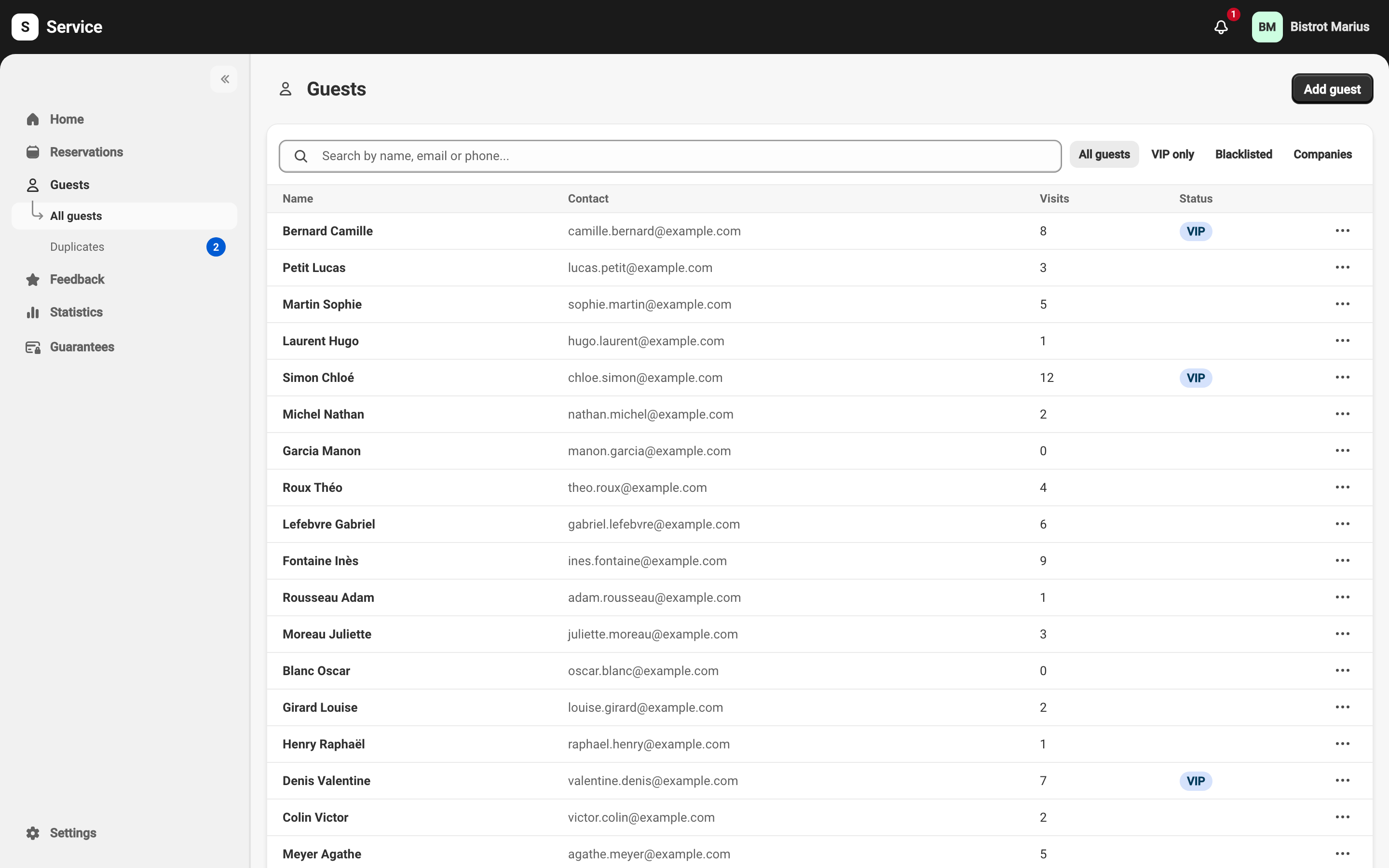
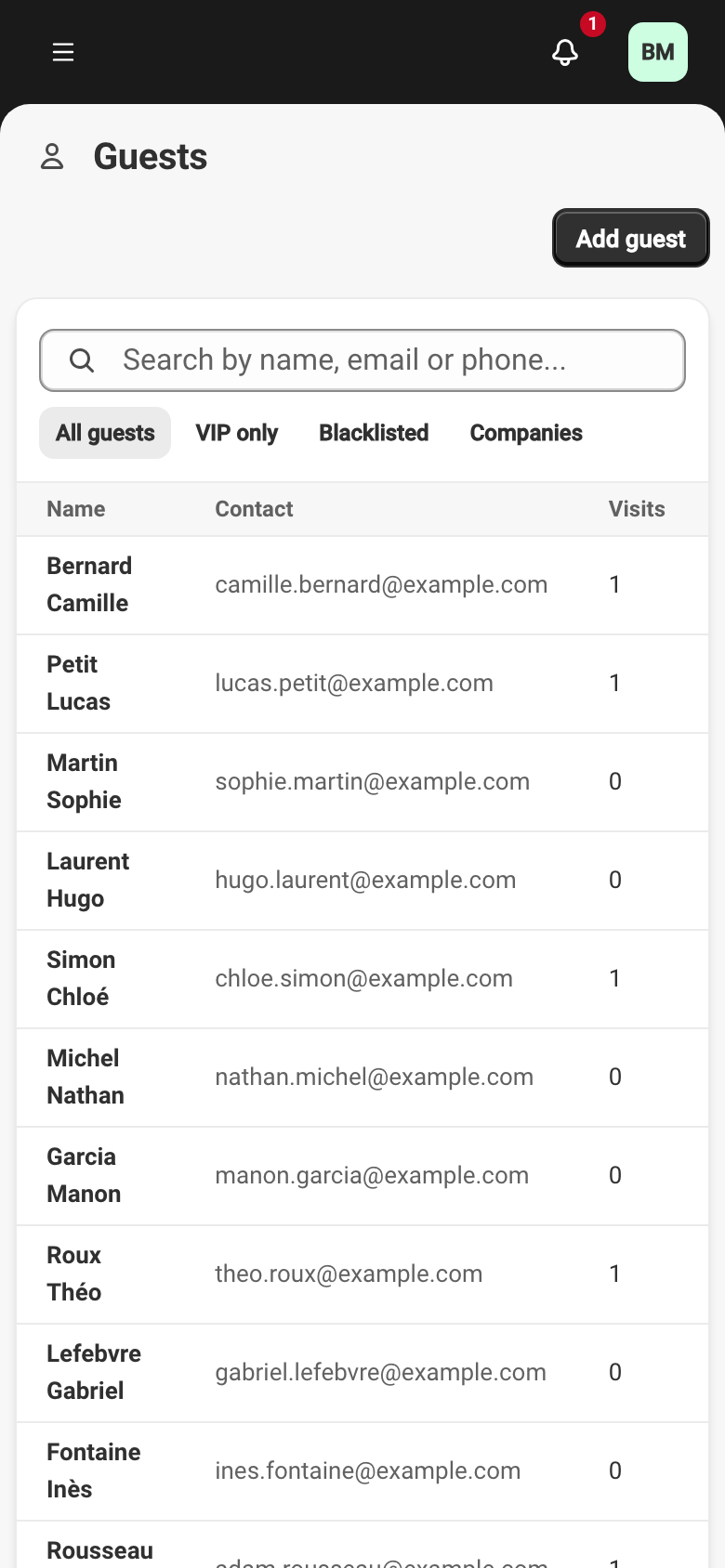
The list shows one row per guest, with four columns:
- Name — the guest’s name.
- Contact — their email or phone.
- Visits — how many times they have come.
- Status — the markers set on the profile: VIP, Blacklisted or Allergies.
The search field takes a name, a phone number and an email at once, and keeps only the profiles matching everything you typed: “durand 06 11” looks for a Durand whose number starts 06 11. Names are searched from their start, not their middle — “ari” does not find Marie.
Tabs narrow the list: All guests, VIP only and Blacklisted, joined by Companies as soon as your directory holds one — see Companies.
To add a profile by hand, use Add guest at the top of the list. A guest rarely books by hand: most profiles create themselves on the first reservation, online or at the counter.
A guest’s profile
Section titled “A guest’s profile”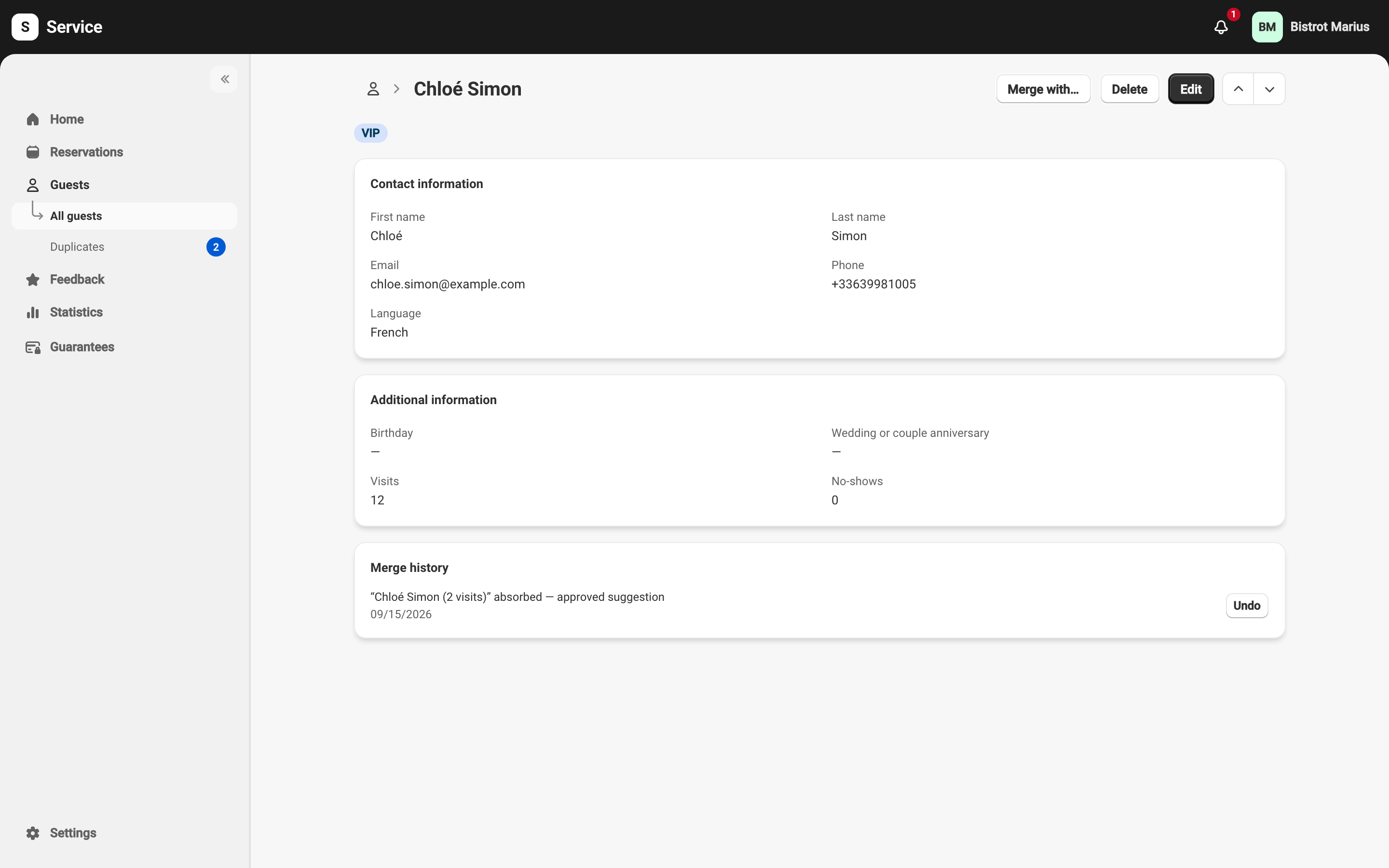
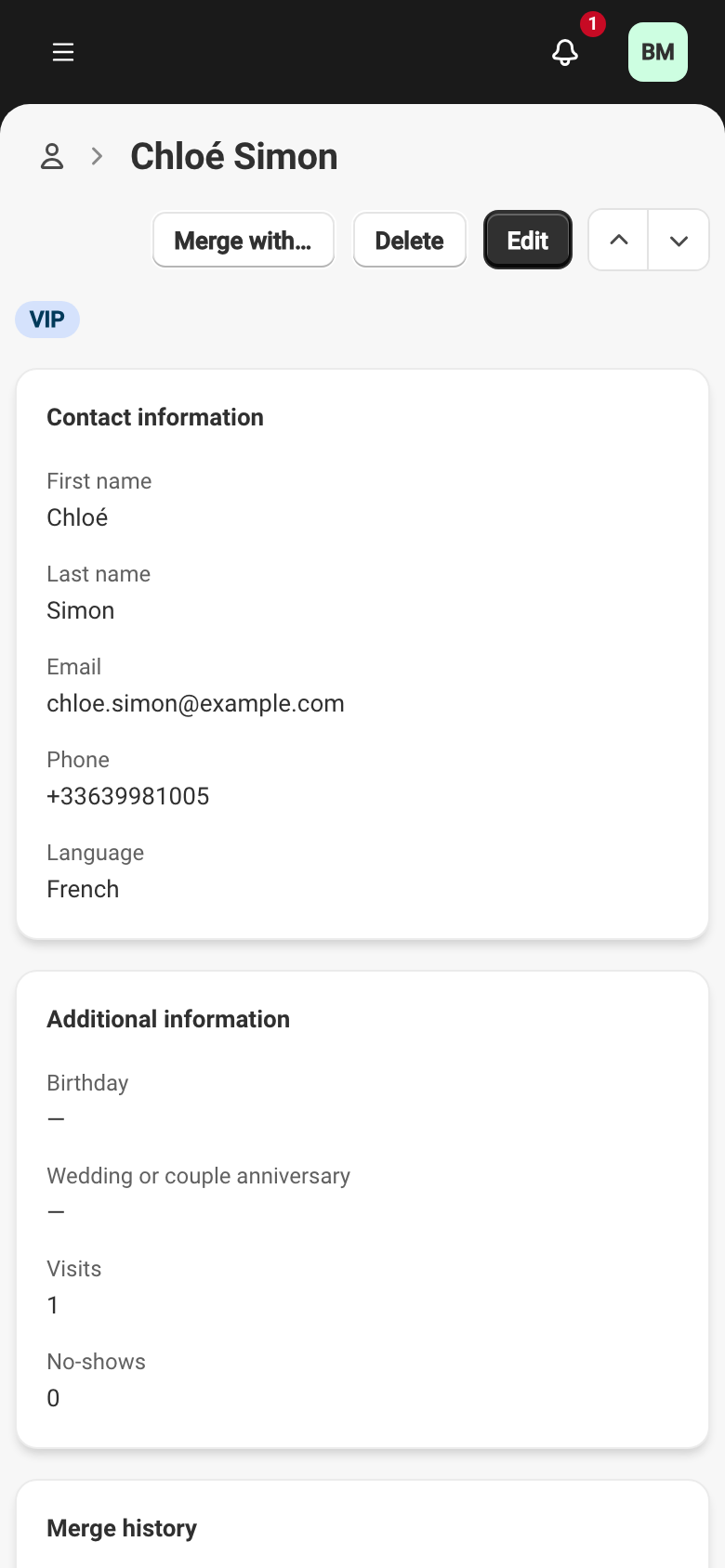
Click a row to open the profile. It gathers:
- Contact information — the guest’s first name, last name, email, phone and language. The language decides which language Service writes to them in.
- Other contact details — the secondary emails and phones known for this guest, alongside the primary one. This section appears when a profile has any — often after a merge, which keeps the contact details of both profiles it joined. See Merging two guest profiles.
- Additional information — the birthday, the anniversary, the visit count, the no-show count, free-form notes and, for a blacklisted guest, the reason.
Three markers can show at the top of the profile and in the list:
- VIP — a guest to look after.
- Blacklisted — a guest to stop accepting. The reason is required and shows on the profile.
- Allergies — the profile carries one or more allergies. The detail travels with the reservation so the kitchen is warned.
If a guest’s email has bounced, a banner at the top of the profile flags it and offers to fix the address — without a valid email, this guest receives no confirmation or reminder.
Creating or editing a profile
Section titled “Creating or editing a profile”Add guest opens a blank profile; Edit opens the current one. Both show the same form: contact details, language, birthday and anniversary, notes, and the VIP and Blacklisted markers. Ticking Blacklisted reveals a Blacklist reason field, which is required. A first name or a last name is enough: a profile does not need both.
A few fields belong to other pages:
- The contact details your team must capture are set elsewhere. See Required contact details.
- Marketing consent and the transactional-SMS opt-out are set in the edit form. See Your guests’ data.
- While you type, if the email or phone matches an existing profile, Service shows Possible duplicate and offers to open that profile. See The duplicates queue.
- Usual company links this guest to a company in your directory, which is then suggested by default whenever they book. See Companies.
From a profile, Merge with… joins this guest with another profile when two profiles describe the same person. See Merging two guest profiles.
Deleting a profile
Section titled “Deleting a profile”Delete removes the profile for good. The action cannot be undone and Service asks for confirmation. What a deletion takes with it, and the alternative of unsubscribing rather than deleting, are described in Your guests’ data.
Ranking your top guests and analysing how often they visit belong to statistics, described on their own page.