Venue information
The Venue screen holds your venue’s identity: its name, contact details, time zone, appearance and logo. This information feeds your booking widget and the emails Service sends your guests.
SettingsVenue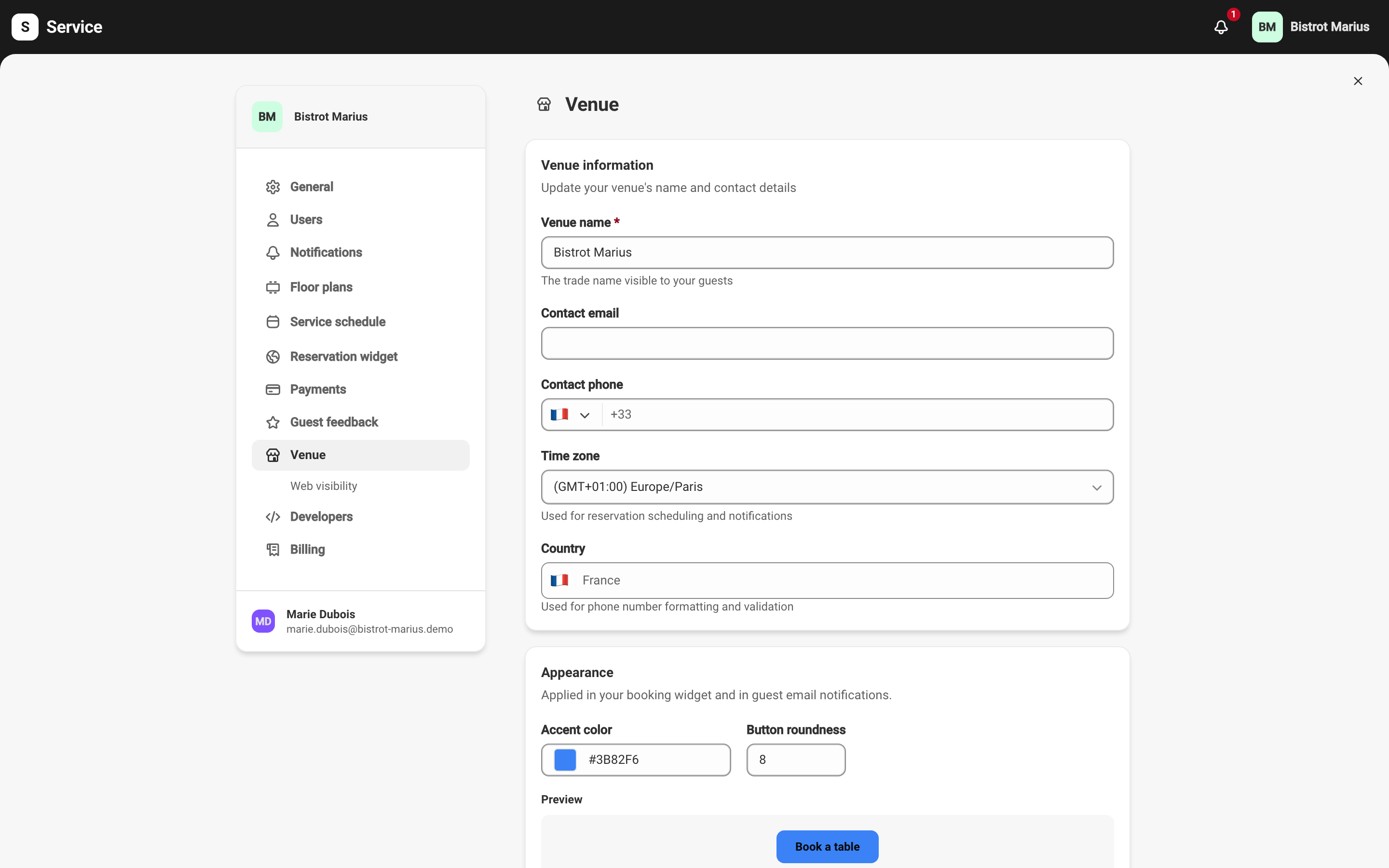
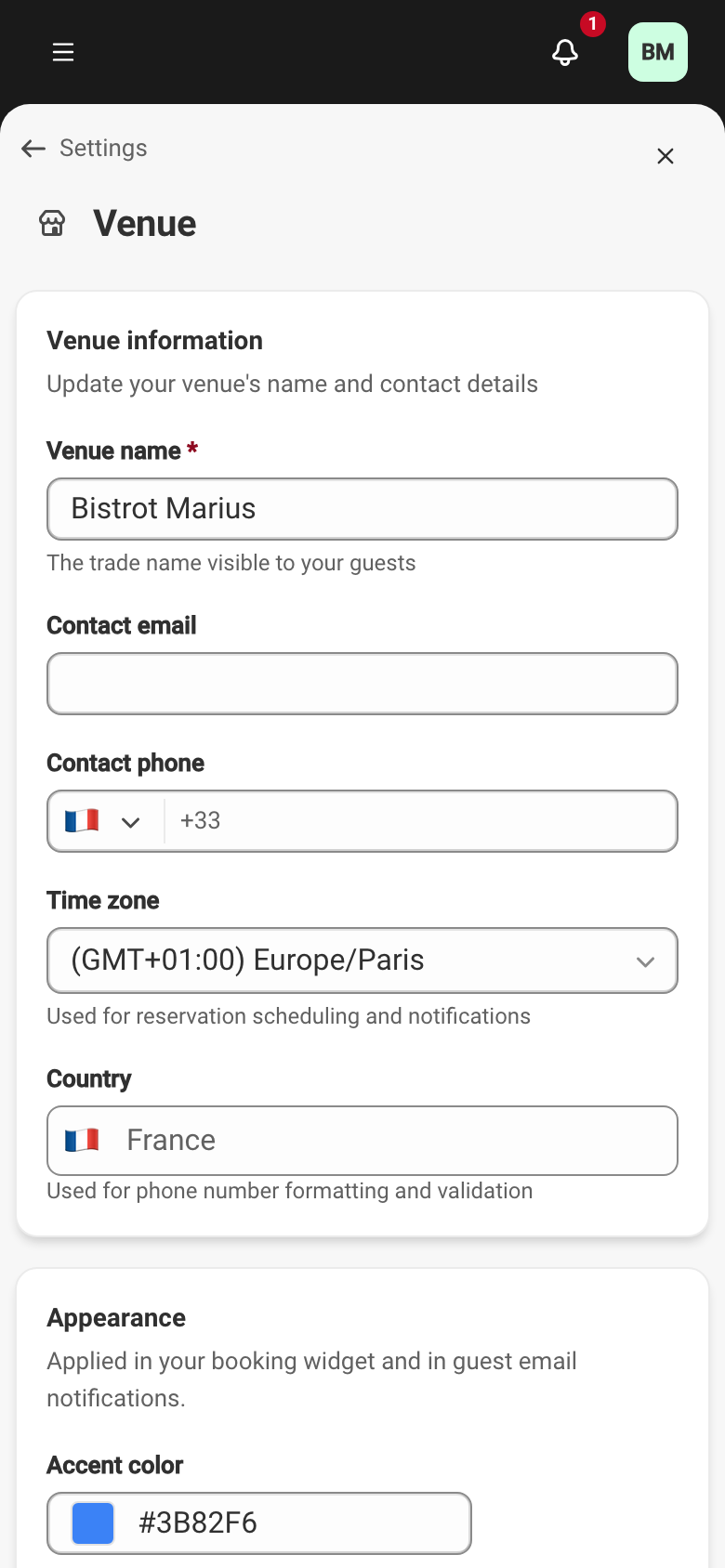
Venue information
Section titled “Venue information”- Venue name — the trade name your guests see.
- Contact email — the venue’s contact address.
- Contact phone — the contact number, formatted for the country.
- Time zone — used for reservation scheduling and notifications. Set it before you open bookings: it determines the time of every slot.
- Country — used for phone number formatting and validation.
Appearance
Section titled “Appearance”The color and roundness set here are applied in your booking widget and in guest email notifications.
- Accent color — the main color of your widget and your emails.
- Button roundness — how rounded button corners are, from 0 (square corners) to 32.
A Book a table preview next to the fields reflects the chosen color and roundness live.
Venue logo
Section titled “Venue logo”The Venue logo field accepts a PNG, JPEG or WebP file up to 2 MB. The logo appears in emails and the booking widget. The Remove logo button shows only when a logo is already in place. Uploading and removing take effect on save, together with the rest of the screen.
Web visibility
Section titled “Web visibility”The Web visibility sub-tab gathers your venue’s public links, so your guests can find you online.
SettingsVenueWeb visibilityFour fields: Website URL, Instagram URL, Facebook URL and
X (Twitter) URL. Each field is optional and expects a full address (for
example https://example.com).
How your changes are saved
Section titled “How your changes are saved”Settings screens do not save field by field. As soon as you change a value, an Unsaved changes bar appears at the top of the screen and stays there as you scroll. It carries two actions:
- Save — applies your changes.
- Discard — drops the unsaved changes and returns to the previous values.
Until you click Save, nothing is sent. On the Venue screen, a single save covers the information, the appearance and the logo at once.