Notifications
The Notifications screen holds two separate settings: what your guests receive (by email and SMS) and what your team receives (as popup and push).
SettingsNotifications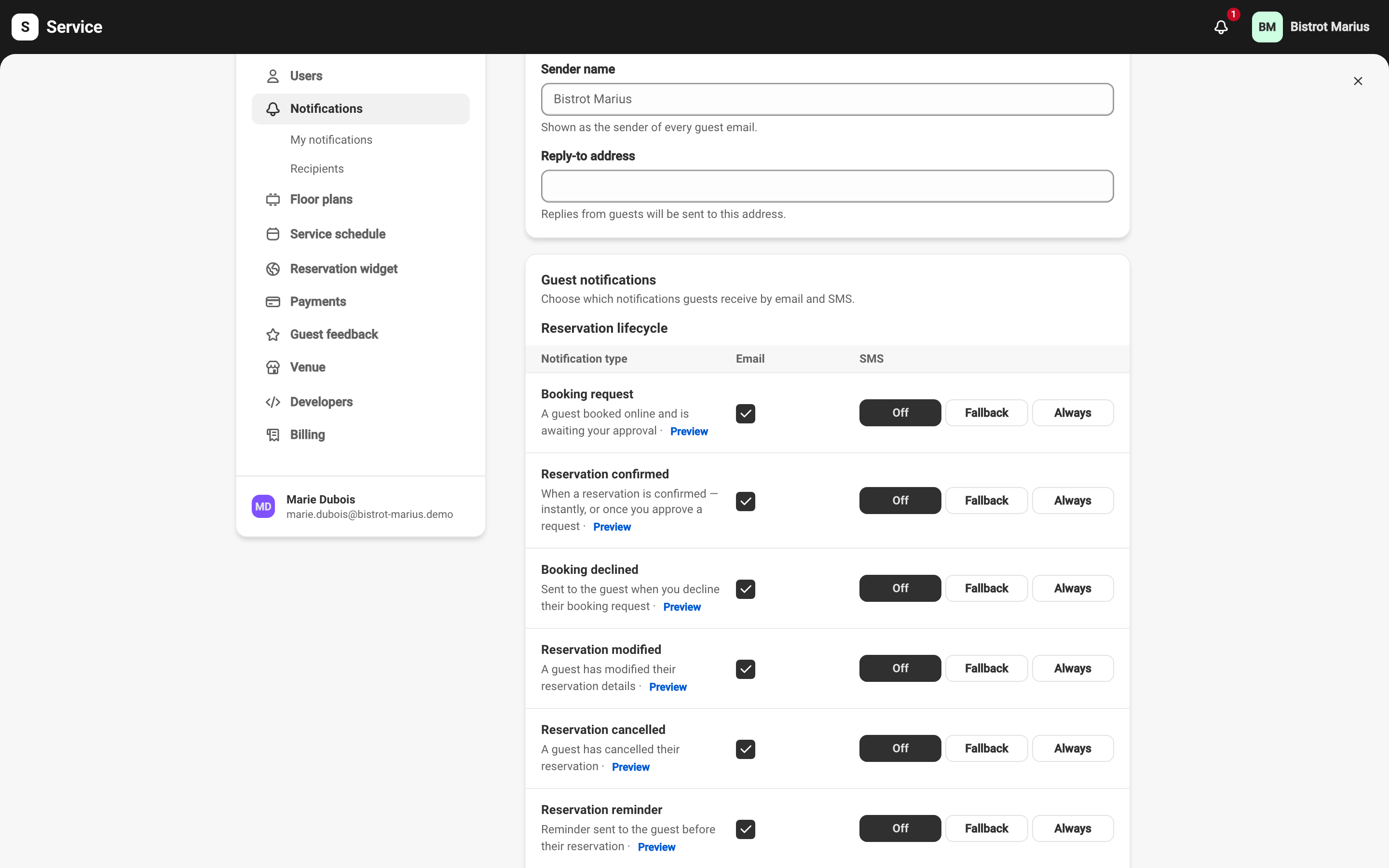
Guest notifications
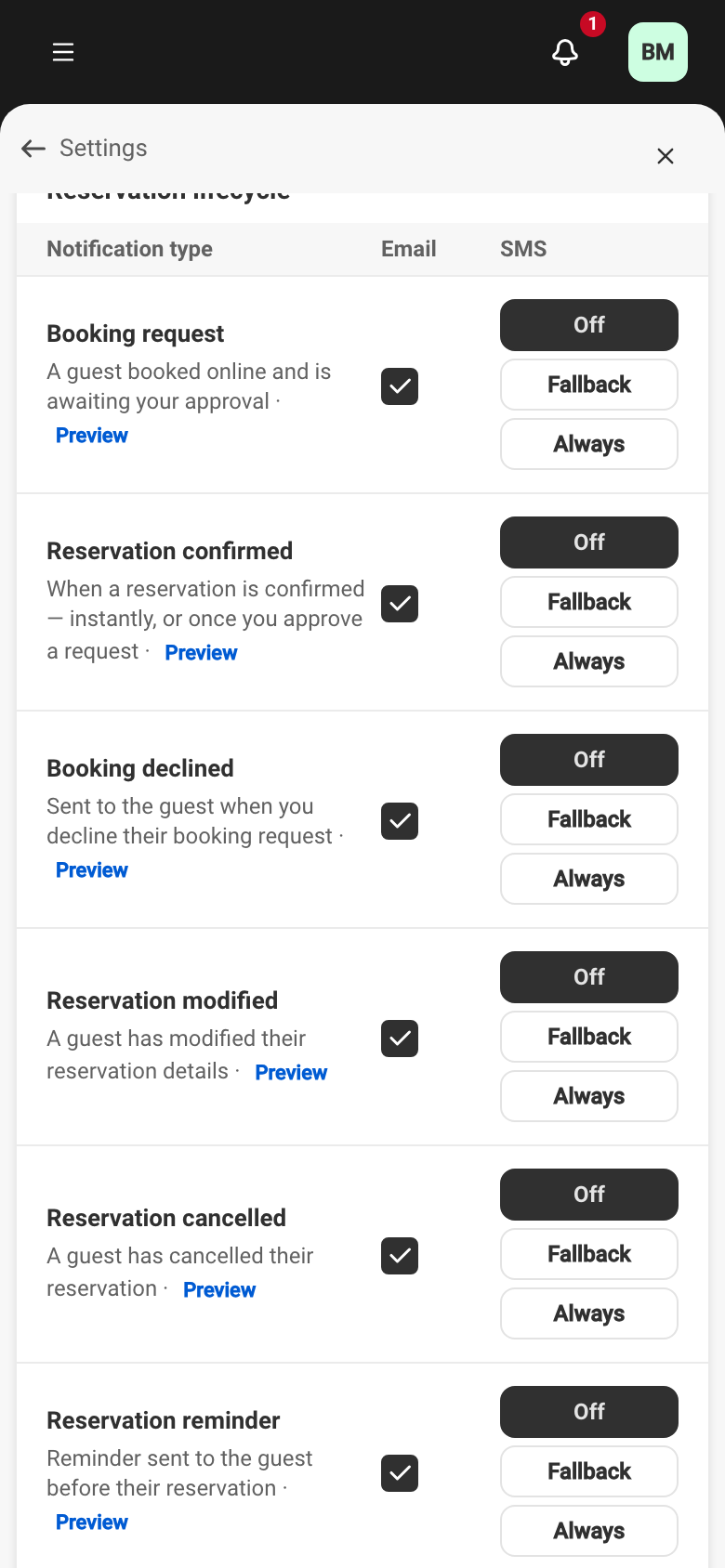
Section titled “Guest notifications”The Guest notifications table chooses what Service sends your guests, by email and by SMS, for each event type. The types are grouped into four sections: Reservation lifecycle, Guarantee, Waitlist and Feedback.
Each row carries two settings:
- Email — a checkbox turns the email on or off for that type.
- SMS — a list of three choices, each with a line saying what the guest
receives:
- Off — no SMS for this type.
- If no email — an SMS is sent only when the guest has no email address.
- Always — an SMS is sent every time.
The Guarantee and Waitlist emails carry the Always on label and can’t be turned off: a guest you ask for a card or a confirmation has to be able to receive the message. Their SMS is set normally. The Feedback emails are set from the guest feedback settings; their state shows here as read-only.
Sending SMS
Section titled “Sending SMS”SMS are billed. Until they are activated in your billing settings, switching a type to If no email or Always opens the Activate SMS to send guest texts dialog, which links to activation. Once SMS are activated, your settings save normally.
My notifications
Section titled “My notifications”The My notifications tab sets the alerts you receive personally. These settings apply only to you and are available whatever your role.
SettingsNotificationsMy notificationsEach event type offers two channels:
- Popup — the alert appears inside the back-office app.
- Push — the alert is sent as a notification on your phone or tablet through the Service mobile app.
Reservation requests to approve have no popup: they live in the Pending tab of the notification centre — see The notification centre.
Recipients
Section titled “Recipients”The Recipients tab lists the devices that receive push notifications. It is restricted to managers.
SettingsNotificationsRecipientsA device appears here automatically when a member of your team signs into the Service mobile app on their phone or tablet. Each row shows the device and its Status — Active, Inactive or Notifications disabled — and lets you deactivate, reactivate or delete it.
See also
Section titled “See also”- Personalizing your guest emails — the sender name, the reply-to address and the preview — is described in How your guest emails look.
- The language of each message depends on your guest content languages.