How your guest emails look
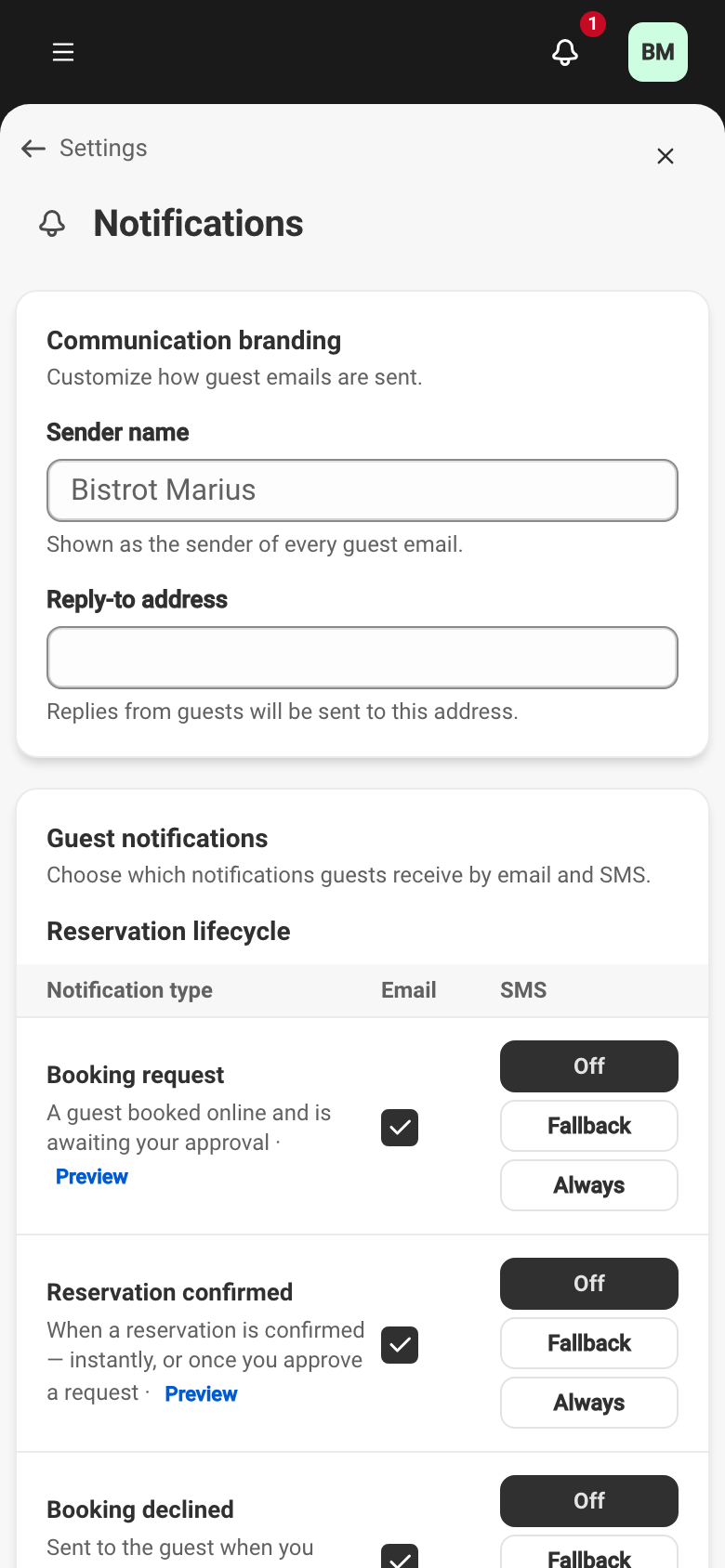
Service writes and formats the emails sent to your guests. On your side, you set who sends them and where replies arrive. Both settings live on the Notifications screen, in the Communication branding card.
SettingsNotifications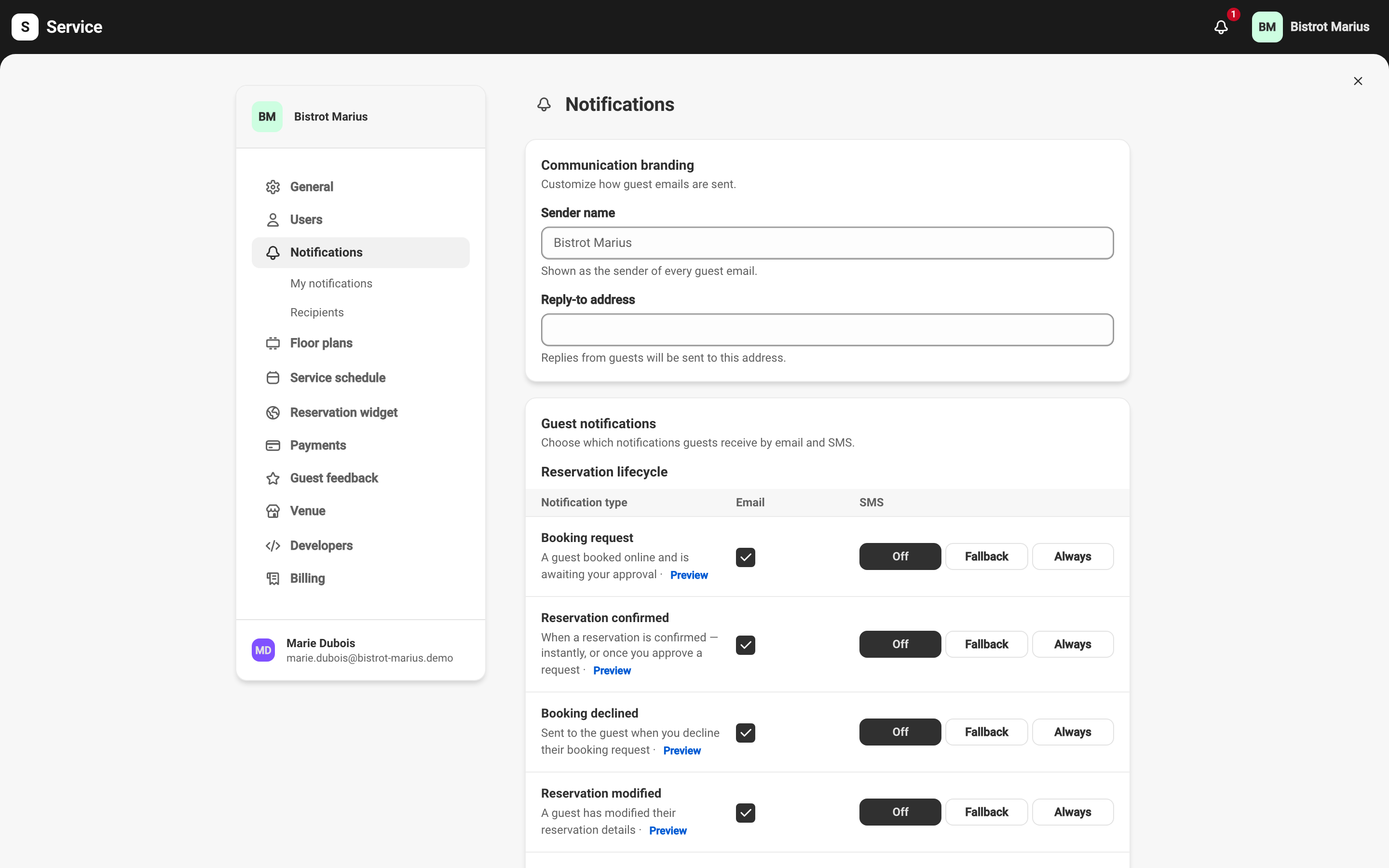
Sender name and reply-to address
Section titled “Sender name and reply-to address”- Sender name — shown as the sender of every guest email. It accepts up to 80 characters.
- Reply-to address — the address your guests’ replies arrive at. It must be a valid email address.
You change only these two fields. The content and structure of each email stay handled by Service, so your messages remain readable and consistent. The color and logo that dress these emails are set elsewhere, on the Venue screen — see Venue information.
Previewing an email
Section titled “Previewing an email”The guest notifications table carries a Preview button on each event type. It opens the rendered message, with a Language selector and a toggle between the Mobile and Desktop views. The preview is there to check the result; the links it contains only work in the real message.
The language of each email follows your guest content languages. Which event types trigger an email is chosen in the table described in Notifications.