Table assignment
Table assignment places a reservation on one or more tables. There are three ways to do it, each with its own entry point:
- The Table assignment panel — where you pick the tables by hand. Open it by clicking a reservation’s table chip (or, when no table is set yet, the dashed placeholder in its place). That chip appears on a reservation’s detail panel, in the Floor plan view’s side pane, and on a table’s detail card.
- The Tables field in the reservation form — when creating or editing a reservation. This is the only place that offers Automatic assignment, where Service picks the tables.
- Drag-and-drop on the floor plan — drag a reservation from one table to another, right on the plan.
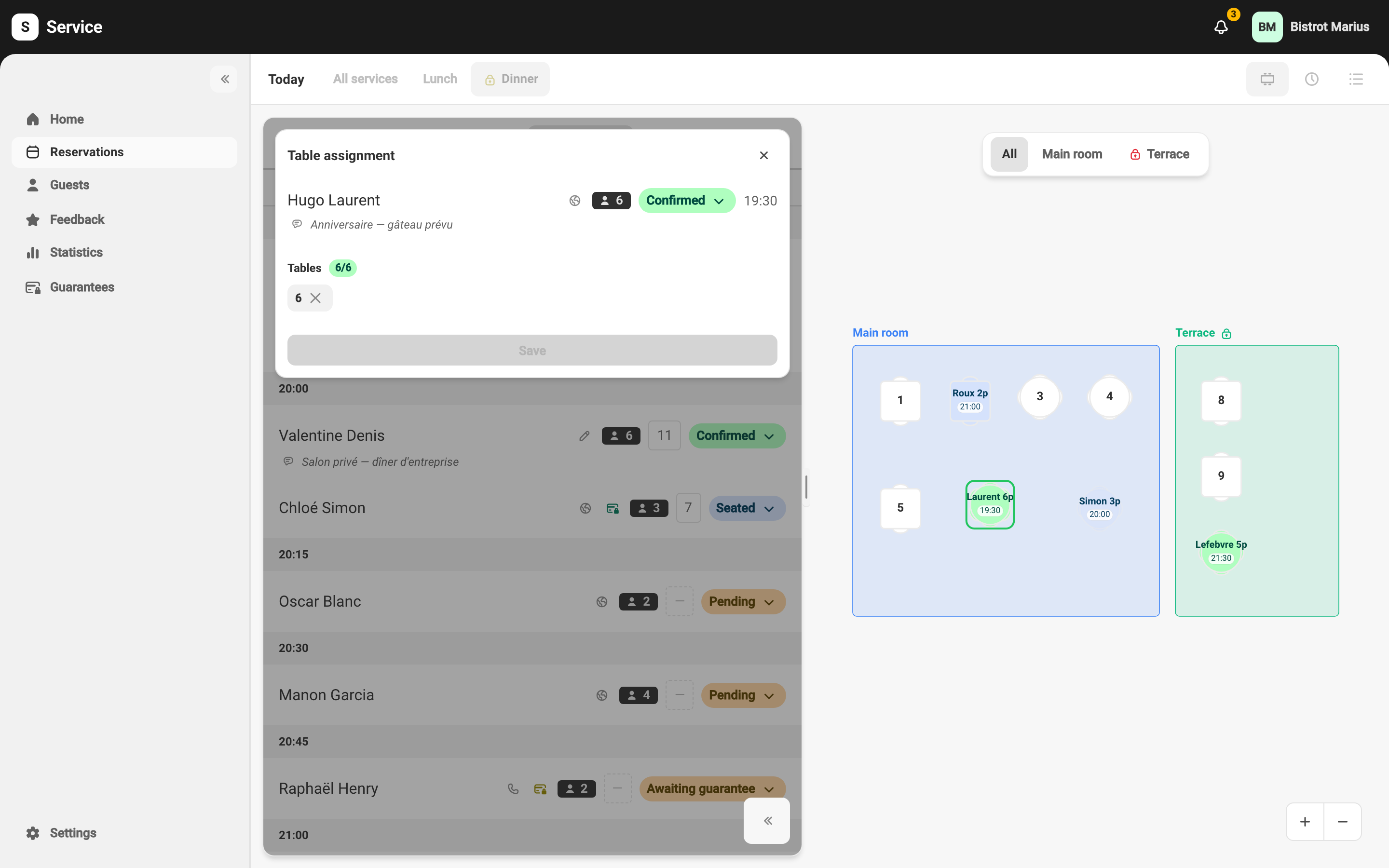
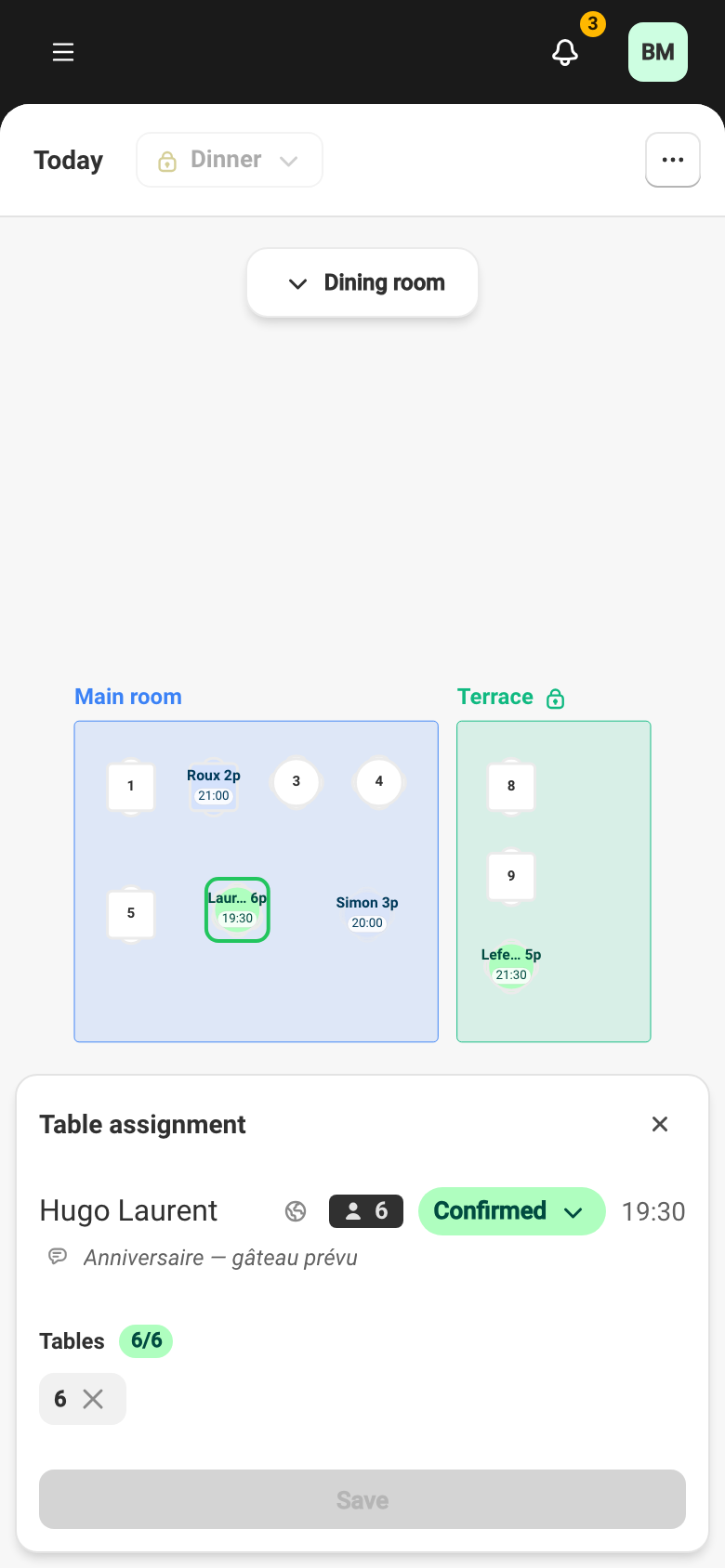
The Table assignment panel
Section titled “The Table assignment panel”Opened from a table chip, the panel is for choosing tables yourself — it has no automatic mode. It shows the reservation summary, the tables already picked (which you can remove), a badge of the assigned seat count, and a save button. Add or remove a table by selecting it on the floor plan.
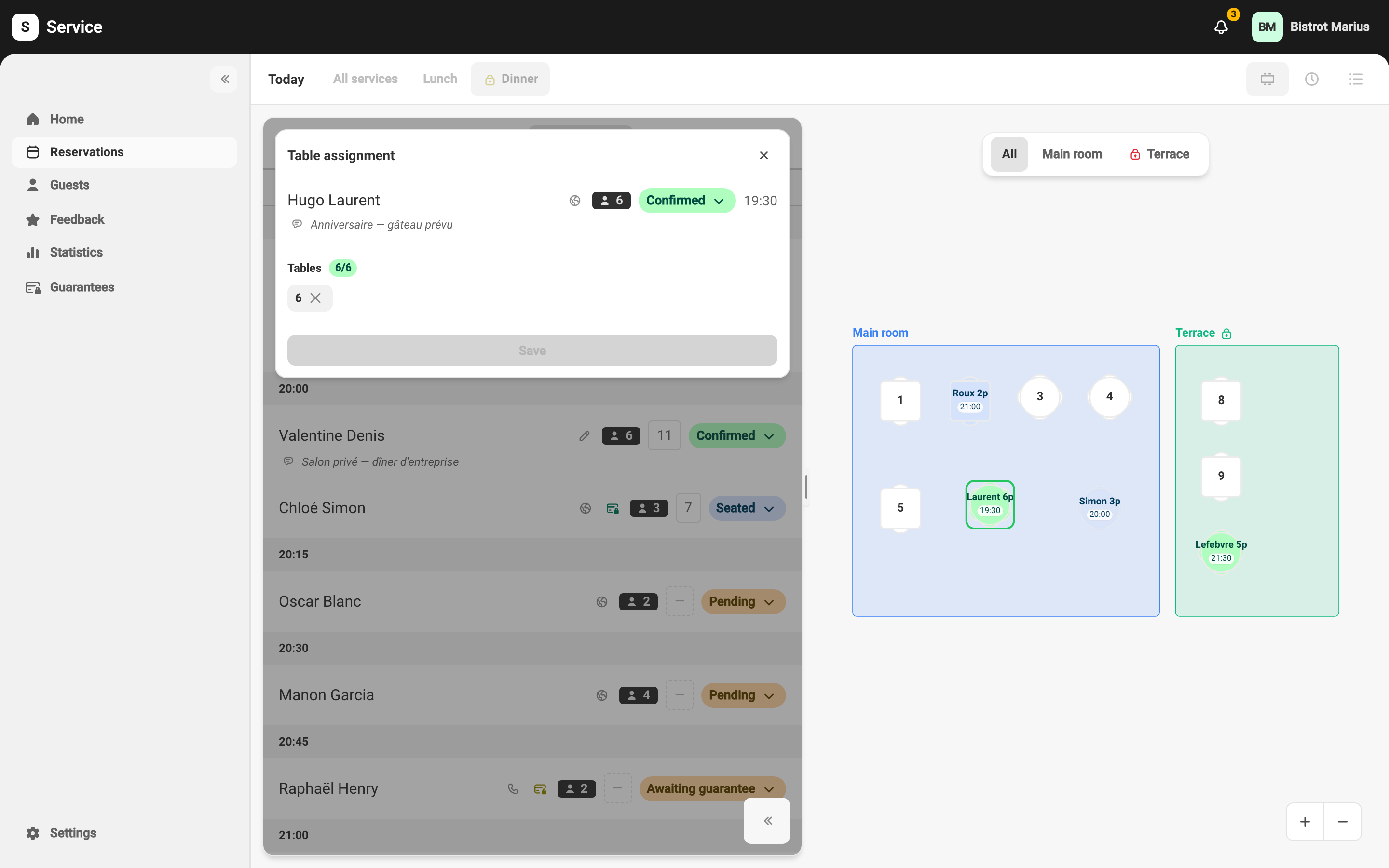
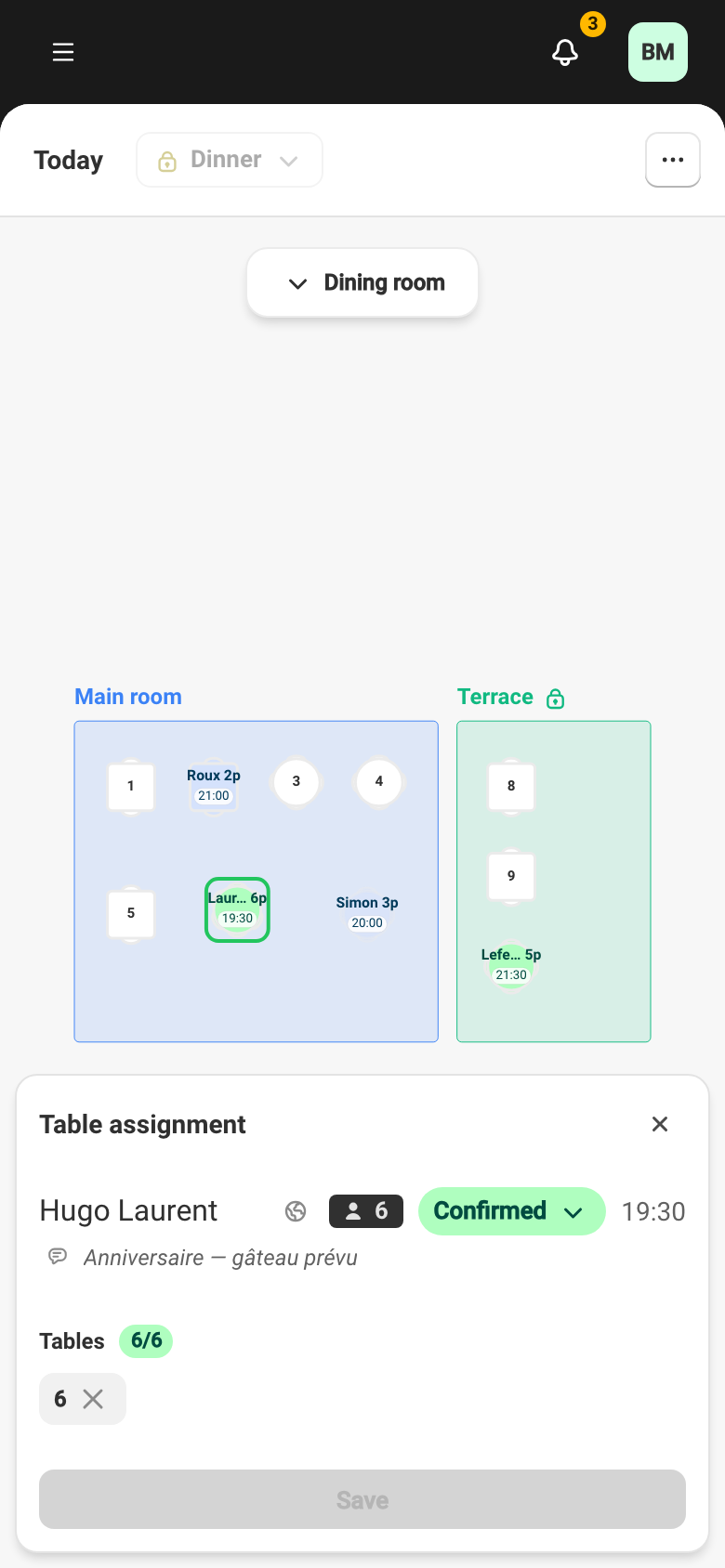
On the plan, selectable tables have a green outline and tables that are already taken appear in red.
The Tables field in the reservation form
Section titled “The Tables field in the reservation form”When creating or editing a reservation, the reservation form has a Tables field. It only appears once the party size and time are set — until then, a message prompts you to fill those first.
Unlike the panel, this field offers two modes:
- Automatic — Service picks suitable tables. The guest’s Preferred section guides the choice. When the service or slot is blocked, automatic assignment is unavailable.
- Manual — you select the tables yourself on the plan, as in the panel.
Drag-and-drop on the floor plan
Section titled “Drag-and-drop on the floor plan”In the Floor plan view, you can drag a reservation from one table to another to reassign it directly, without opening a panel. The move saves the new table right away.
Warnings and conflicts
Section titled “Warnings and conflicts”Service flags a problem table before you save:
- Occupied table — the table is already taken for this slot (“This table is currently occupied”).
- Blocked table or section — the table, or its section, is closed for the service.
- Outside the service’s sections — the table isn’t part of the sections this service uses.
- Outside the preferred section — you picked tables outside the section the guest asked for (“Tables outside the guest’s preferred section”).
If you select a conflicting table anyway, Service asks you to confirm (“Assign anyway?”). And if no table fits the slot (“No table fits this slot”), you can switch to Manual to place it yourself, or save the reservation with no table.
A reservation with no table
Section titled “A reservation with no table”You can save a reservation with no table and assign it later. A reservation in a terminal status can no longer change tables.
When you use the form’s Automatic assignment, the order in which Service picks tables is set in settings, under assignation priority (Floor plan section).